Size & Ratio
Follow the steps below to configure the size and background color of the EVOVA 3D viewer.
By adjusting the width-to-height ratio for each device and setting a background color that fits your brand, you can create a more polished and consistent showroom.
Access Path
EVOVA Admin > [3D Showroom] > Select Product > Click [Style] on the left
How to Use Viewer Settings
1. Click [Style Settings]
- After selecting a product in the Admin page, proceed to Style Settings
- Click
[Style] > [Preset Detail Settings] > [Size & Ratio Settings]
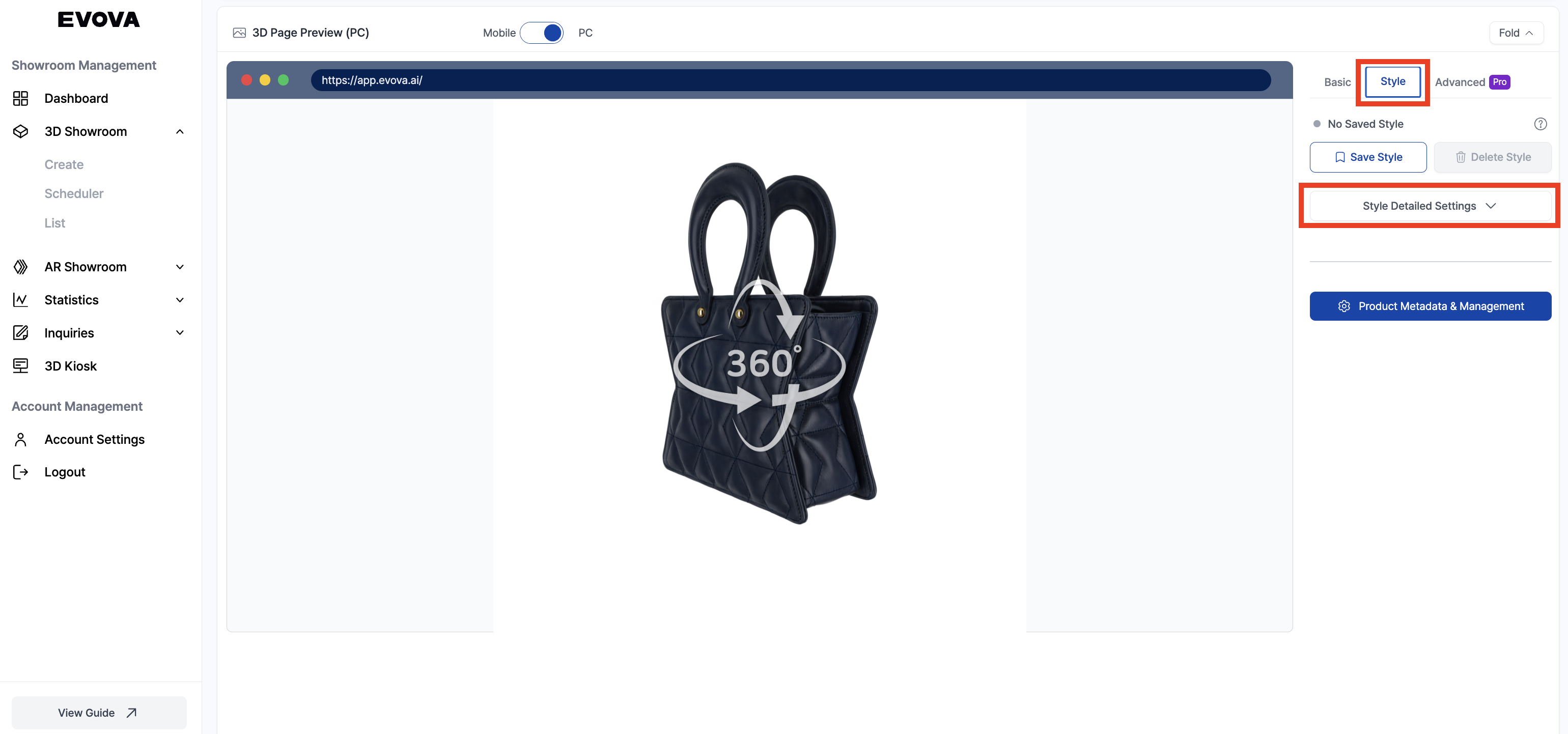 Image 1. Style Settings Tab
- In the preset detail settings tab, click on [Size & Ratio Settings].
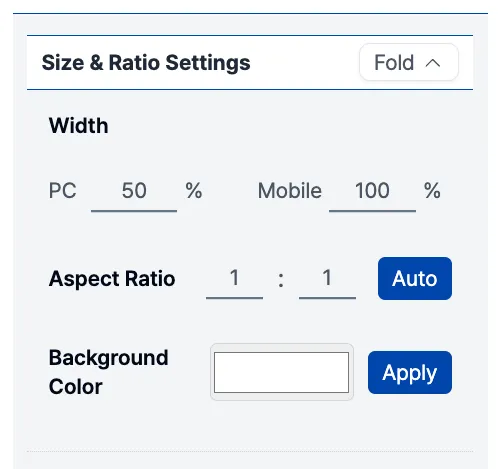 Image 2. Preset Detail Settings Tab
2-1. Set Viewer Width
- Go to
[Size & Ratio Settings] > Width Settings - The viewer width is set in percentage (%)
- You can configure separate values for PC and mobile screens
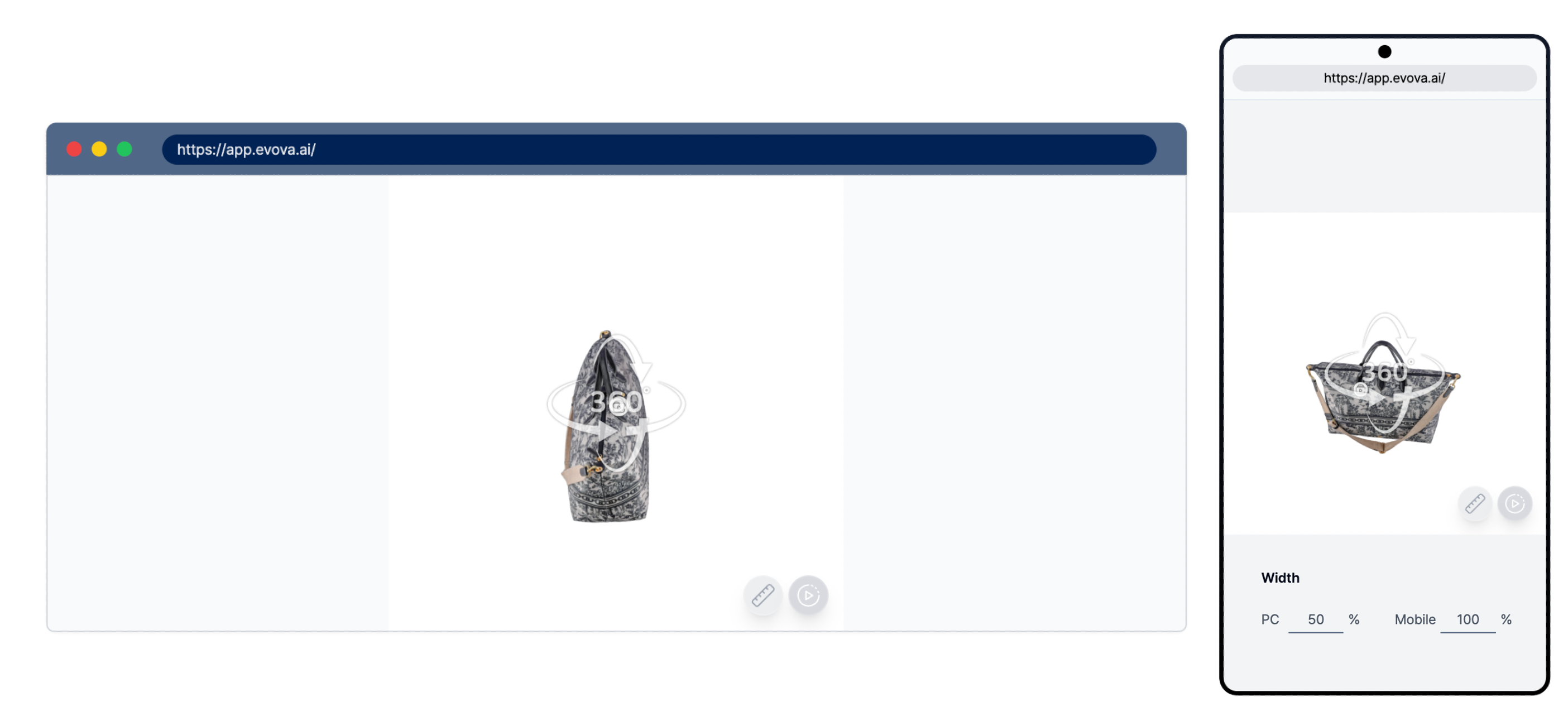 Image 3. Example – Viewer Width Setting
- For example, if you set 40% for PC and 100% for mobile, the viewer will display at 40% of the screen width on PC and 100% on mobile.
2-2. Set Aspect Ratio
- Go to
[Size & Ratio Settings] > Aspect Ratio Settings - By default, the height is calculated based on the entered width
- You can manually enter a ratio (e.g., 1:1, 4:3)
- For quick setup, click the
[Auto]button - This will automatically apply the aspect ratio based on the size and dimensions of the registered thumbnail image
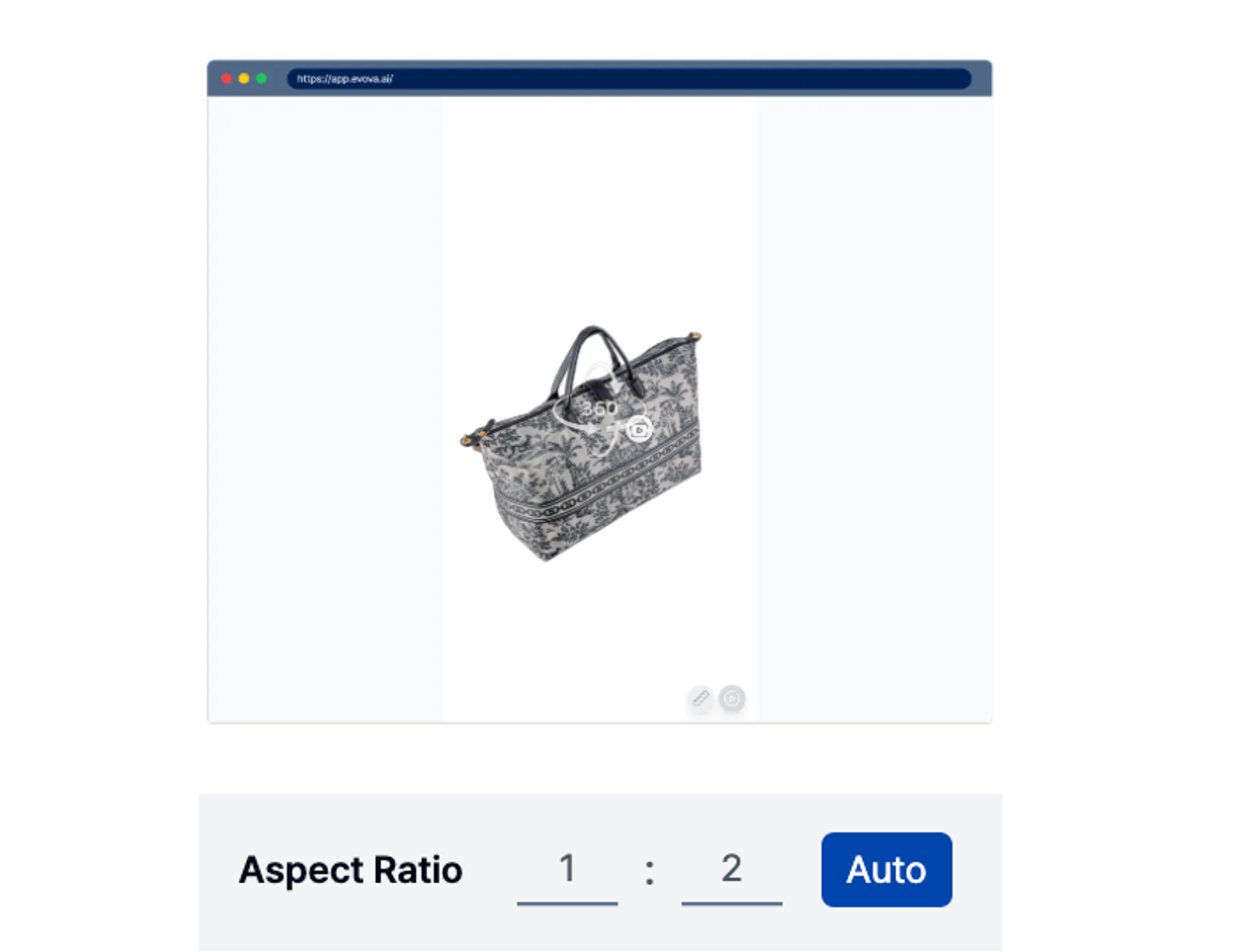 Image 4. Example – Aspect Ratio Setting
2-3. Set Background Color
- Go to
[Size & Ratio Settings] > Background Color Settings - You can manually enter a HEX code (e.g., #FFFFFF), or use the color picker to choose a color
- After setting the color, be sure to click
[Apply]to save the changes
Contact
If you have any questions, feel free to contact our support team.
Contact Email: info@metown.co.kr
Contact Phone: 010-6650-6300