3D Short Form
In EVOVA's 3D Showroom, you can insert brand-configured content such as videos, images, and GIFs as icon markers.
If you want to use the 3D Showroom content icon (3D Short Form) feature, please follow the steps below.
Access Path:
EVOVA Admin > [3D Showroom] > Select Product > Click [Advanced] on the left
Setup Procedure
1. Access EVOVA Site and Click [Advanced]
- Go to https://app.evova.ai/ and click on the 3D Showroom list.
- If you don't have an account yet, please sign up and log in.
EVOVA Admin > [3D Showroom] > List > Select Product > Click [Advanced] on the left
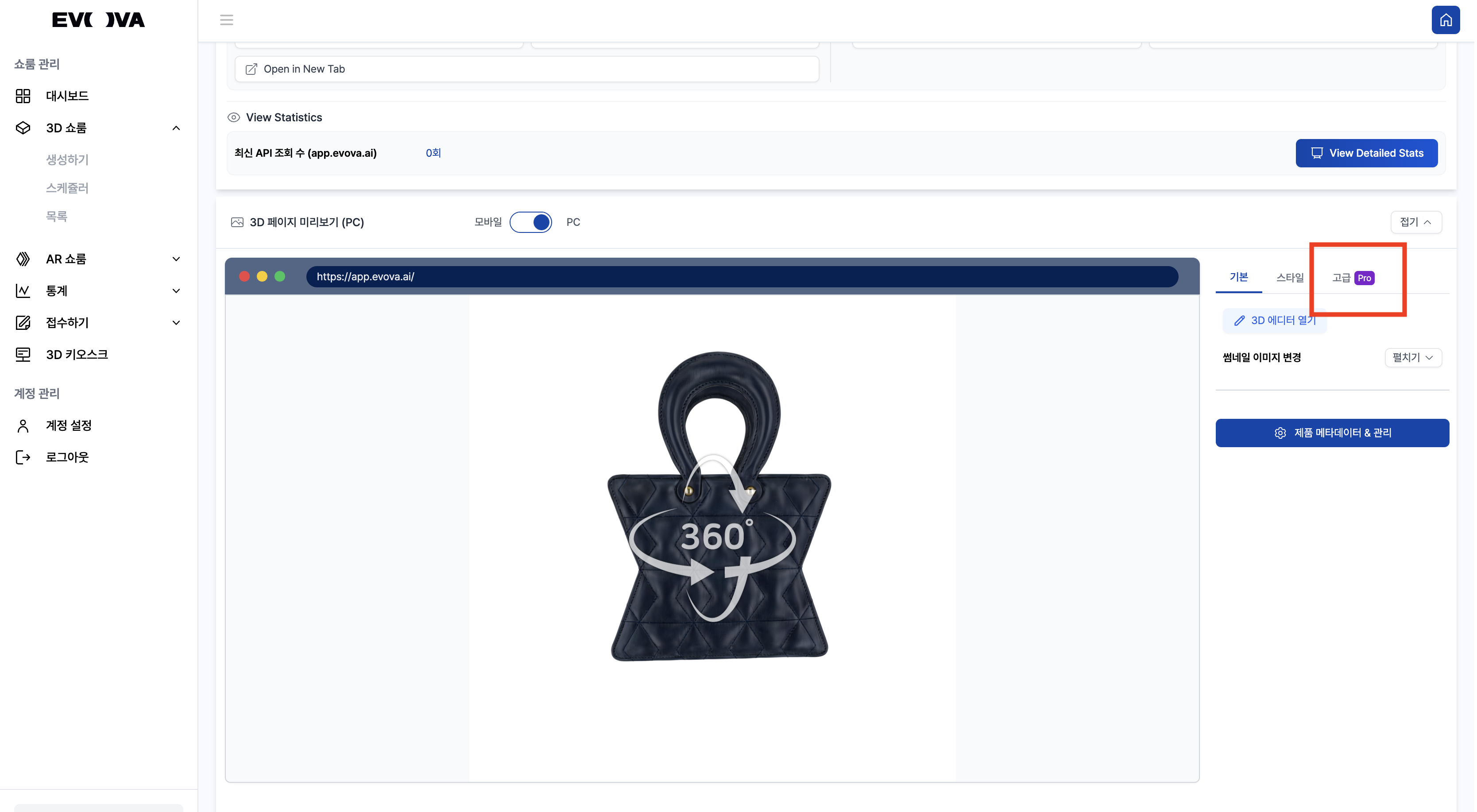 Image 1. Advanced Features
2. Click 3D Short Form
- Click
ONfor 3D Short Form in Advanced settings
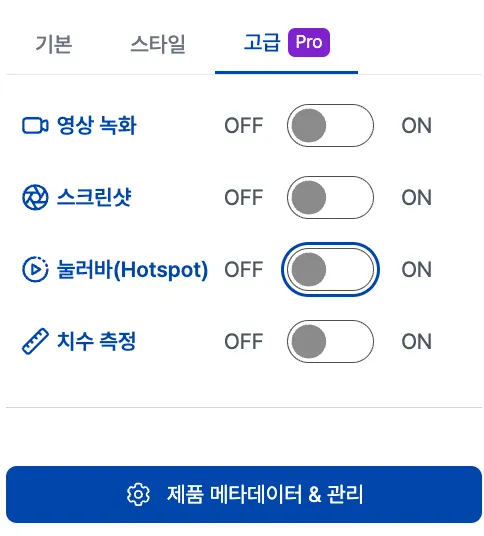 Image 2. Advanced Features - 3D Short Form
3. Set Content Icon Display Position
- Feature to display icons on the product in the 3D Showroom screen
- Place the icon at the desired position, and when consumers click it, content is displayed as a popup
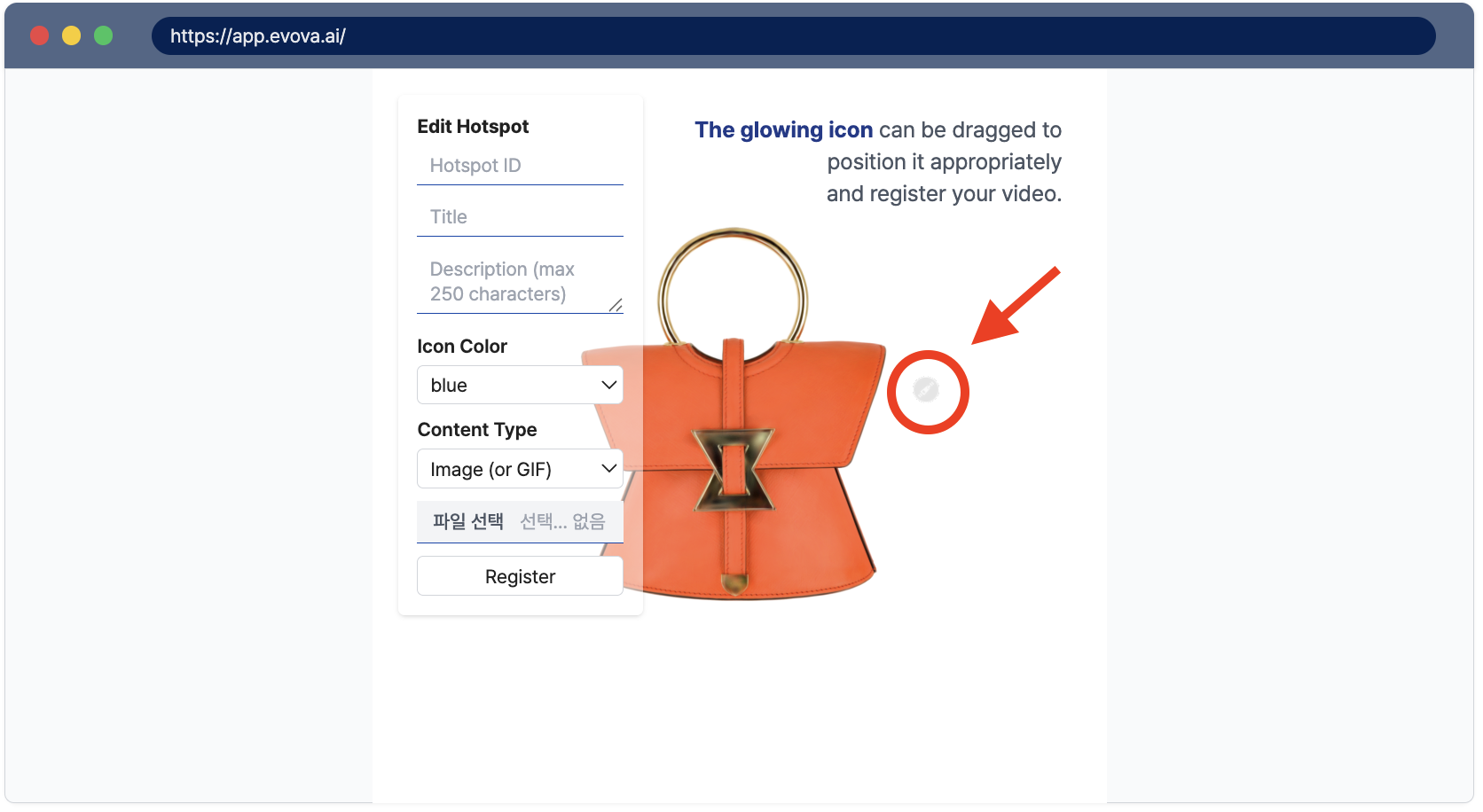 Image 3. Icon Position Settings
4. Set Internal Identifier (3D Short Form ID)
- Management ID that is not directly visible to consumers
- Recommended to set in an easy-to-remember way such as product name, file name, etc.
Example:
ProductName_3DShortForm1
5. Enter Title and Caption
- Text that is directly visible to consumers
- Enter a description for the icon within the 250 character limit
Example:
- Title:
Experience H Toile in 360° - Caption:
Where classic elegance meets practical sensibility - HAZZYS H Toile. Even in digital, the details are never flat. Check it out now in the EVOVA Showroom.
- Title:
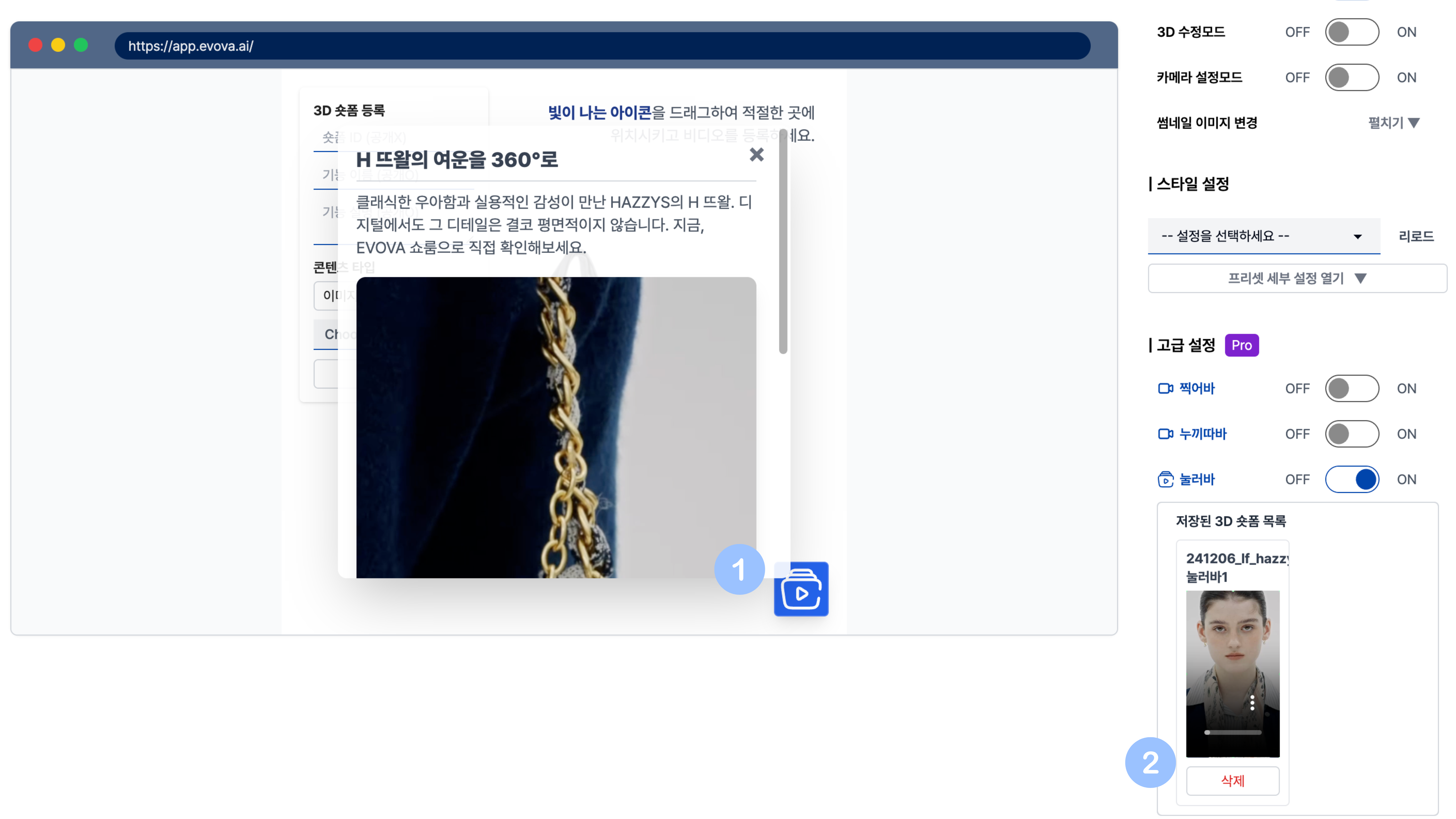 Image 4. Caption Input
6. Select Content Type
- Content can be selected from Video, Image, or GIF
- You can freely upload brand campaign videos, product lookbook images, etc.
7. File Upload
- Click the [Choose File] button to select a content file
- Please prepare video, image (or GIF) files in the appropriate upload format
8. Register Content
- When input and upload are complete, click the [Register] button
- Once registration is complete, a blue icon appears in the lower right of the 3D Showroom, and the content icon is displayed at the selected position
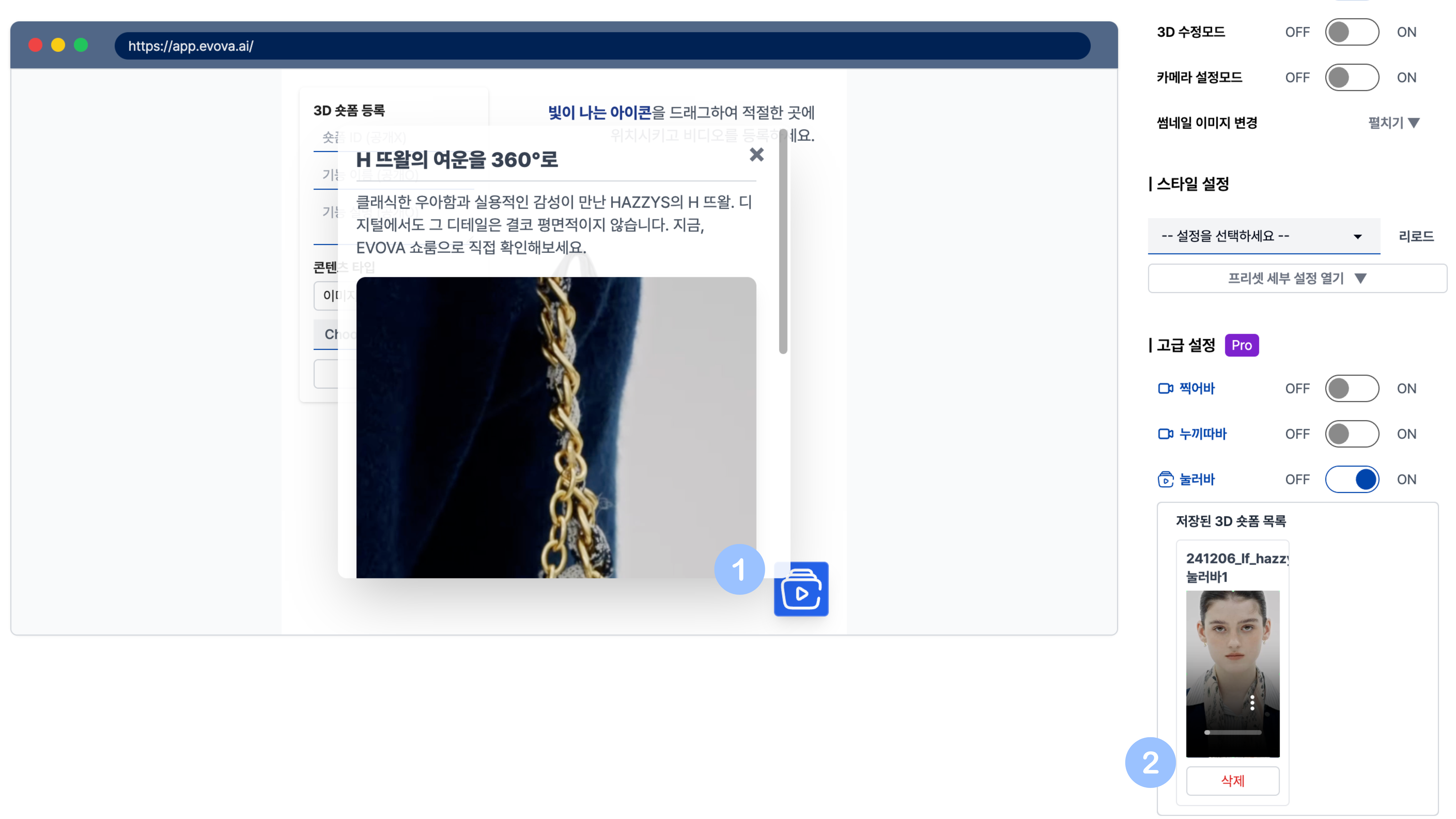 Image 5. Saved Content List
9. Check Results and Edit
- Clicking the
Content Icondisplays the registered content as a popup - Multiple 3D Short Form icons can be registered per product
- Registered items can be deleted or repositioned from the list
Closing
Adding Dimensions to E-commerce
EVOVA is always here to help make your brand experience more stable and special.
If you have any questions, please feel free to contact our support team.
Email: info@metown.co.kr
Phone: 010-6650-6300