Naver (Korean User Only)
This guide is only for Korean customers using Naver Smart Store.
⚠️ Service Unavailability Notice
This service is unavailable due to Naver Smart Store's policy changes as of May 28, 2025.
To apply EVOVA 3D Showroom to Naver Smart Store, please follow the steps below.
Registration Procedure
1. Access Naver Smart Store Center
- Go to Smart Store Center.
2. Navigate to Product Registration Page
- Click
[Product Management] > [Product Registration]from the left menu
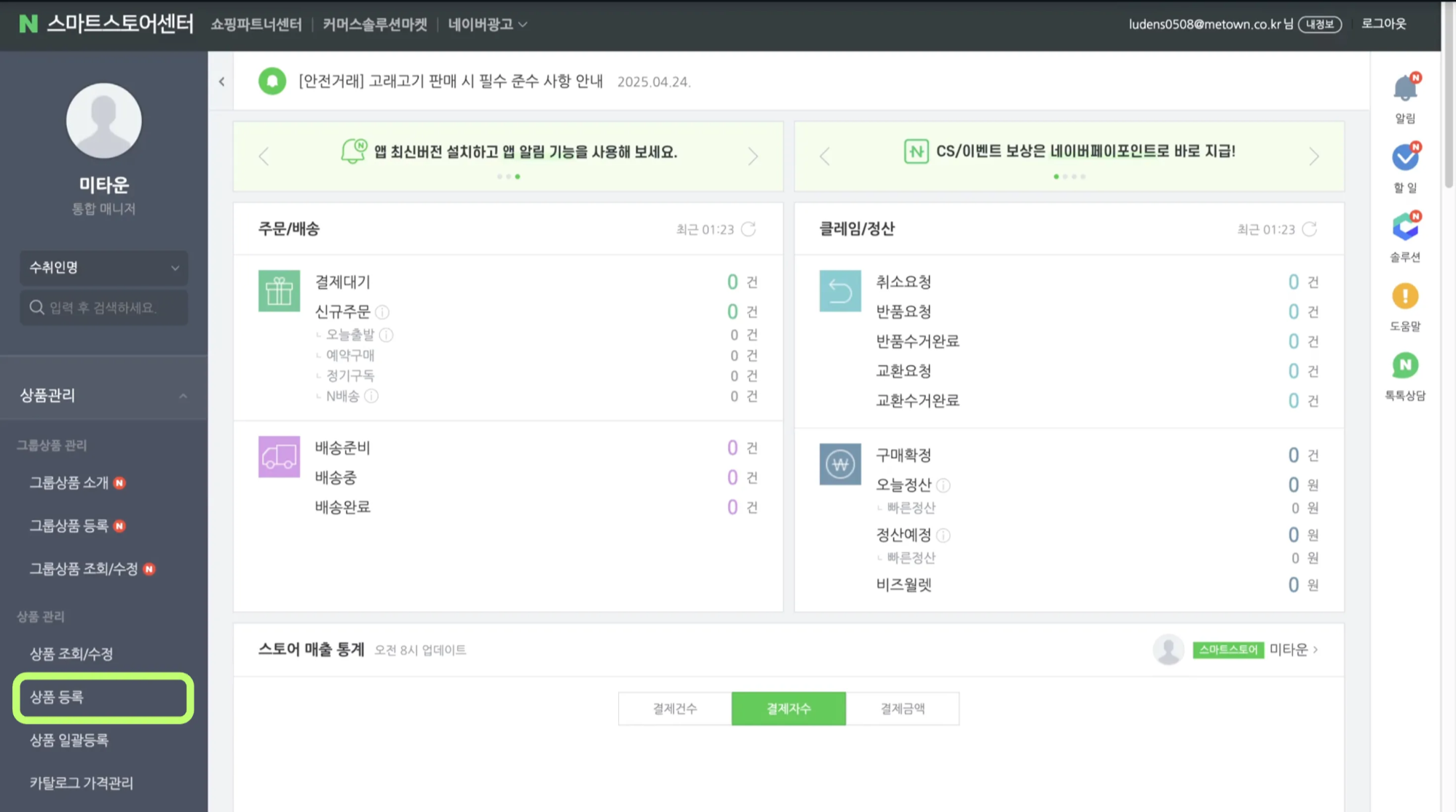 Image 1. Navigate to Product Registration Page
3. Enter Product Basic Information
- Enter all required product information such as product category / product name / options / selling price
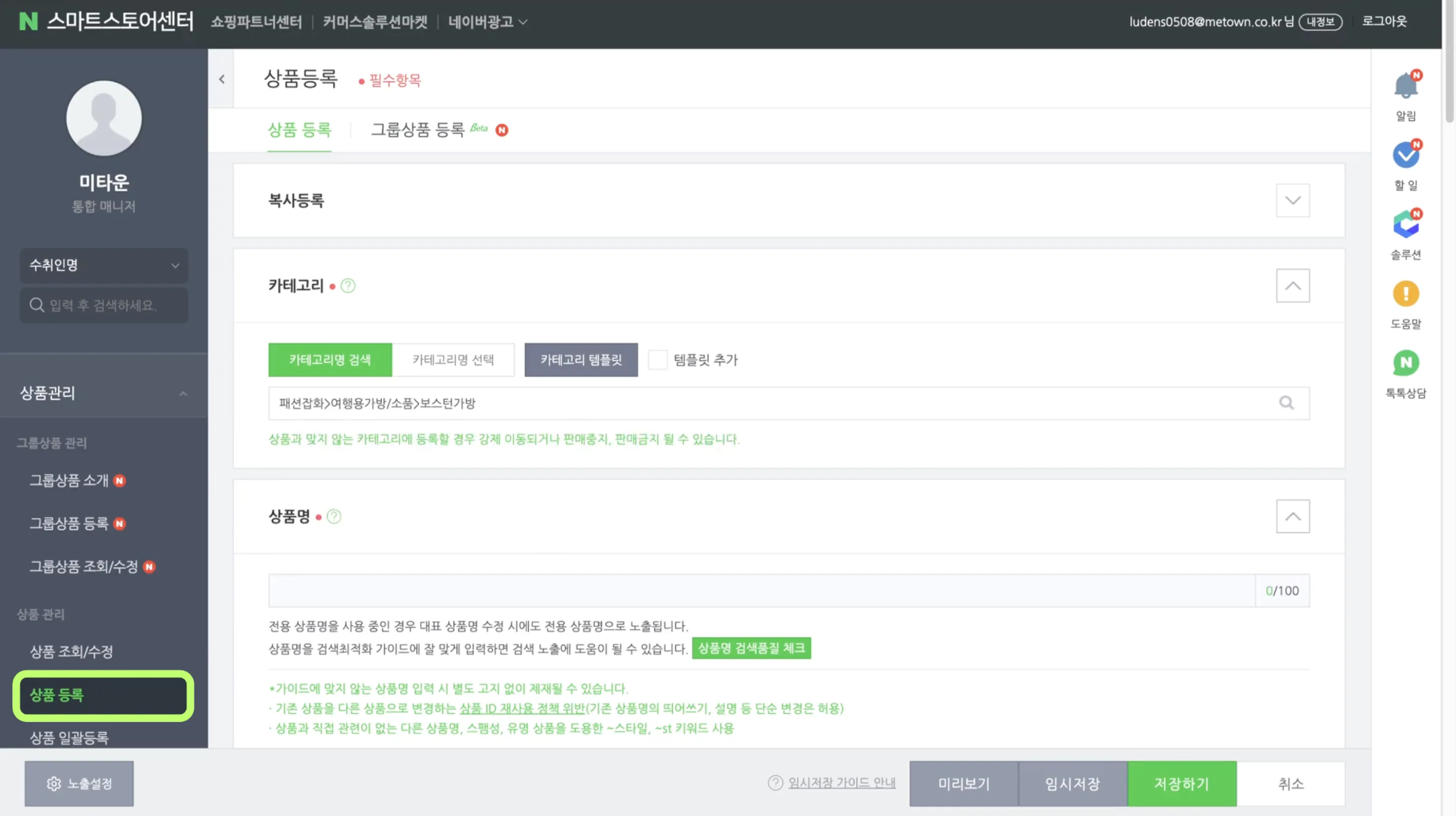 Image 2. Enter Detailed Required Information
4. Upload Image / Video
- Need to upload product thumbnail image or video before uploading the 3D Showroom viewer
- Upload self-shot images/videos or high-quality images using EVOVA's screenshot feature
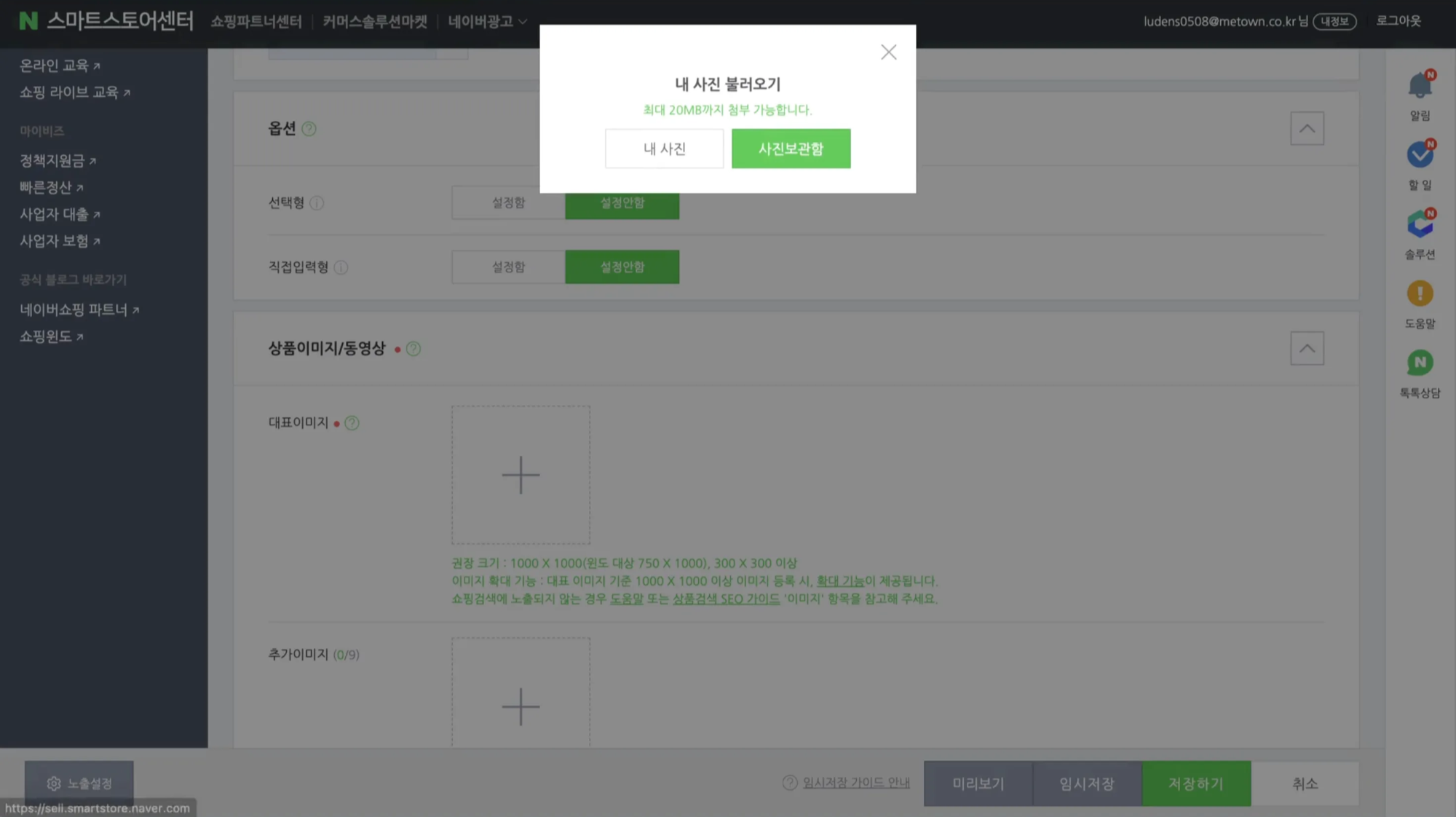 Image 3. Add Product - Thumbnail Image
5-1. Select 3D Showroom HTML
- Navigate to EVOVA Admin page
- The <IMWEB/Smart Store HTML> is different from basic HTML, so you must select <IMWEB/Smart Store HTML>.
Access Path:
EVOVA Admin Page > Left Dashboard > [3D Showroom] > [List] > Click desired product > [Select IMWEB/Smart Store HTML]
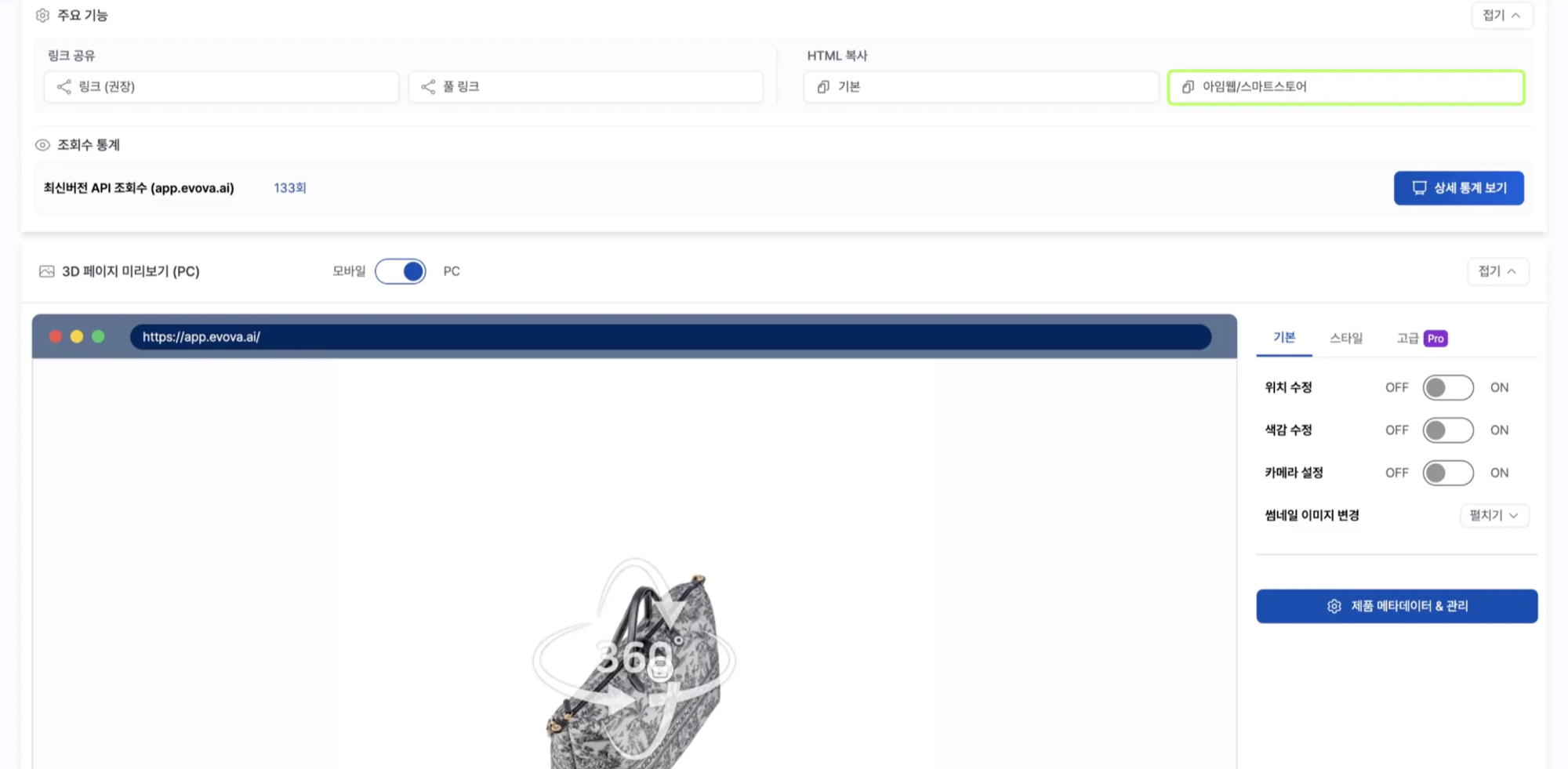 Image 4. EVOVA Admin Page HTML Generation
5-2. Generate 3D Showroom HTML
- Generate & copy HTML by selecting Mobile/PC version
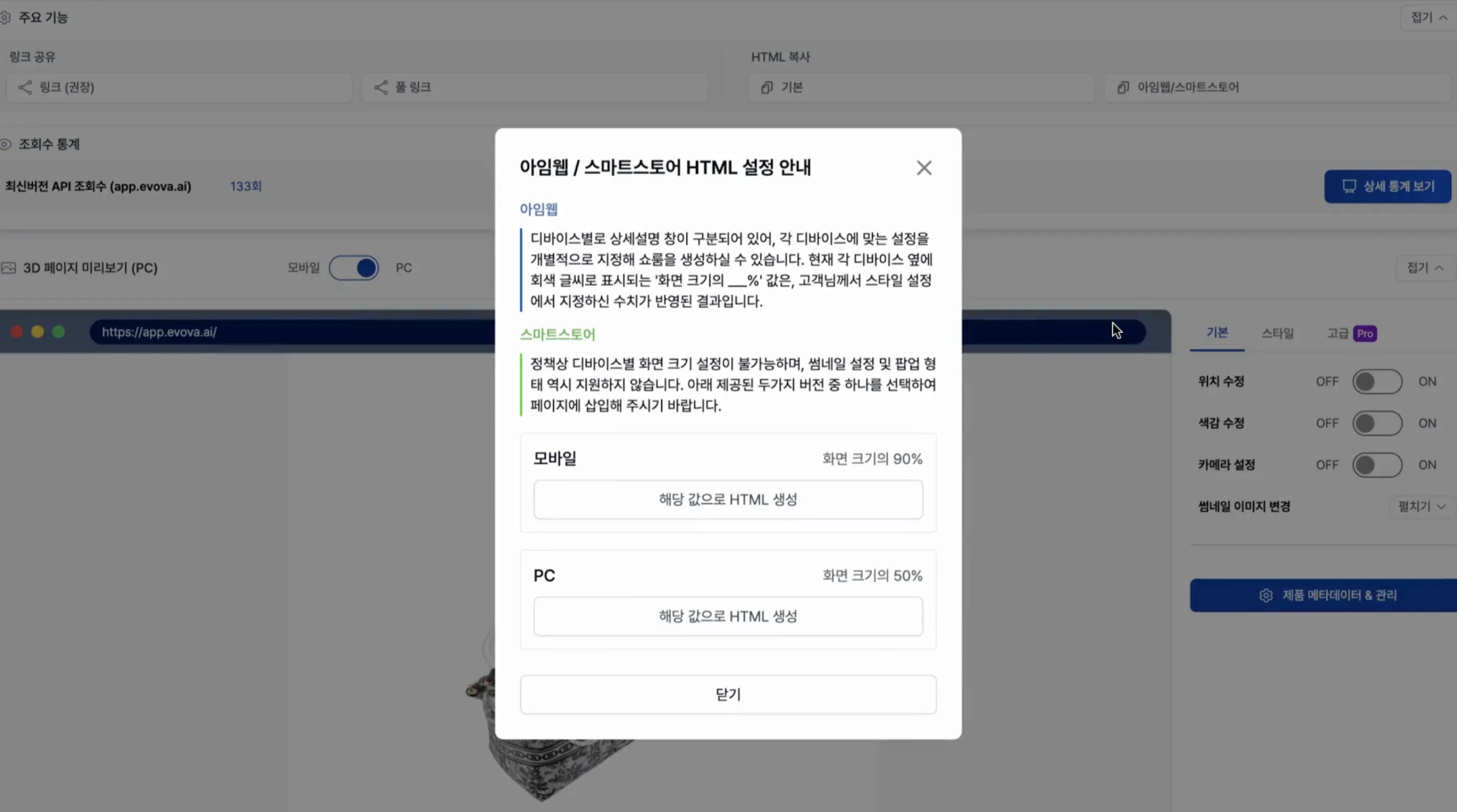 Image 5. IMWEB/Smart Store HTML Settings
- Note that while Naver allows adjusting viewer size in style settings, the selected Mobile or PC option is not necessarily optimized for the actual device.
6. Insert HTML Code
- Return to Naver Smart Store Center page
- Click
[Write HTML]in the product description section - Insert the copied HTML code
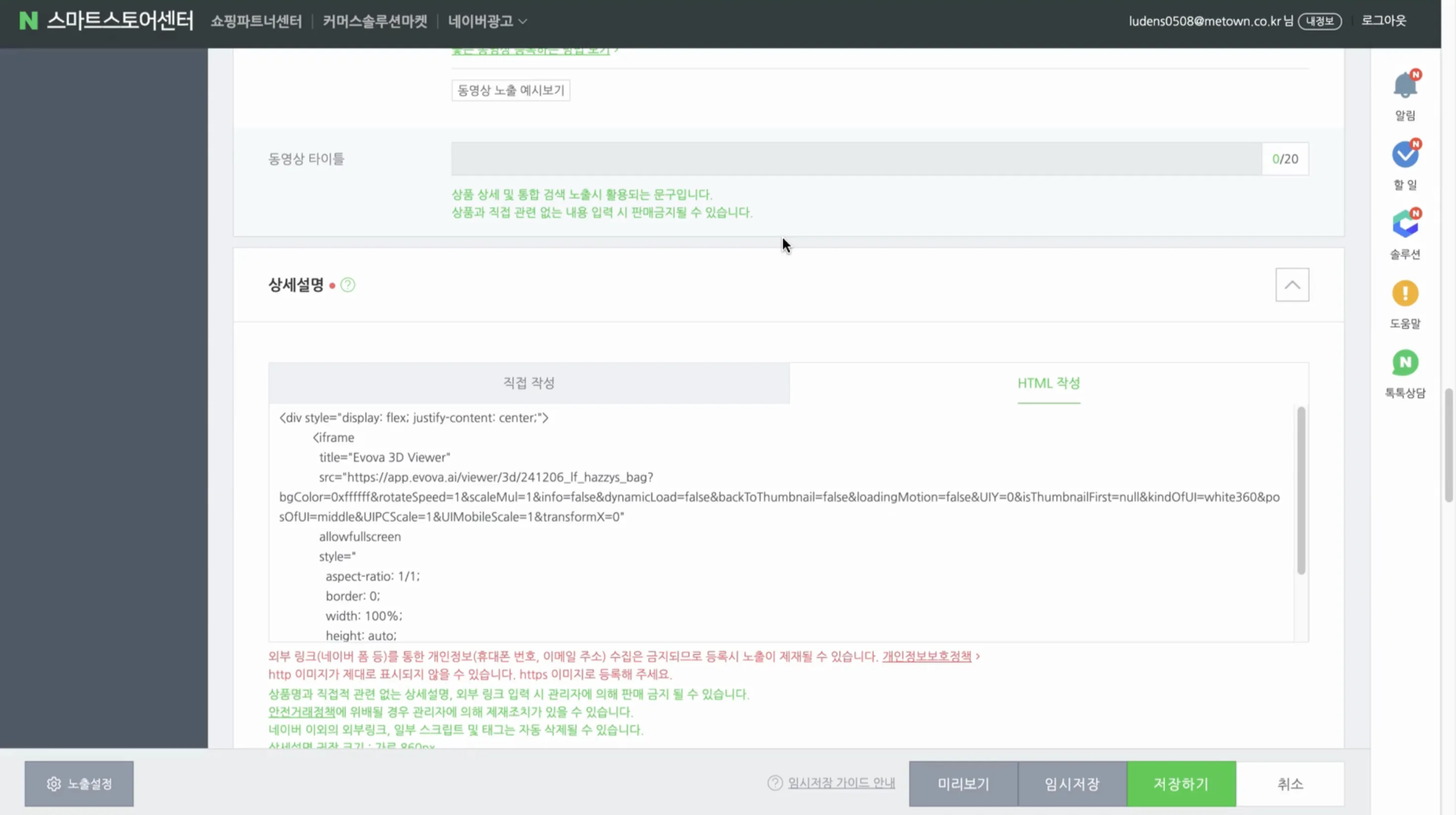 Image 6. HTML Insertion
7. Save and Verify
- Enter all remaining product registration details
- Click the
[Save]button - Product with EVOVA 3D Showroom applied is now registered on Smart Store
- Click
[View Smart Store Product]to verify final application
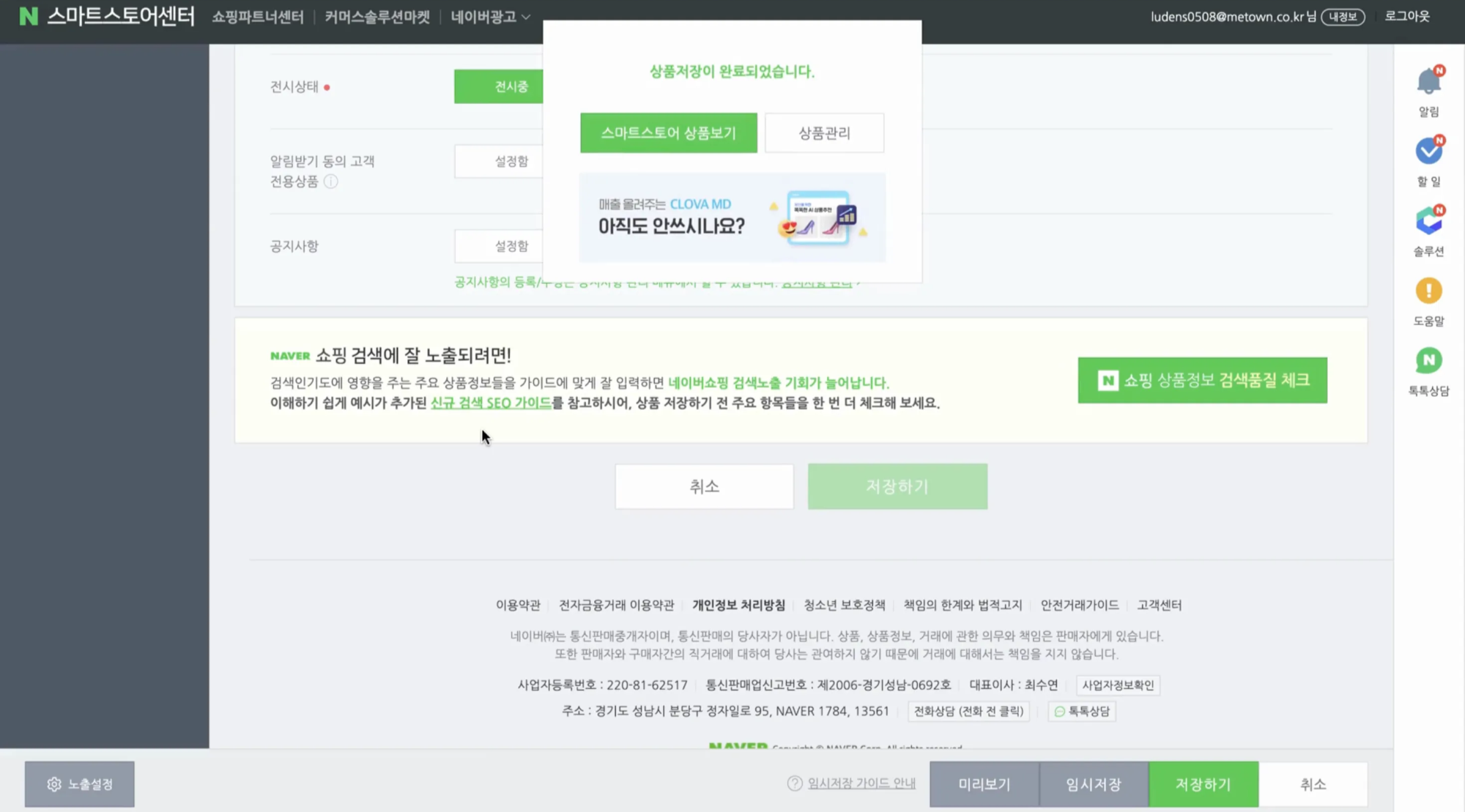 Image 7. Final Save
Video 1. Application Example
Closing
Adding Dimensions to E-commerce
EVOVA is always here to help make your brand experience more stable and special.
If you need assistance during setup, please feel free to contact our support team.
Email: info@metown.co.kr
Phone: 010-6650-6300