CAFE24
To apply the EVOVA 3D Showroom to Cafe24, follow the steps below.
Registration Process
1. Access the Cafe24 Admin Page
- Visit Go to Cafe24.
- From the admin dashboard, navigate to the product registration page.
2. Go to the Product Registration Page
- In the left menu, click
[Products] > [Product List] > [General Registration]
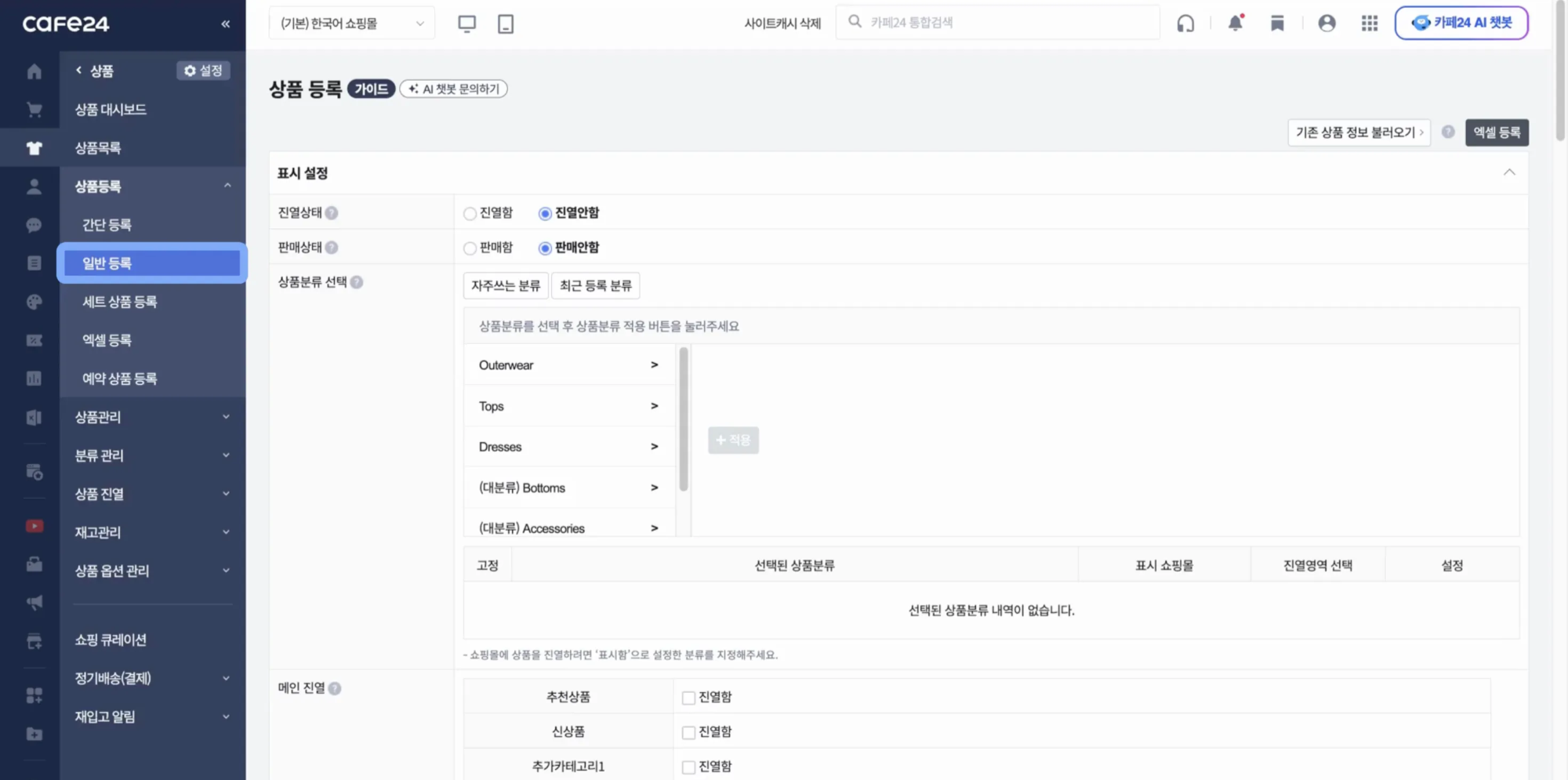 Image 1. Product registration page
3. Enter Basic Product Information
- Open “General Registration.”
- Enter all required details such as product name, category, model name, supplier, etc.
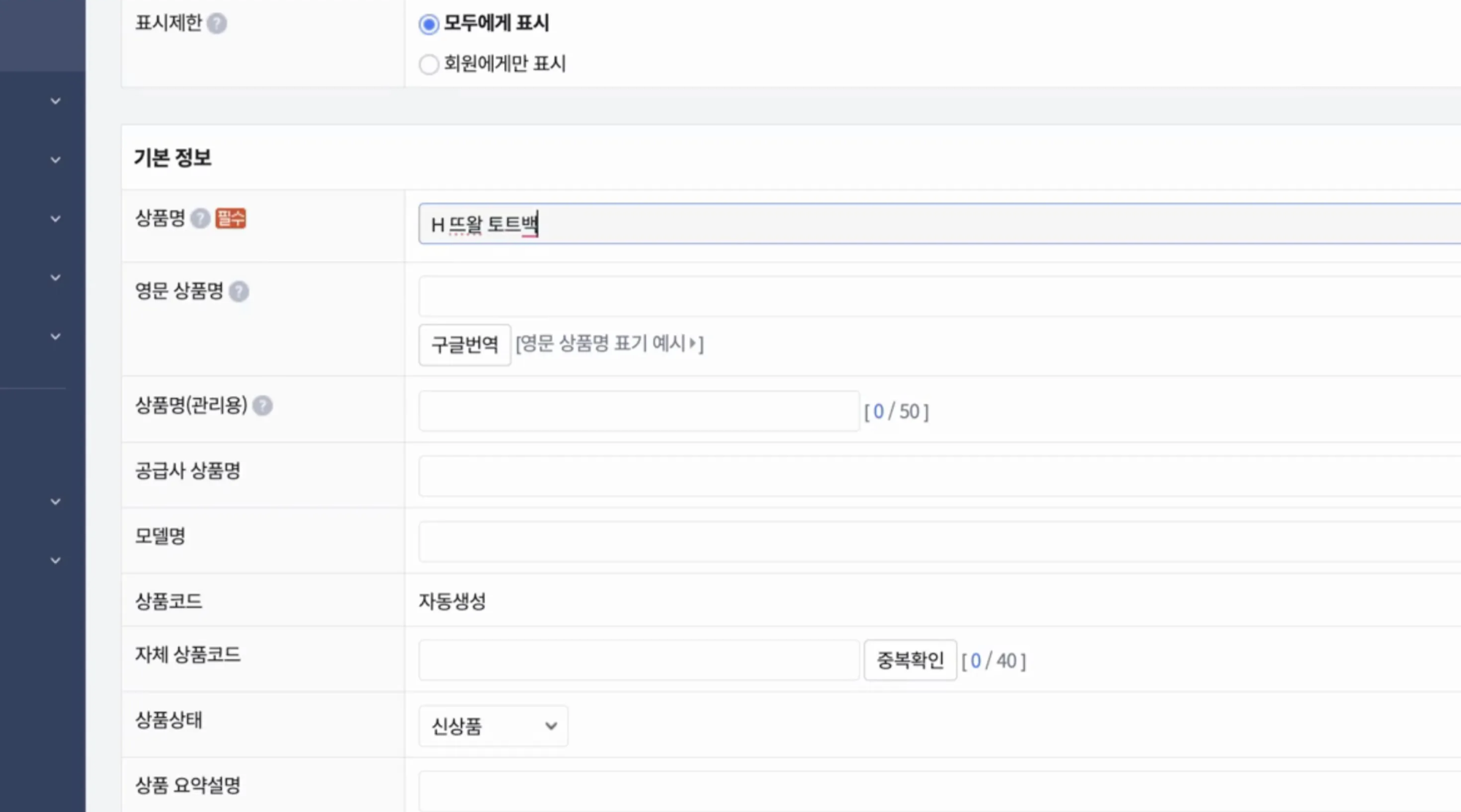 Image 2. Basic product information
4. Generate 3D Showroom HTML
- Go to the EVOVA Admin page.
- Select the default HTML and copy it.
Path: Sign in to EVOVA Admin > Left dashboard > [3D Showroom] > [List] > click the desired product > [Copy HTML]
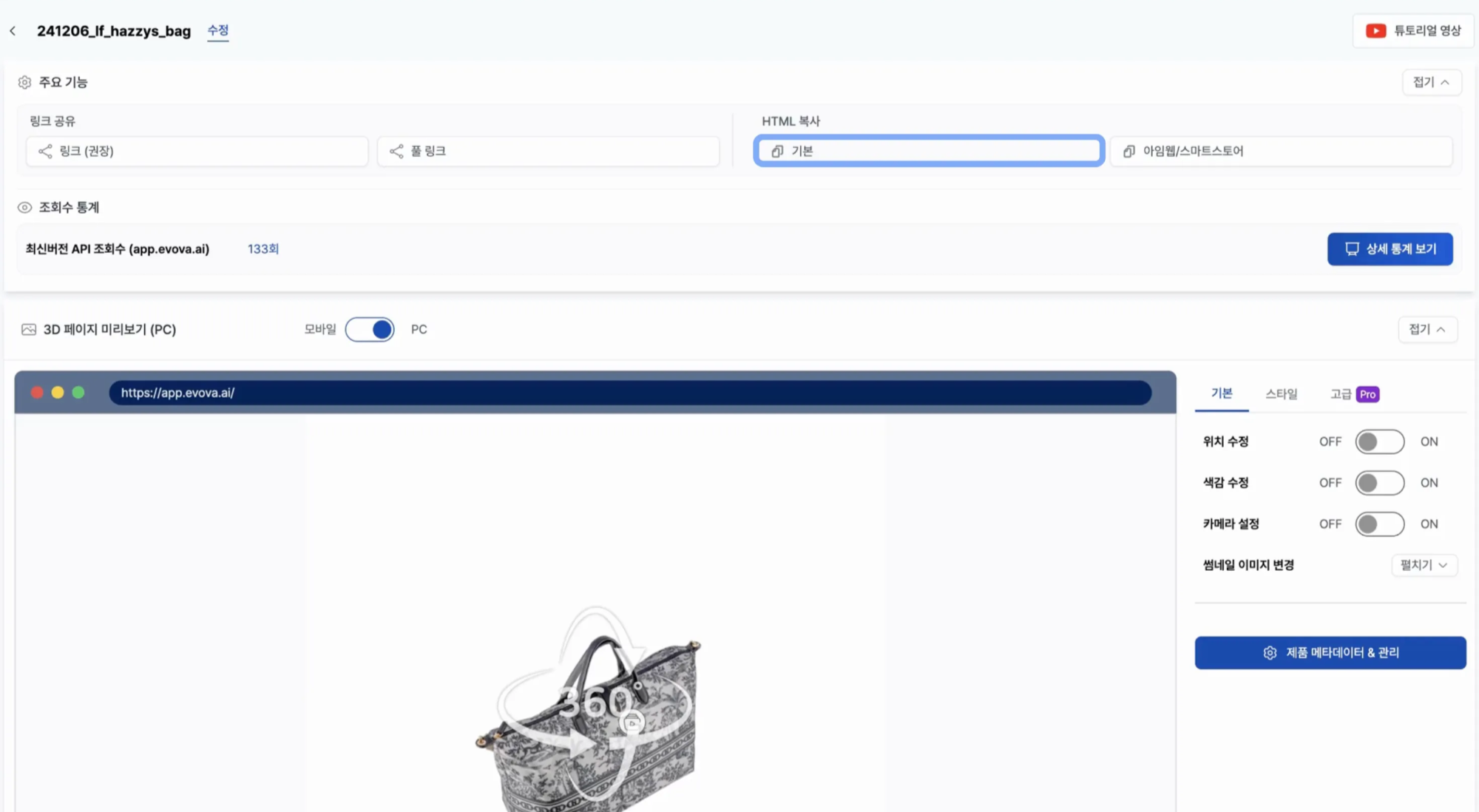 Image 3. Generate HTML in EVOVA Admin
5-1. Insert the HTML Code
- Return to the Cafe24 admin page.
- In the Product Description section, click
[Write directly]. - Click the
[ </> ]button on the right.
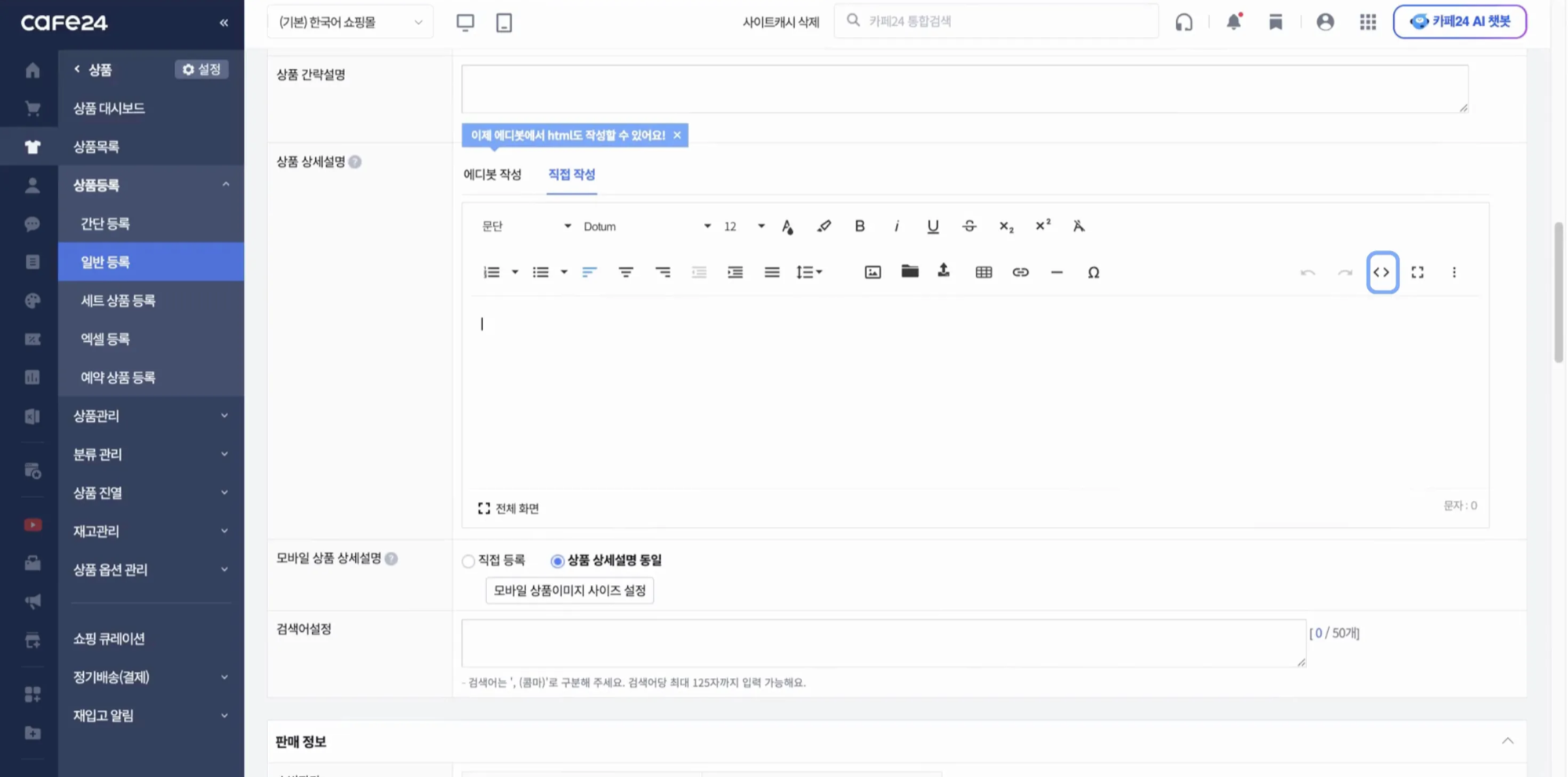 Image 4. Enter product description manually in Cafe24
5-2. Insert the HTML Code
- Delete all existing content.
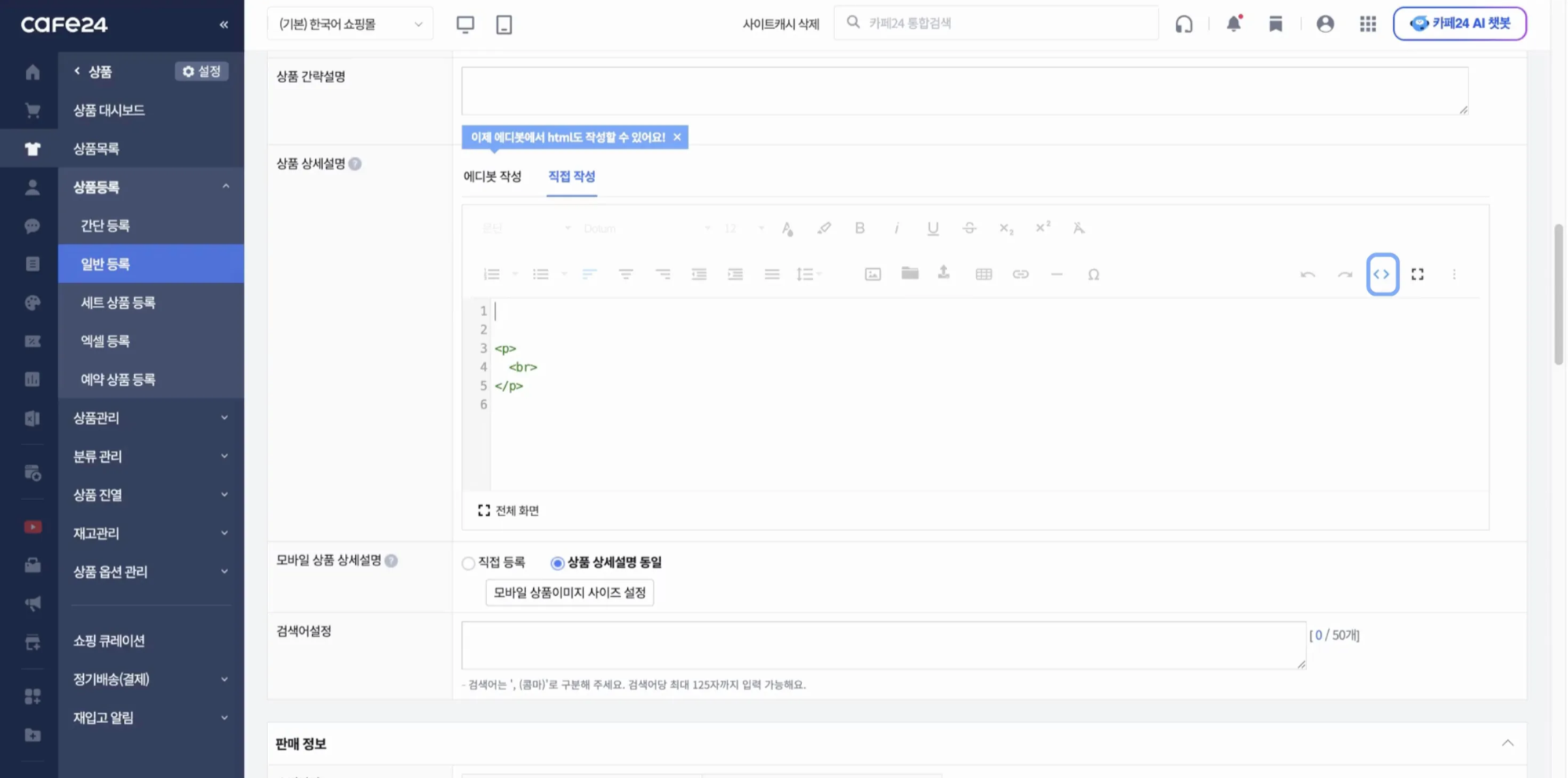 Image 5. Version with existing content (before deletion)
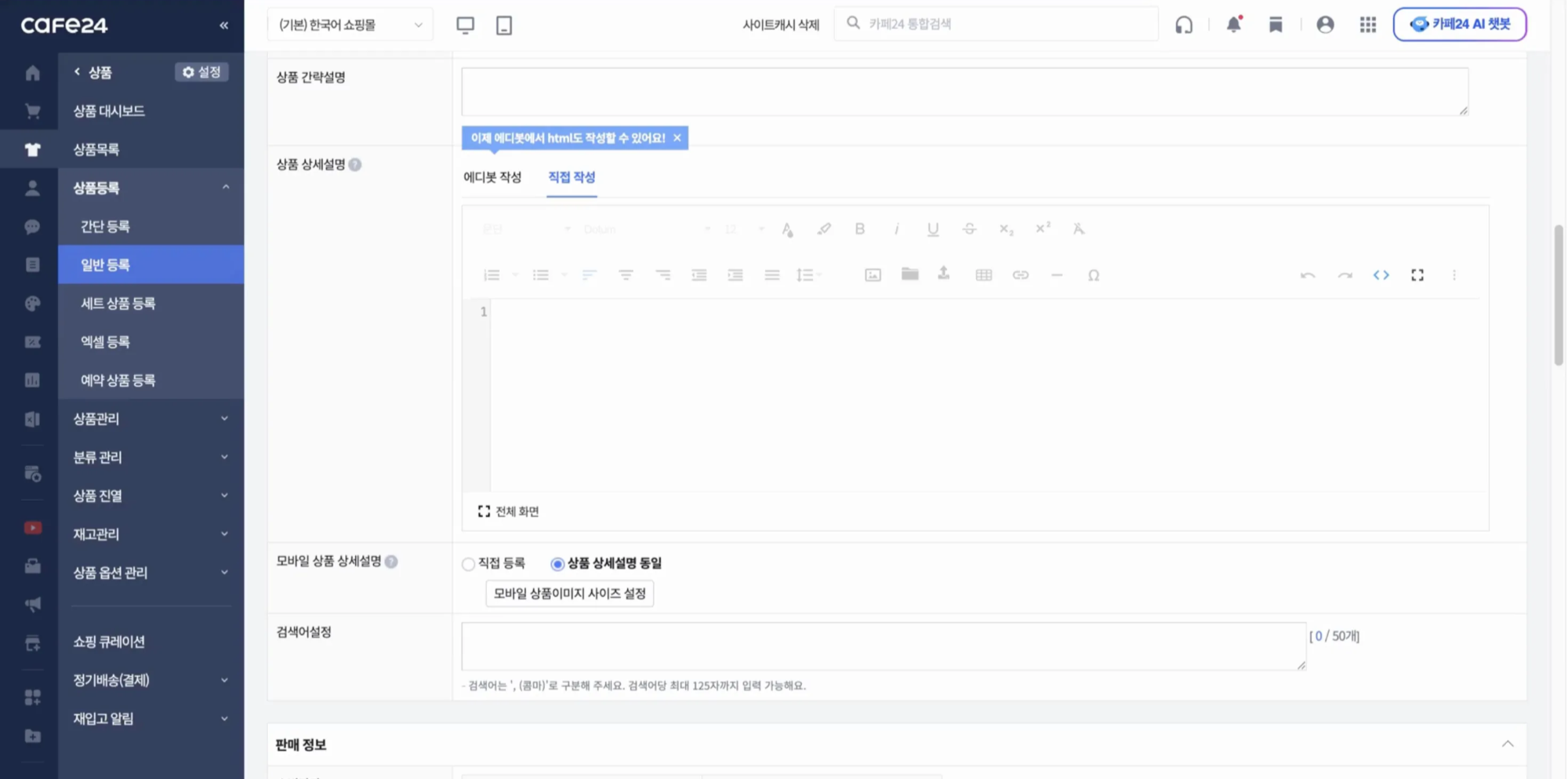 Image 6. Version after deleting existing content (after deletion)
5-3. Insert the HTML Code
- After removing all content, paste the EVOVA 3D Showroom code you copied earlier at the very first line.
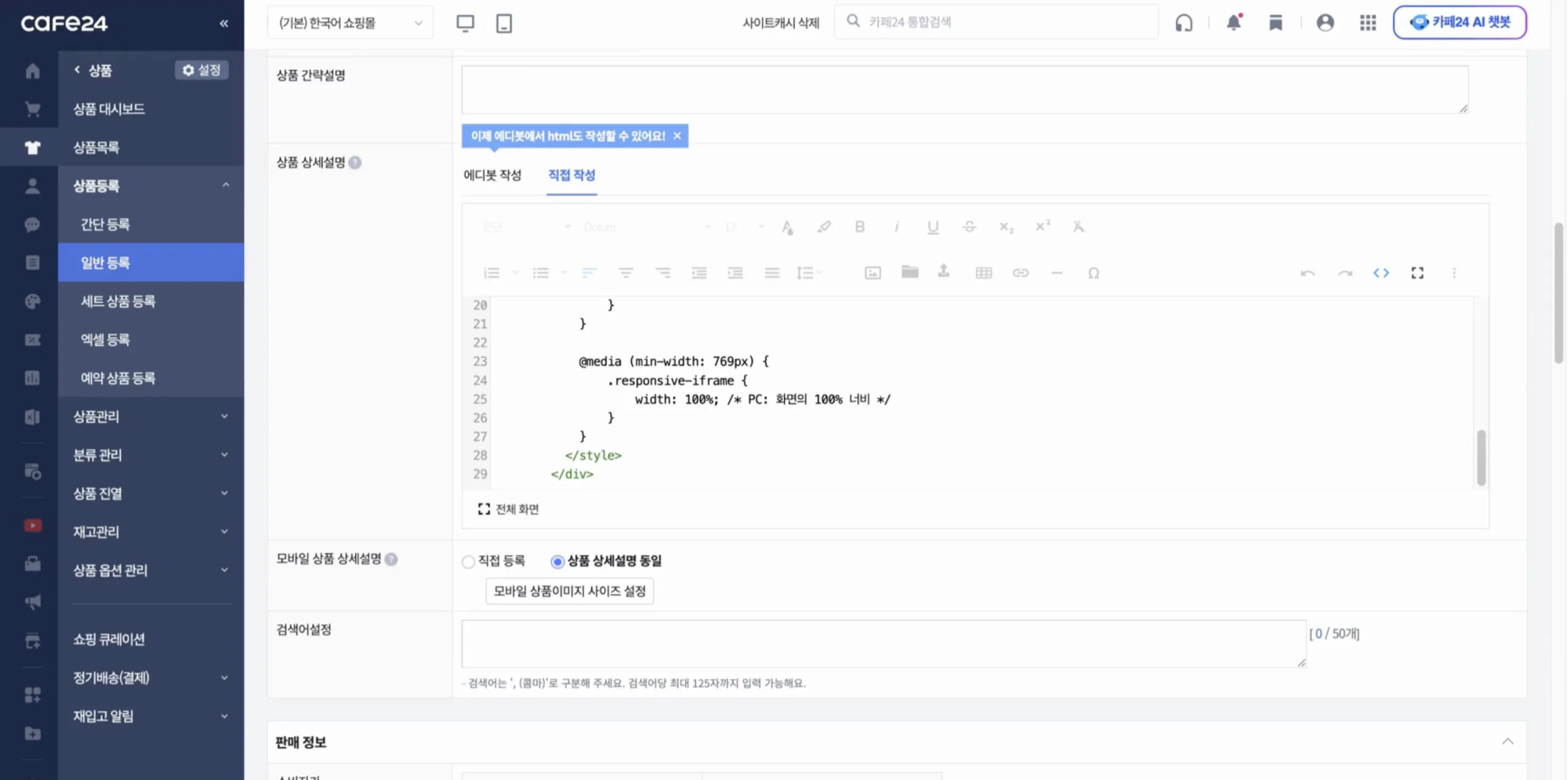 Image 7. Insert EVOVA 3D Showroom code
6. Upload Images
- If you need additional images, upload your own photos/videos, or upload high-resolution images using EVOVA’s Nukki-Ttaba (background cut-out) feature.
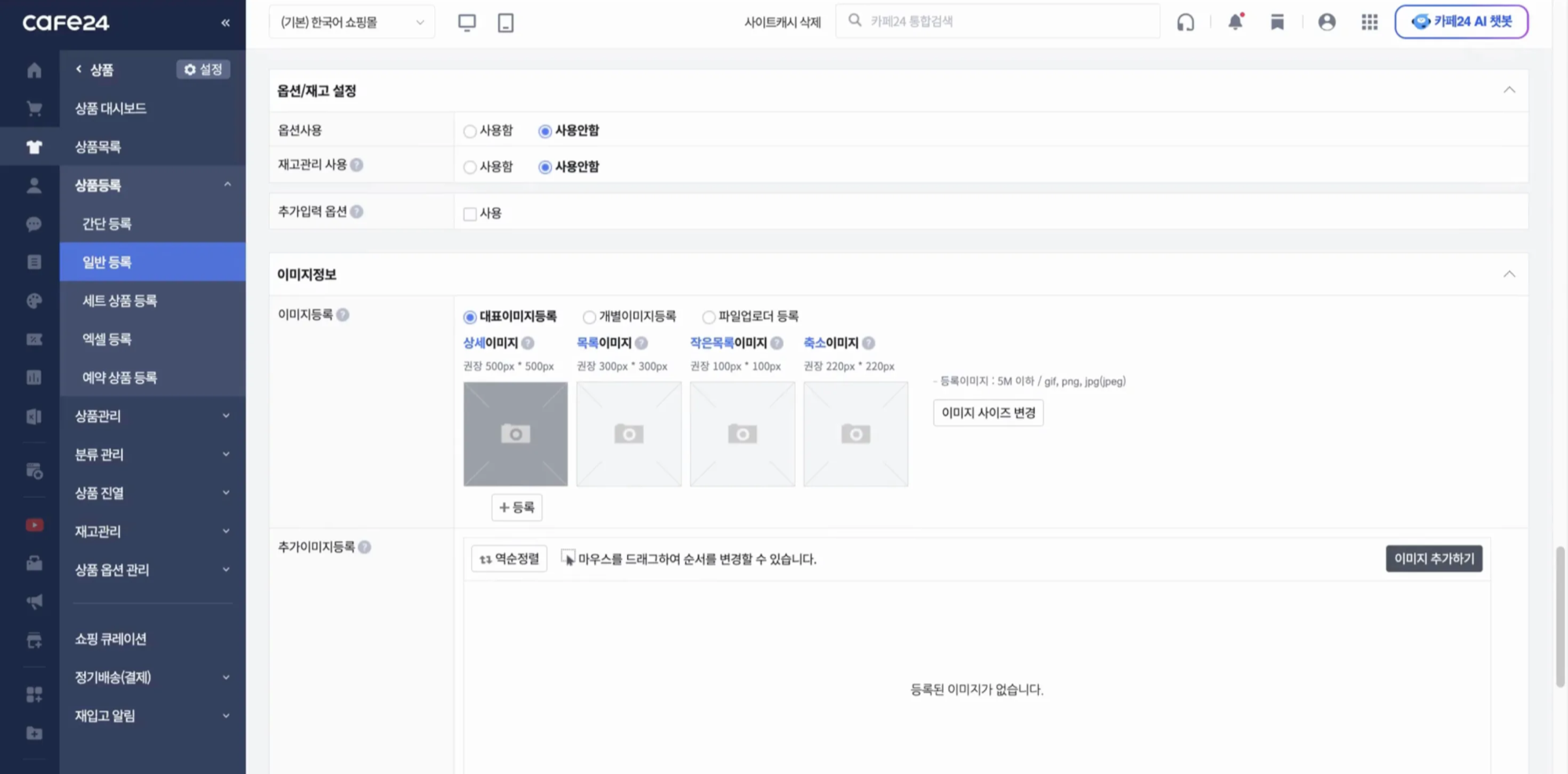 Image 8. Additional info) Nukki-Ttaba feature
7. Save & Verify
- Fill out any remaining product details.
- Click the
[Save]button. - The product with the EVOVA 3D Showroom is now published on your Cafe24 storefront.
Video 1. Example implementation
Closing
Adding a dimension to e-commerce
EVOVA is always here to help make your brand experience more stable and special.
If you need assistance during setup, please contact our operations team anytime.
Contact email: info@metown.co.kr
Contact phone: 010-6650-6300