Sharing
To view and share your 3D viewer externally from EVOVA, please follow the steps below.
This guide explains how to view and share links.
Access Path:
Left Sidebar > [Library] > Click on Item
How to Manage and Share Viewers
1. Start from Home
- Go to https://app.evova.ai/
- If you don't have an account yet, please sign up and log in.
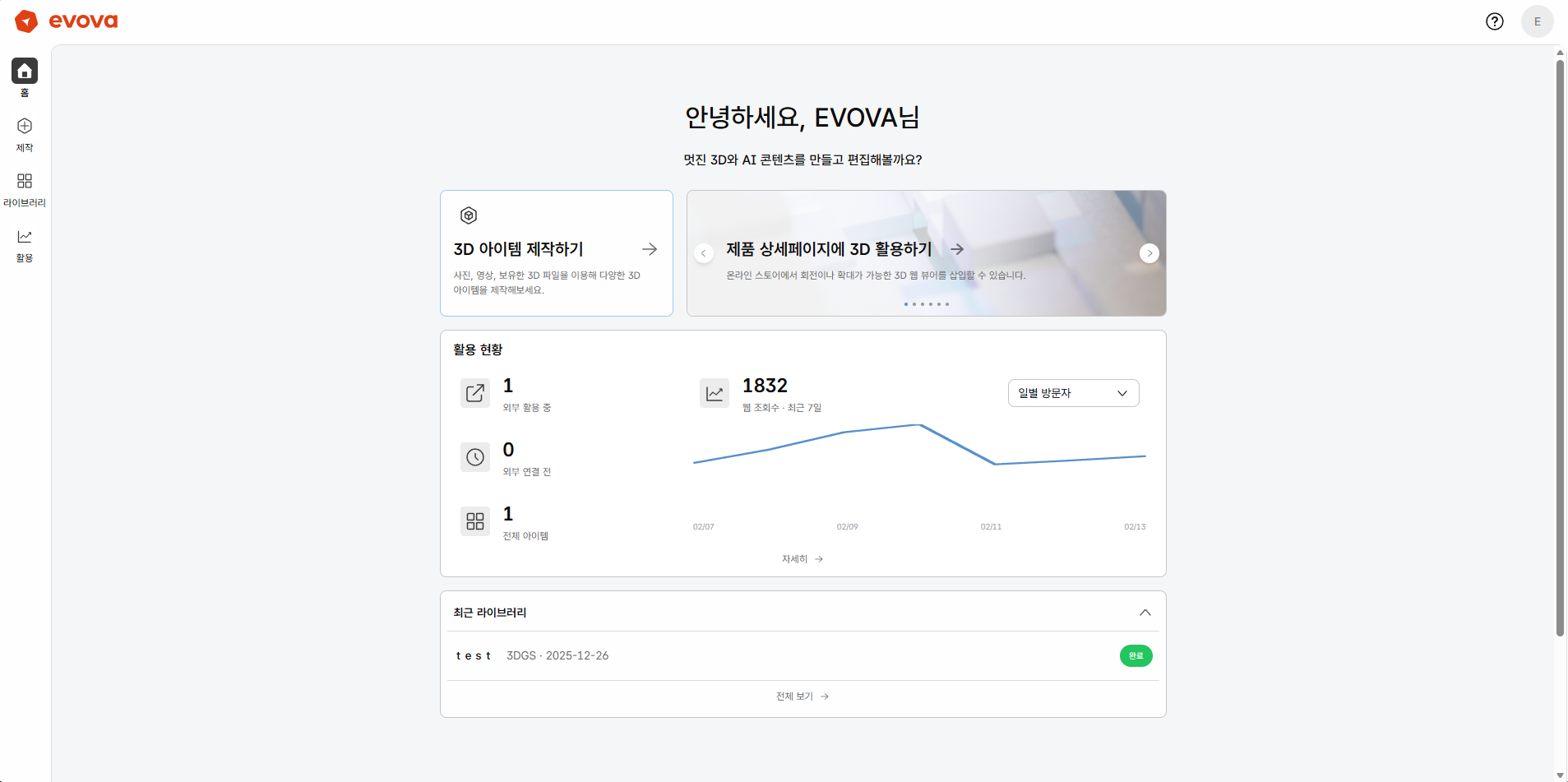 Image 1. EVOVA Home
2. Check in Library
- Click
[Library]in the left menu - You can view registered viewers and assets
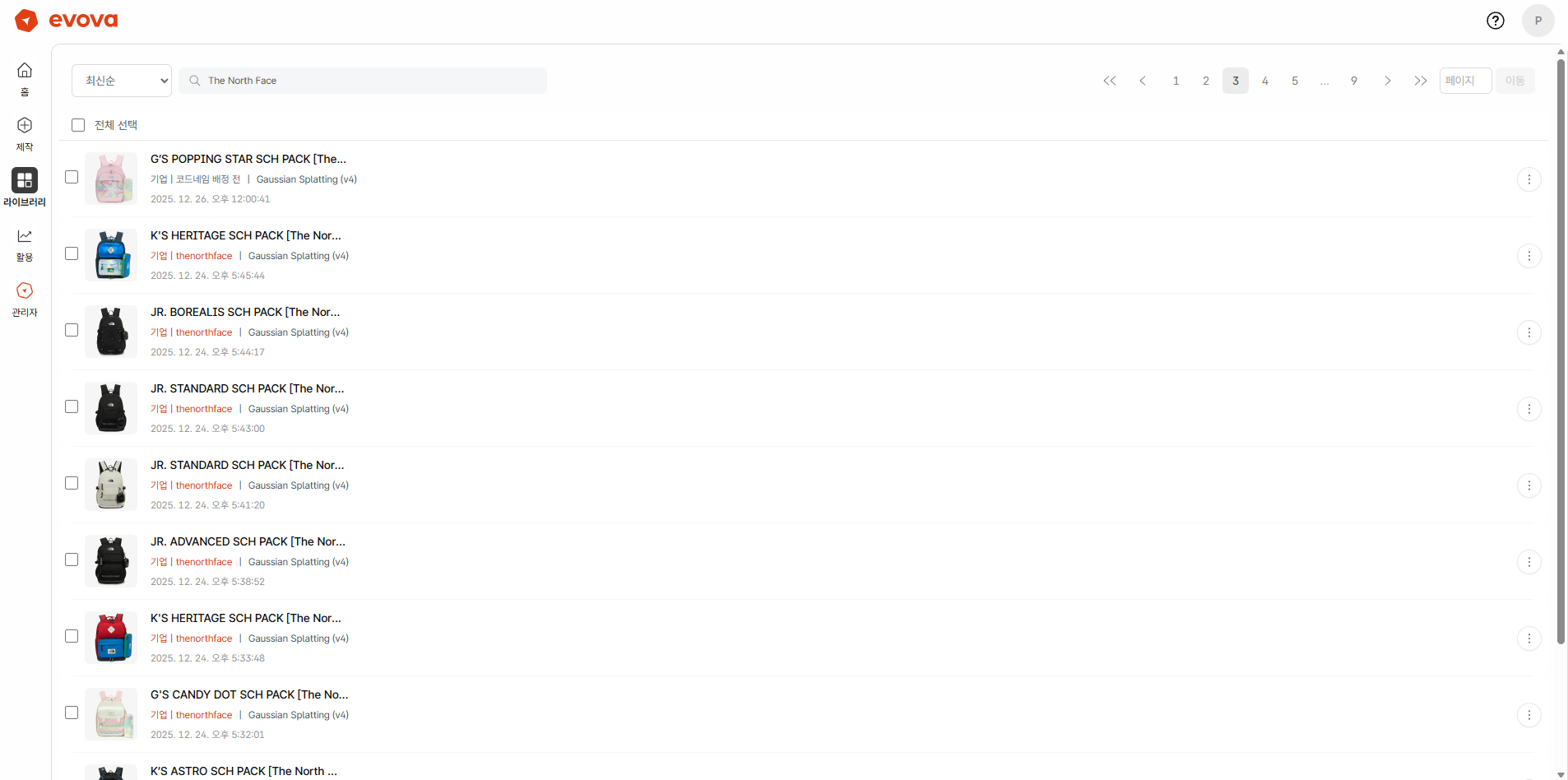 Image 2. EVOVA Library
- If you haven't completed business registration yet, please complete business registration first.
- For first-time users, only 1 test sample product provided by default will be displayed. After uploading, the list will automatically expand.
3. How to Share 3D Viewer
- EVOVA's 3D viewer can be shared externally like a web page.
- Share via
[Share Link]or[Copy HTML]
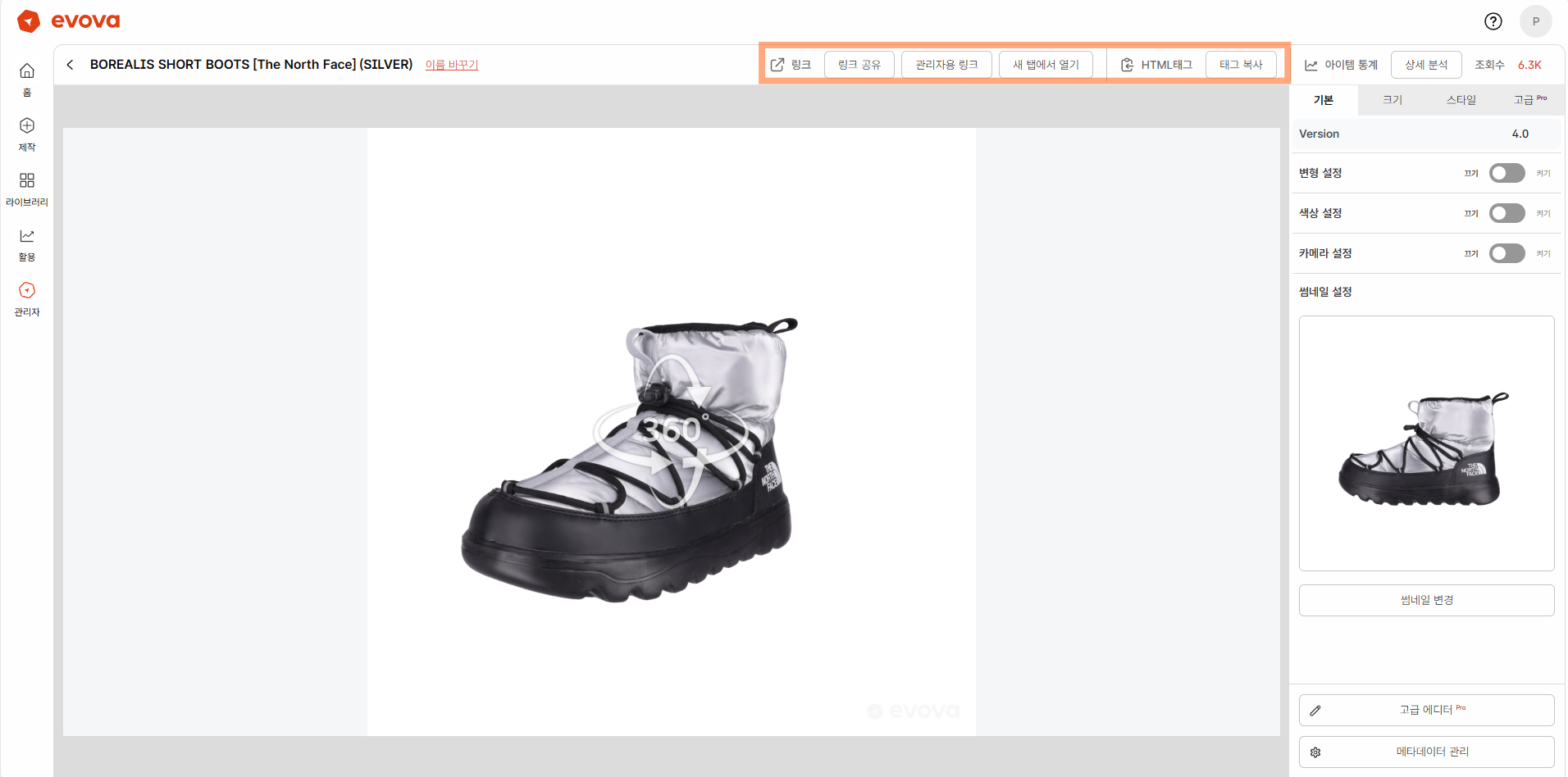 Image 3. 3D Viewer Detail Screen
- There are 4 sharing methods. Choose the most appropriate method based on your purpose.
| Sharing Method | Description |
|---|---|
| Link (Recommended) | The simplest method. Can be pasted into KakaoTalk, email, Slack, messengers, etc. Suitable for internal feedback sharing or external client review. |
| Full Link | The full version of the link. Use only for link error testing or exceptional situations. (※ Service to be discontinued in the future) |
| Copy HTML - Basic | Code used to directly embed the 3D viewer in your own site, Cafe24, etc. |
| Copy HTML - Imweb | Imweb has a different compatibility method, so dedicated HTML code must be used. Be careful as some features may not work if mixed with basic code. |
Closing
Adding Dimensions to E-commerce
EVOVA is always here to help make your brand experience more stable and special.
If you have any difficulties sharing your showroom or embedding HTML, please feel free to contact our support team.
Email: info@metown.co.kr
Phone: 010-6650-6300