Sharing
To view the 3D showroom and share it externally from your EVOVA dashboard, please follow the steps below.
This guide explains how to access the showroom and how to share it via various link formats.
Access Path:
EVOVA Dashboard > [3D Showroom] > [List] > Click Individual Product
How to Manage & Share the 3D Showroom
1. Start from the Main Dashboard
- Go to https://app.evova.ai/
- If you don’t have an account, please sign up and log in.
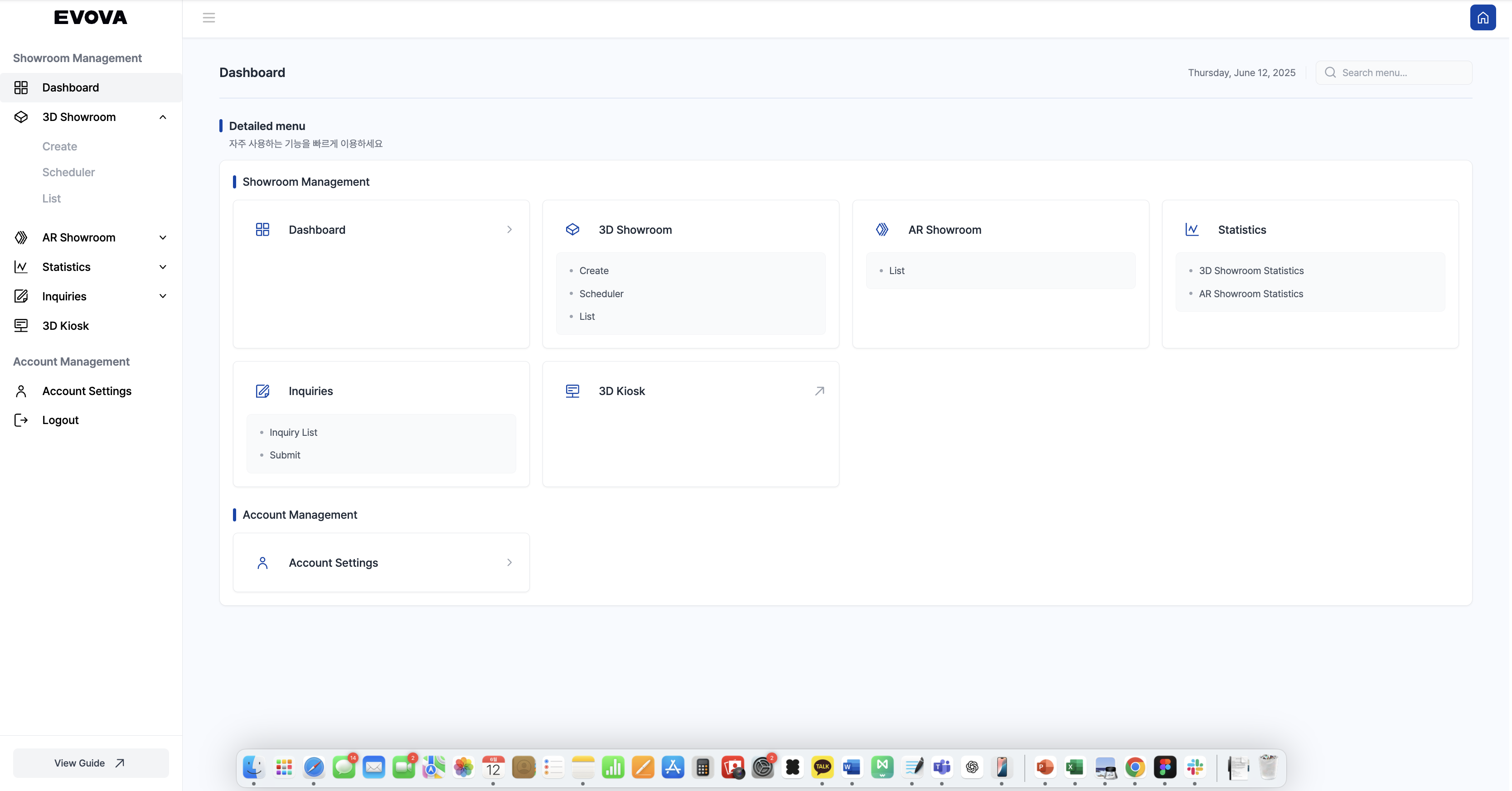 Image 1. EVOVA Dashboard
2. View Product List in [3D Showroom] > [List]
- From the left menu, click
[3D Showroom] > [List] - You will see a list of registered 3D showroom items.
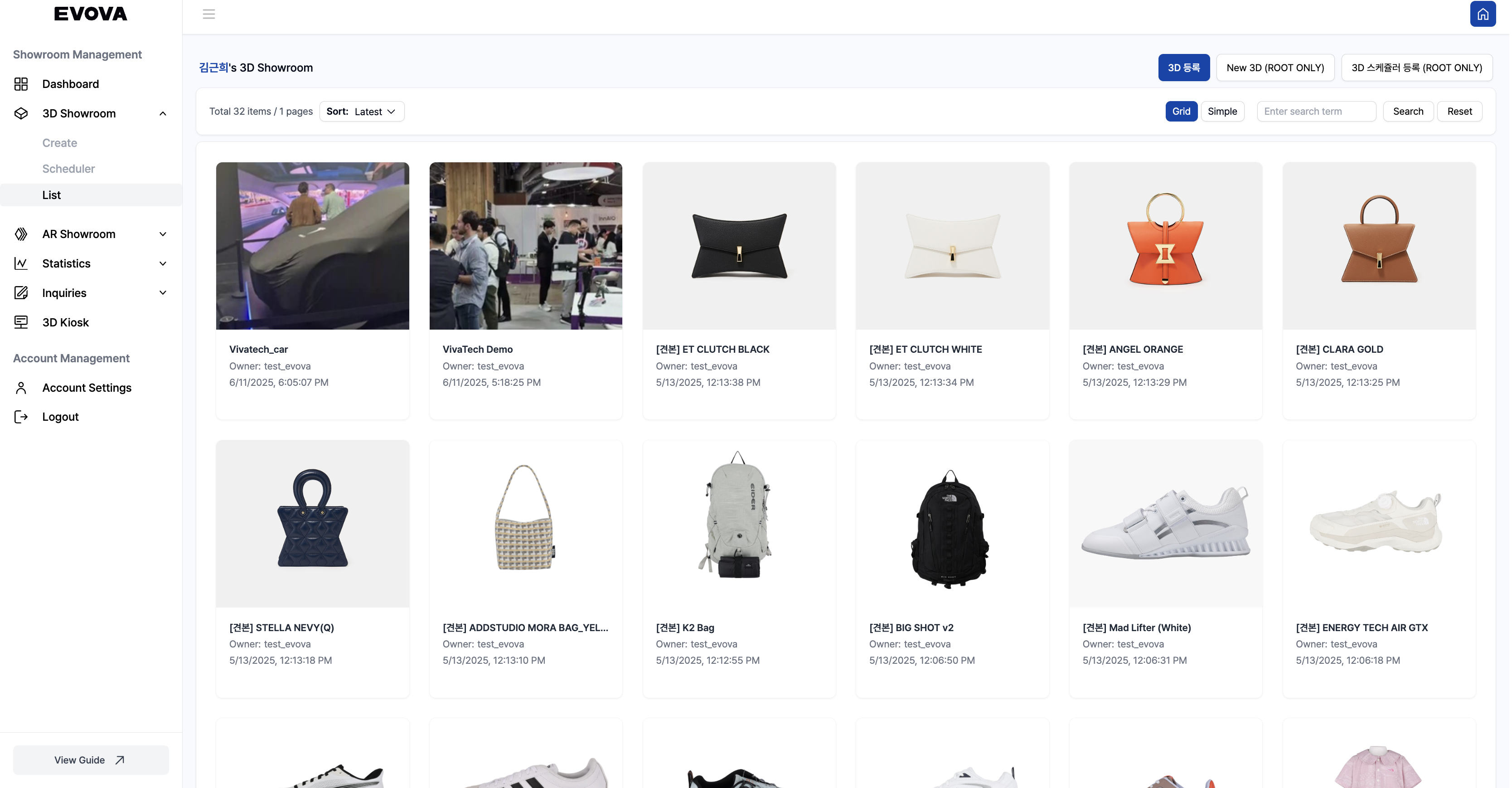 Image 2. EVOVA 3D Showroom List
- If you haven’t registered your business yet, please complete the business registration first.
- For new accounts, only one default test sample product will be displayed. Once you upload more items, the list will update automatically.
3. How to Share the 3D Showroom
- EVOVA’s 3D Showroom can be shared externally just like a webpage.
- You can share it using
[Copy Link]or[Copy HTML].
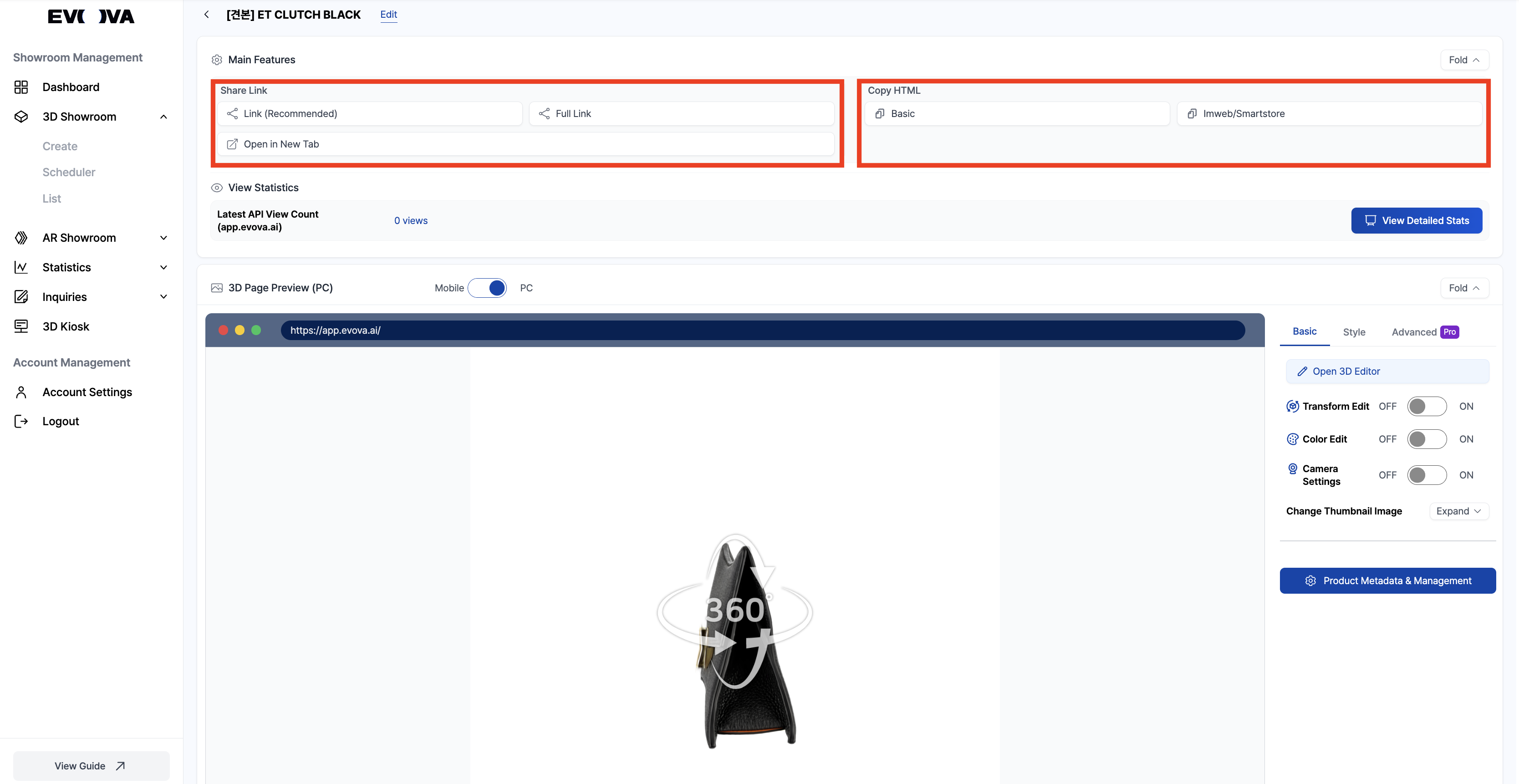 Image 3. 3D Showroom Detail View
- There are four sharing options. Choose the most suitable one depending on your purpose.
| Method | Description |
|---|---|
| Link (Recommended) | The simplest method. Paste it into KakaoTalk, Email, Slack, or Messenger. Ideal for internal reviews or external client previews. |
| Full Link | Full URL version. Use only for testing or exceptional cases. (Note: May be deprecated in the future) |
| HTML Copy – Basic | Use this code to embed the 3D showroom into your website (e.g., Cafe24 or your own domain). |
| HTML Copy – ImWeb / Smart Store | Use this version for Naver Smart Store or I’mWeb. These platforms require a dedicated HTML format, and mixing with the basic code may cause issues. |
Contact
If you have any questions, feel free to contact our support team.
Contact Email: info@metown.co.kr
Contact Phone: 010-6650-6300