Screenshot
This guide explains the feature that allows you to capture specific product compositions as still images (PNG) in EVOVA's showroom.
If you want to use it for brochures, product detail pages, thumbnail images, etc., please follow the steps below.
Access Path:
EVOVA Admin > [3D Showroom] > Select Product > Click [Advanced] on the left
Capture Procedure
1. Access EVOVA Site and Click [Advanced]
- Go to https://app.evova.ai/ and click on the 3D Showroom list.
- If you don't have an account yet, please sign up and log in.
EVOVA Admin > [3D Showroom] > List > Select Product > Click [Advanced] on the left
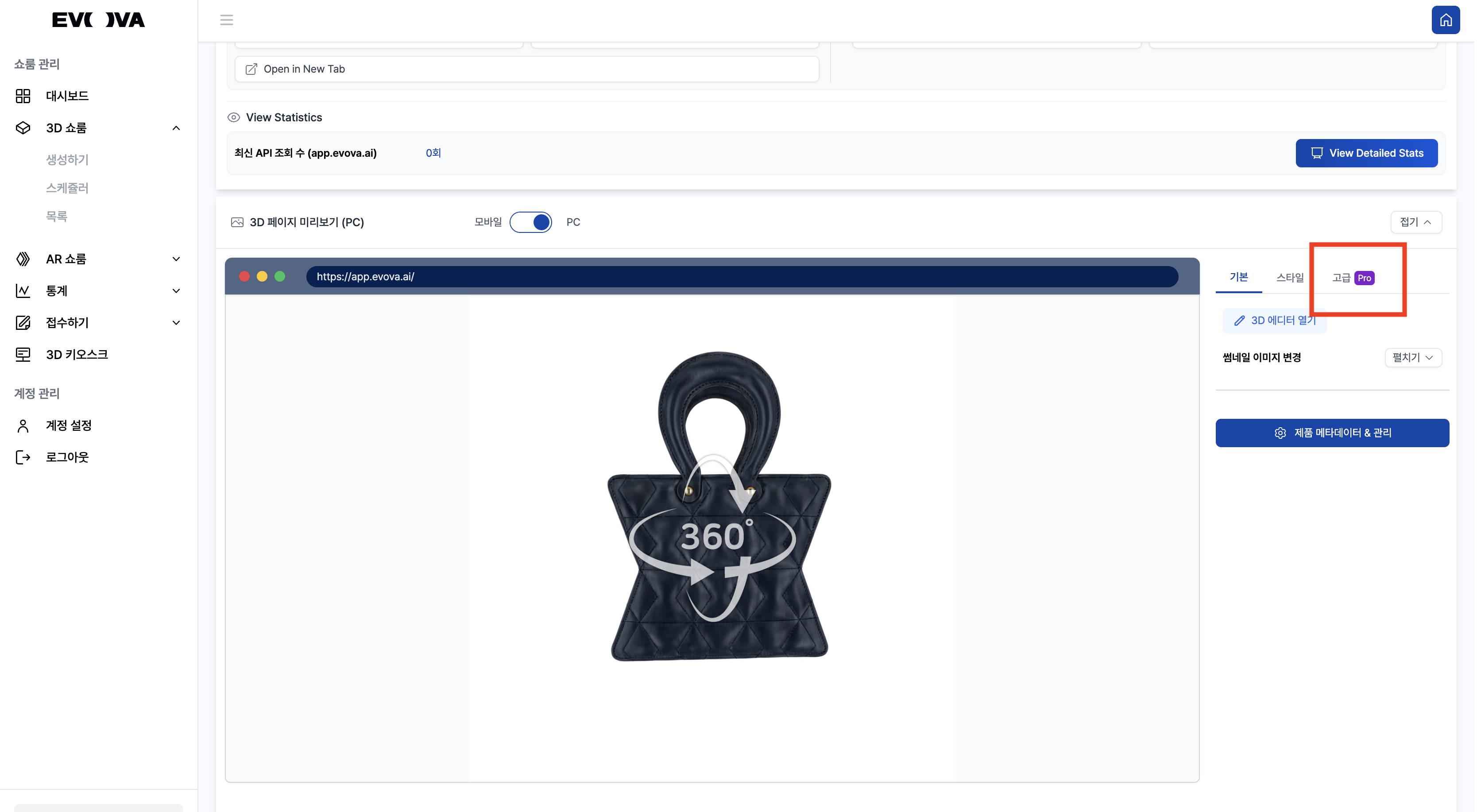 Image 1. Advanced Features
2. Click Screenshot
- Click
ONfor Screenshot in Advanced settings
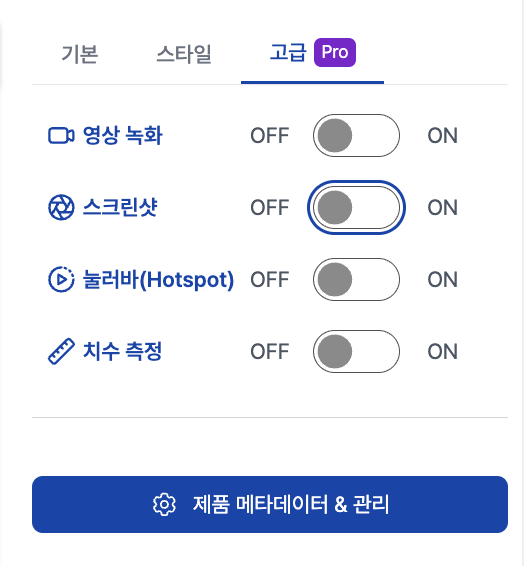 Image 2. Advanced Features - Screenshot
3. Set Composition
- Adjust the product's position and angle to your desired direction.
- The composition you set will be reflected directly in the captured image, so make sure to check beforehand
4. Select Capture Mode
- You can capture using one of the two methods below:
- [Capture with Background] The image is saved with the currently set background color.
- [Capture with Transparent Background] Only the product is saved with a transparent background (PNG format). Suitable for various design uses including web, PPT, print materials, etc.
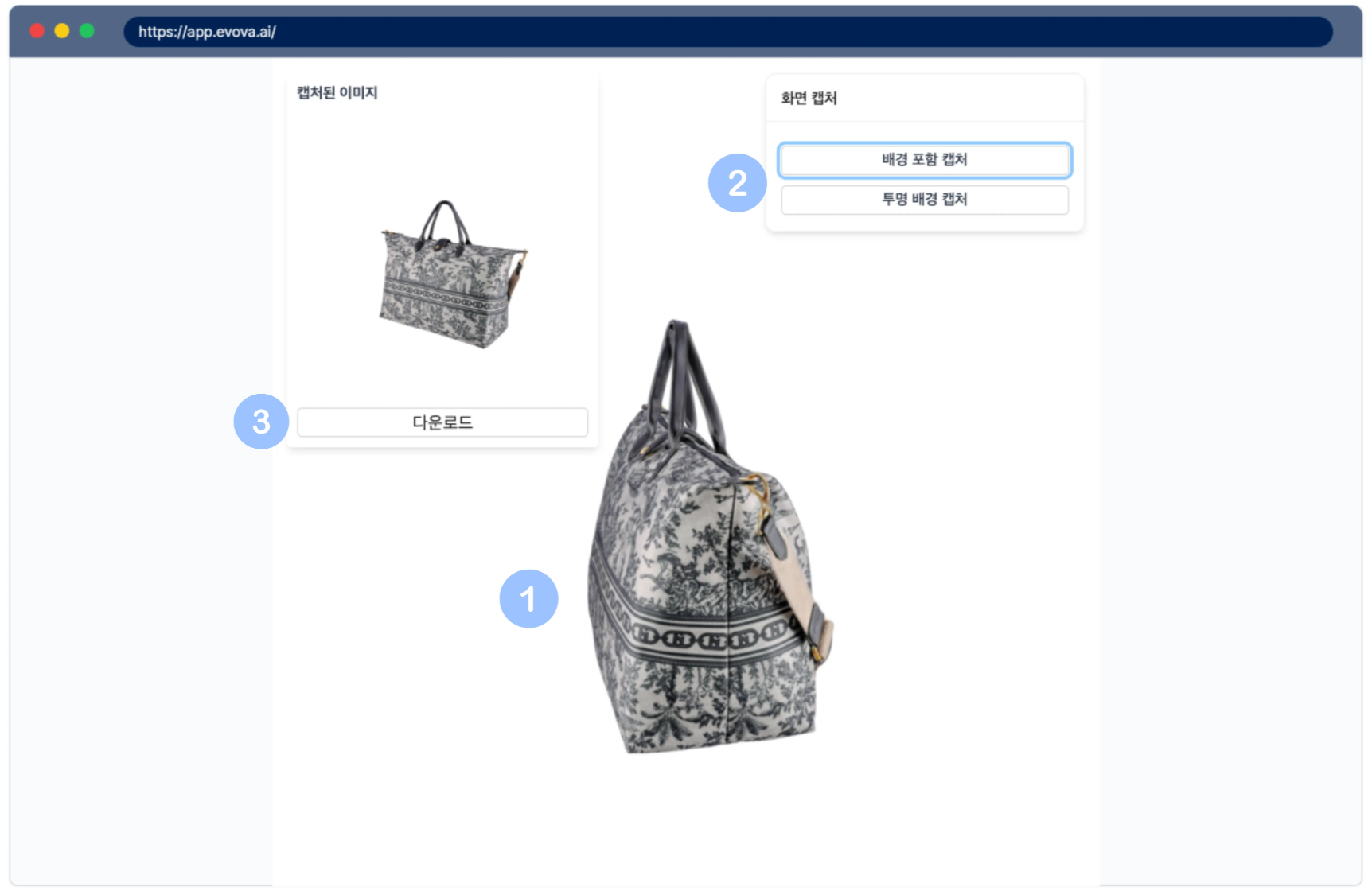 Image 3. Screenshot Settings Window
5. Capture and Preview
- When capture is complete, a preview window appears in the upper left.
- You can check the results in full screen, click the [Download] button to save immediately, or adjust settings and re-capture.
6. Check Results and Save
- After capture is complete, a preview window appears in the upper left
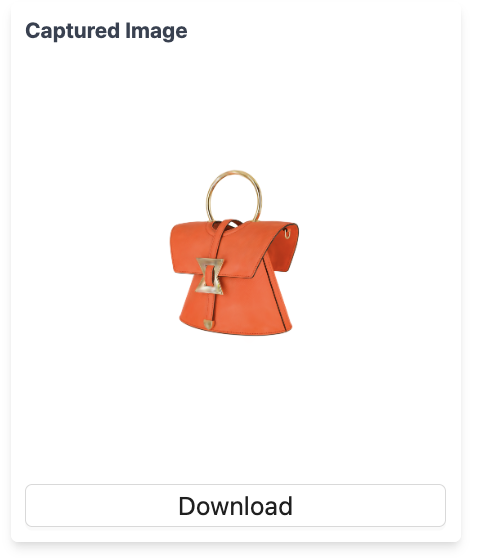 Image 4. Screenshot Preview Window
- Check the results in full screen, and if satisfied, click the
[Download]button to save - Re-capture is possible if needed
- When you disable the
Screenshotfeature after shooting, it automatically returns to the default screen
7. Notes When Finishing
- After capture is complete, please deactivate the
Screenshotfeature. The expanded screen will automatically return to its default size.
Closing
Adding Dimensions to E-commerce
EVOVA is always here to help make your brand experience more stable and special.
If you have any questions, please feel free to contact our support team.
Email: info@metown.co.kr
Phone: 010-6650-6300