Introducing Style Setting
This guide explains how to configure style settings for the EVOVA 3D Viewer.
The style setting feature allows brand managers to share presets internally. Once saved, presets can be easily applied to other products without repeating the same setup.
Access Path
EVOVA Admin > [3D Showroom] > Select Product > Click [Style] on the left
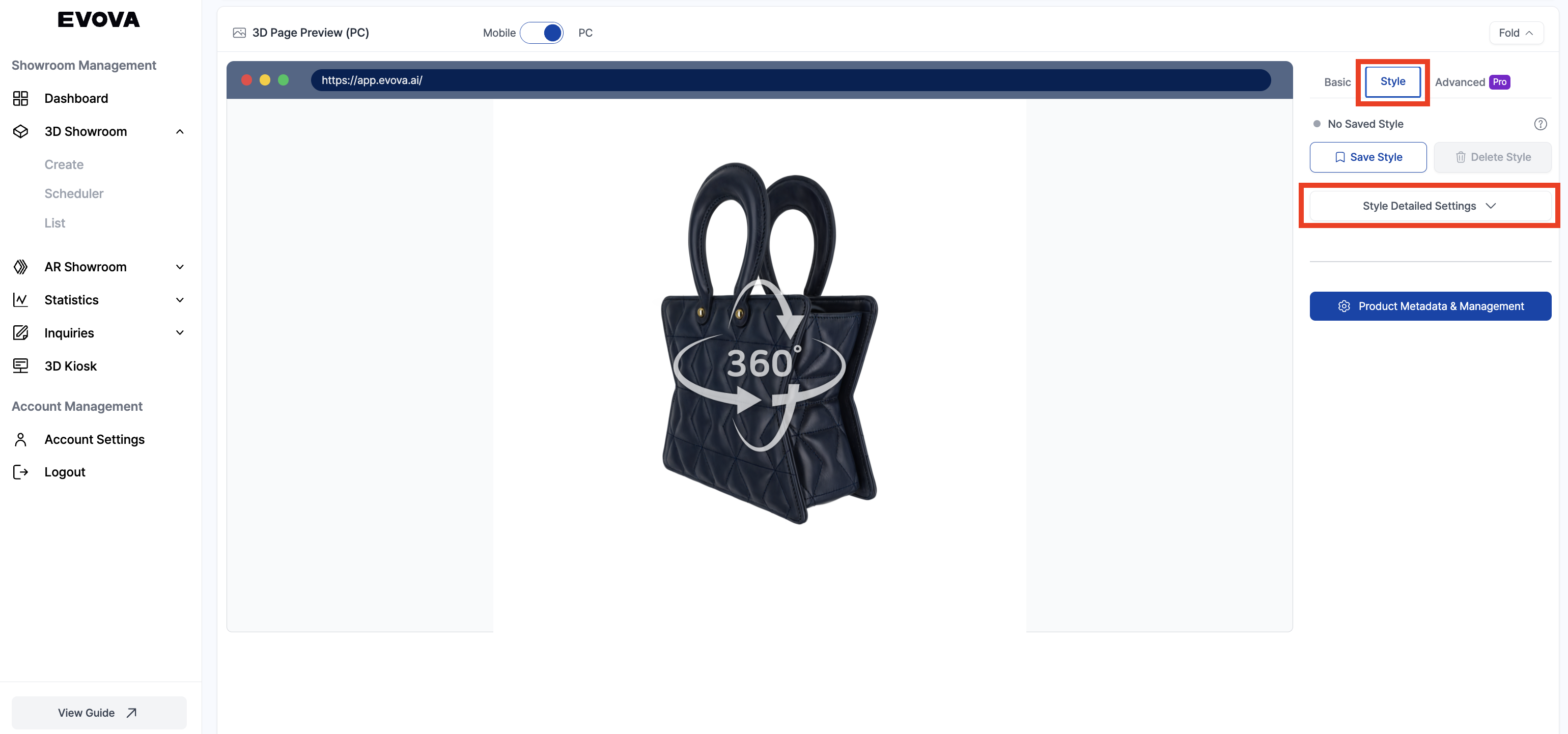
How to Use Viewer Style Settings
1. Style Settings Guide – Size & Ratio
- A guide to configuring the viewer size and background color
- View the guide via the link below
EVOVA Style Settings Guide – Size & Ratio
2. Style Settings Guide – Visual Effects
- A guide for 3D loading effects and viewer information UI
- View the guide via the link below
EVOVA Style Settings Guide – Visual Effects
3. Style Settings Guide – Thumbnail & Loading
- A guide for thumbnail and dynamic loading display
- View the guide via the link below
EVOVA Style Settings Guide – Thumbnail & Loading
4. Style Settings Guide – UI Configuration
- A guide for adjusting the position and size of UI icons
- UI Types
- Types of icons displayed within the showroom interface
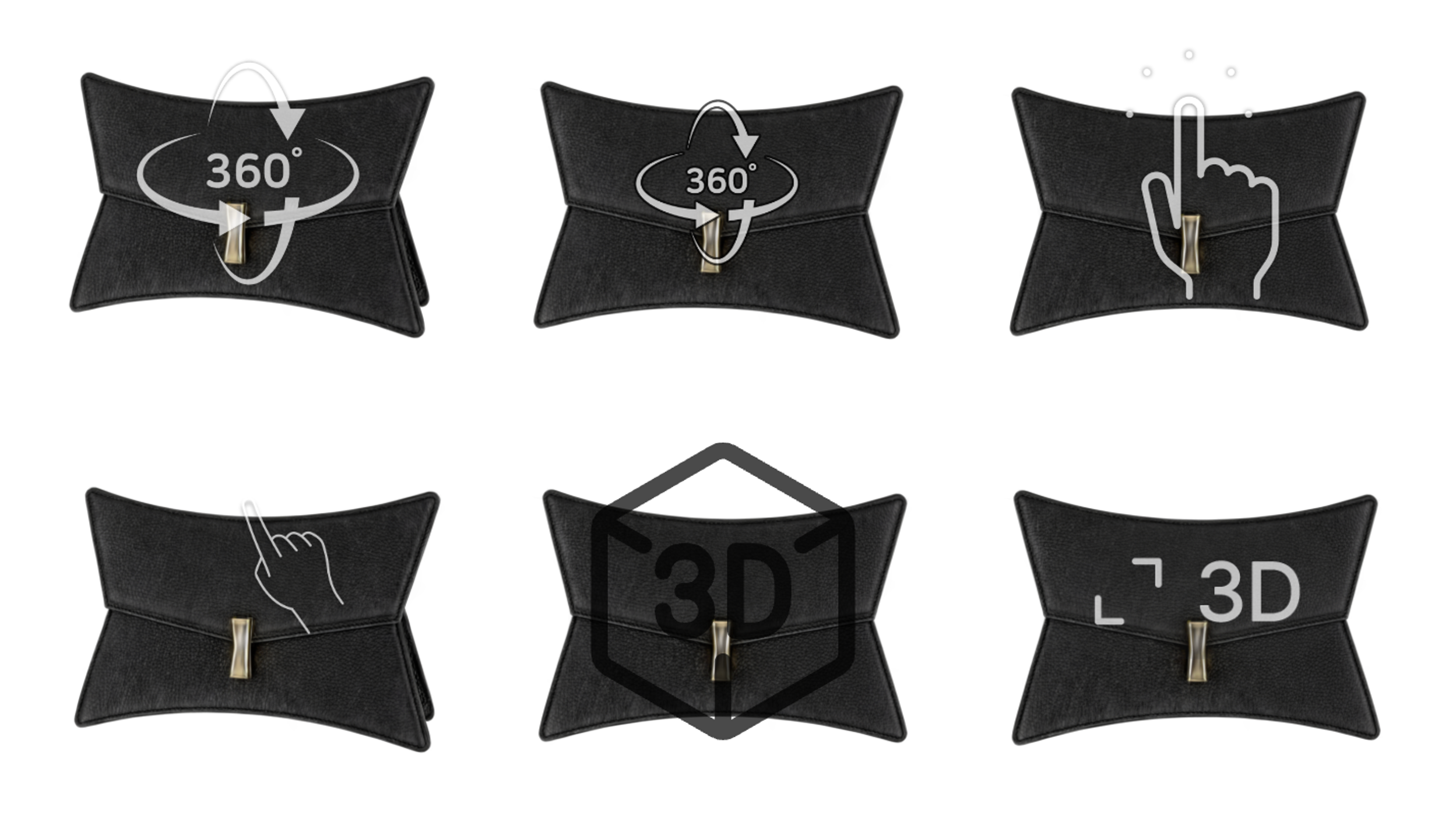 Image 2. UI Types
- UI Position
- Roughly specify where the icons should appear on the showroom screen
- Examples: Top Left / Bottom Right
- Roughly specify where the icons should appear on the showroom screen
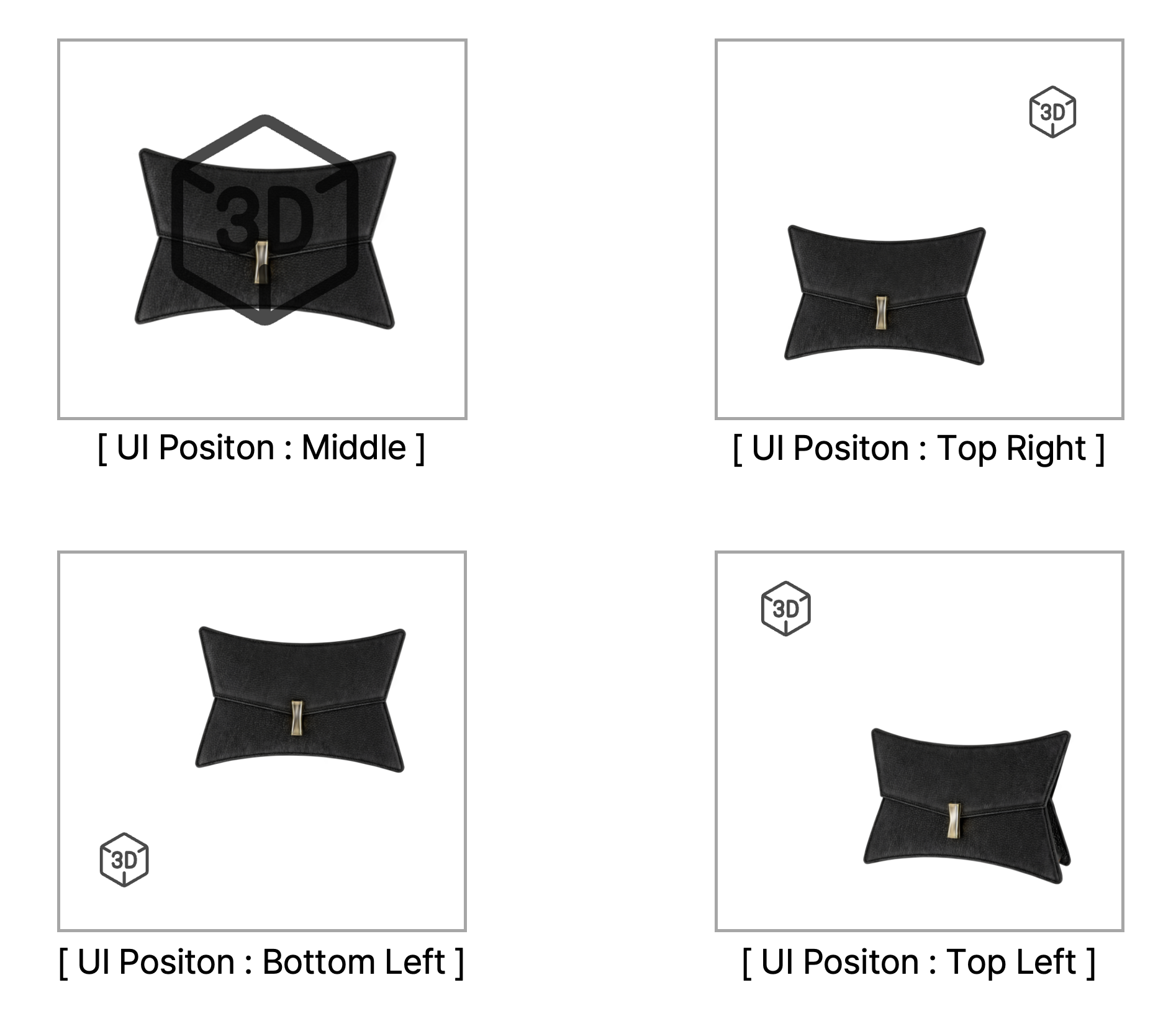 Image 3. UI Position
-
Detailed Position Adjustment
- You can input exact coordinates in millimeters to precisely adjust icon placement.
- Useful for detailed X (horizontal) and Y (vertical) adjustments.
-
UI Size
- Configure the icon size separately for PC and mobile environments.
- A value of ‘1x’ is the default; higher values increase the icon size.
→ Adjust per device based on screen layout and visual balance
Contact
If you have any questions, feel free to contact our support team.
Contact Email: info@metown.co.kr
Contact Phone: 010-6650-6300