Visual Effects
This guide explains EVOVA 3D viewer loading effects and viewer information settings.
Access Path:
EVOVA Admin > [3D Showroom] > Select Product > Click [Style] on the left
How to Use Viewer Settings
1. Click Style Settings
- Select a product on the admin page and proceed with style settings
Click [Style] button > Click [Preset Detailed Settings] > Click [Visual Effects Settings]
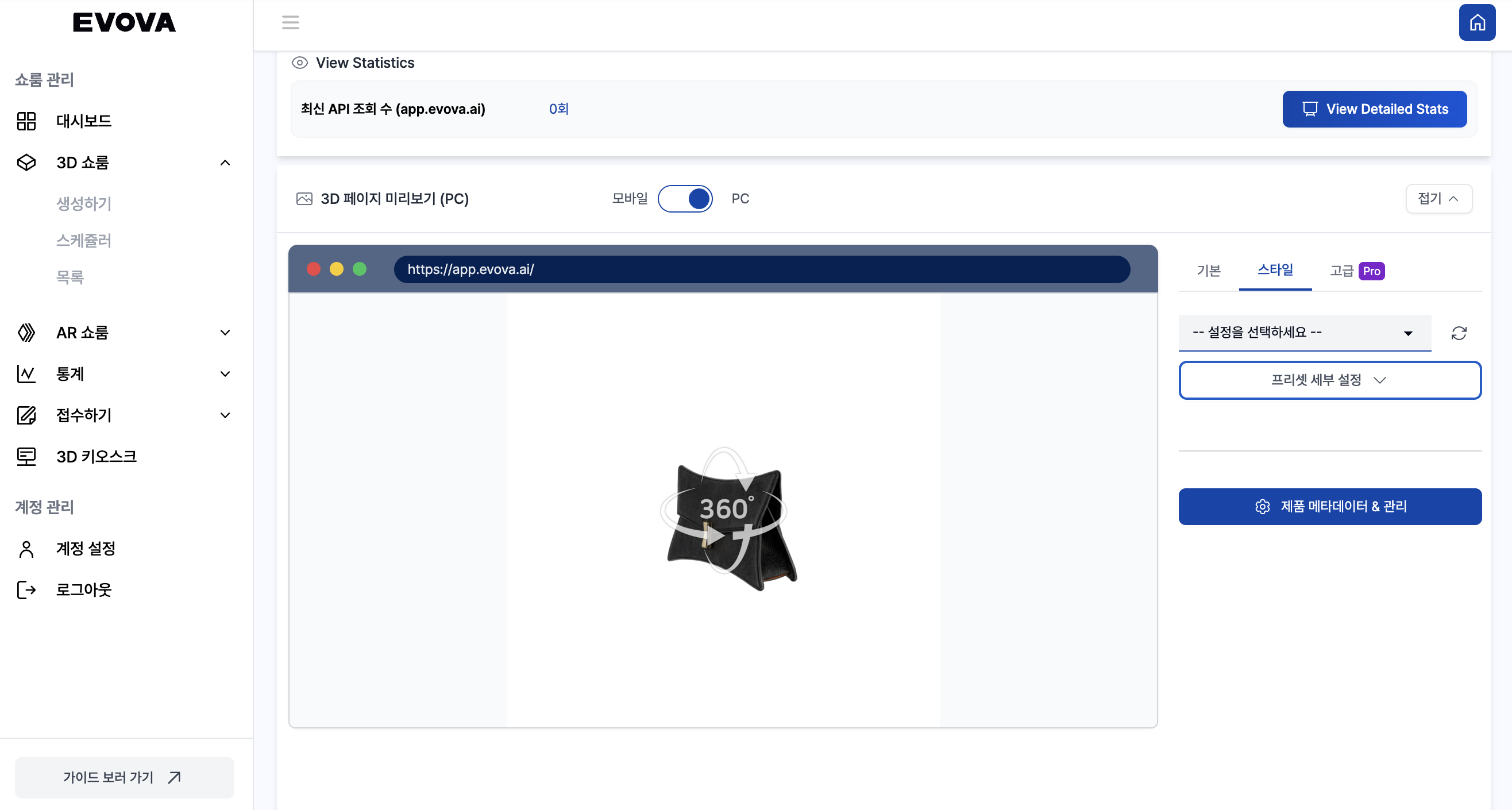 Image 1. Style Settings Tab
- In the Style Detailed Settings tab, click
[Visual Effects Settings]below.
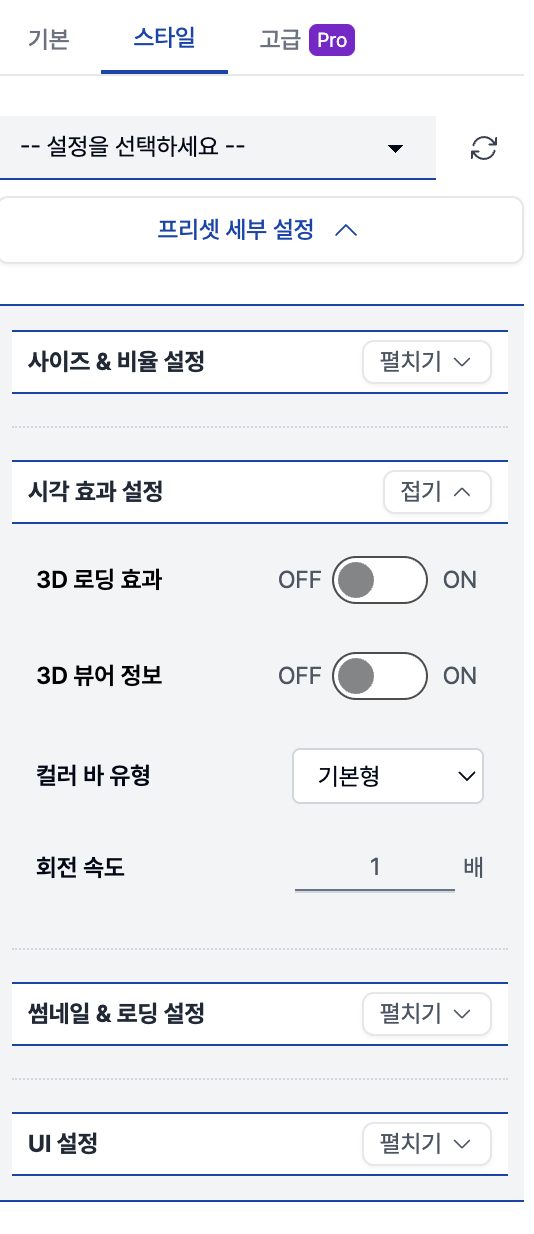 Image 2. Preset Detailed Settings Tab
2-1. 3D Loading Effect Settings
Click [Visual Effects Settings] > 3D Loading Effect- Default is OFF, showroom appears immediately
- When enabled, smooth and natural transitions are applied
Video 1. 3D Loading Effect on/off
2-2. 3D Viewer Information Display
Click [Visual Effects Settings] > 3D Viewer Information- Default is OFF
- Displays the content recorded by the user in the 'Short Description' of metadata
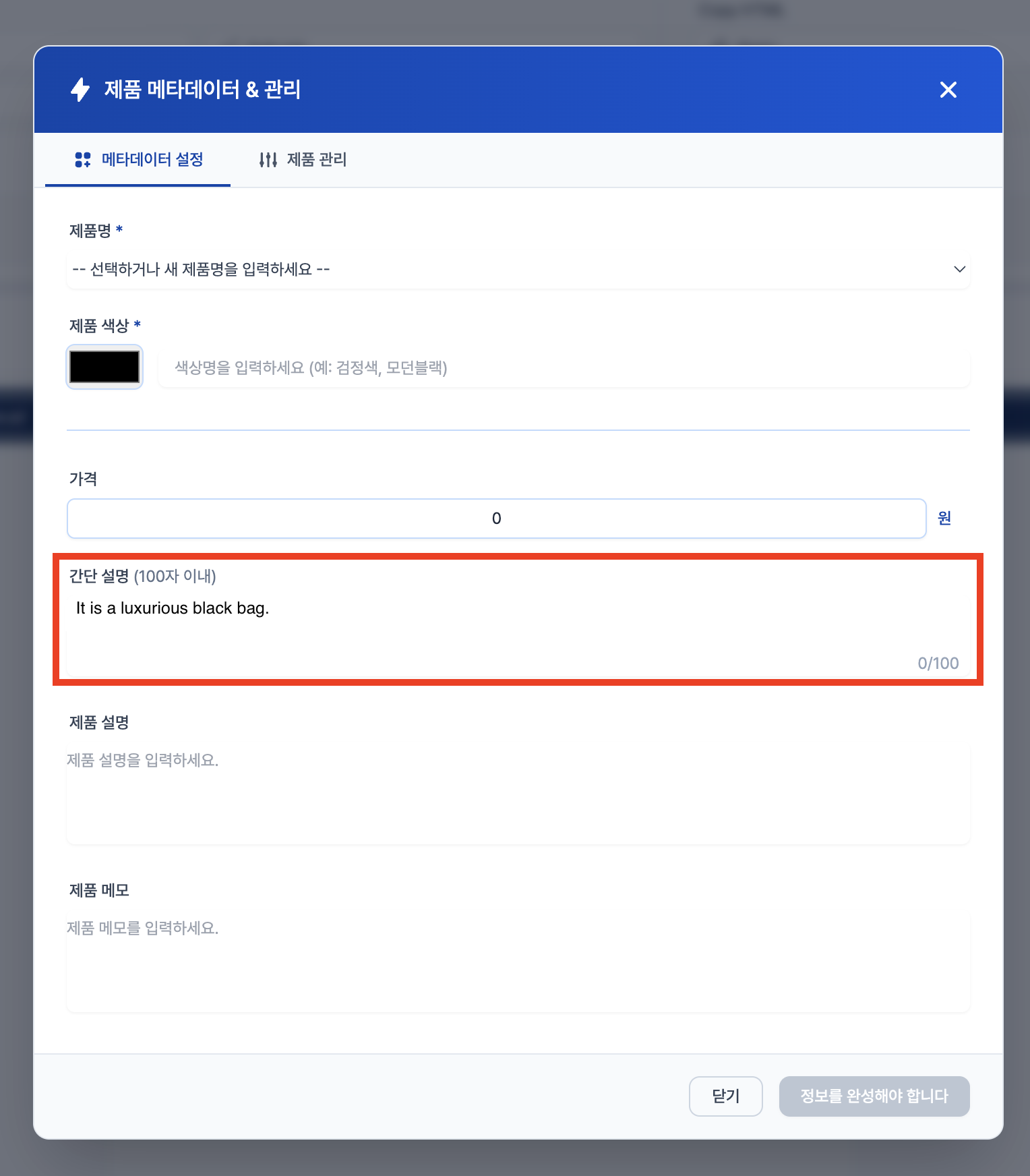 Image 3. Metadata Settings
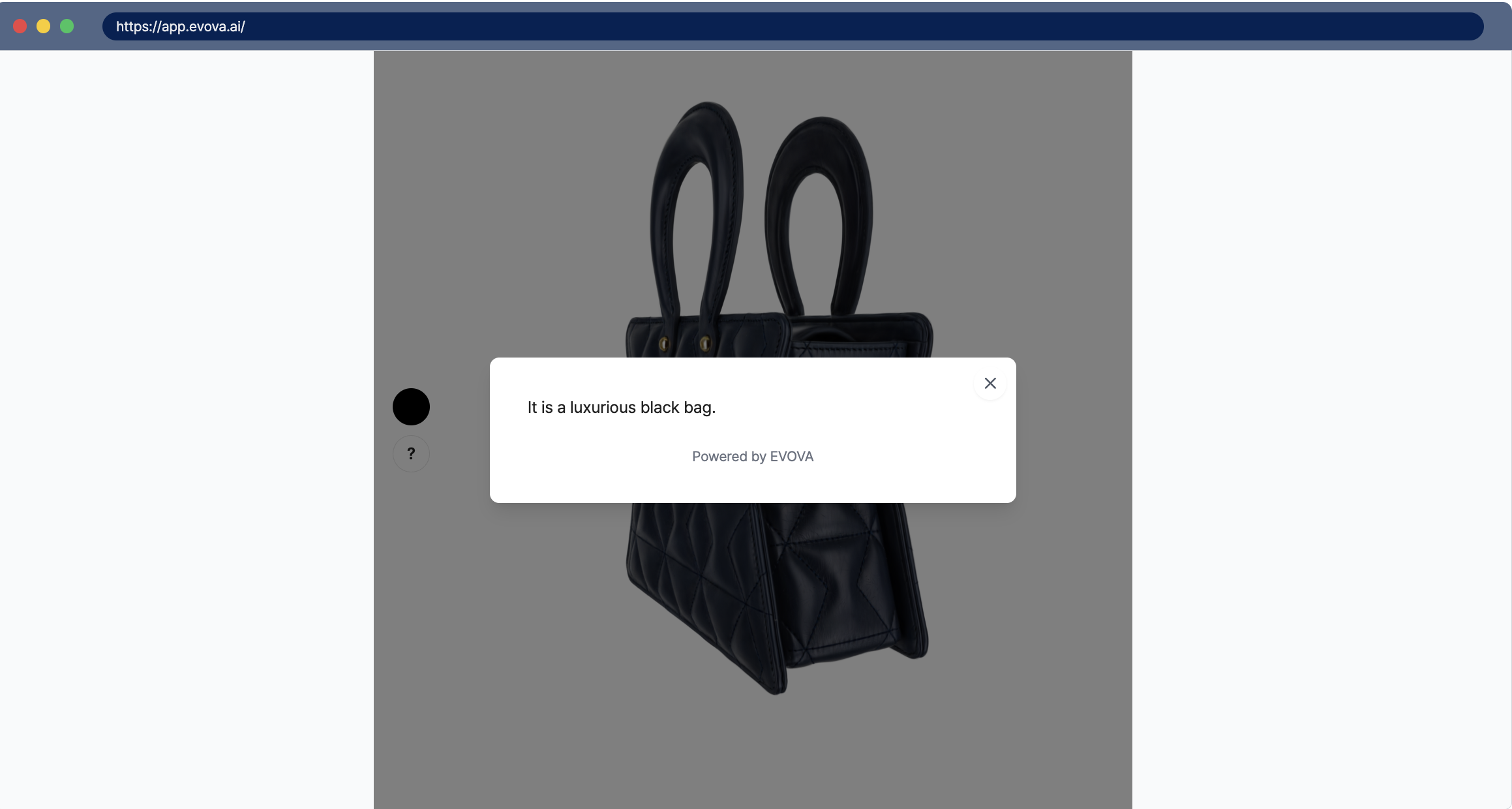 Image 4. Viewer Information Display ON
2-3. Color Bar Type
Click [Visual Effects Settings] > Color Bar Type- Feature to adjust products with multiple options such as colors
- Insert a color bar chart in the 3D viewer so users can change and compare options within the showroom
- You can turn the color bar feature ON/OFF or adjust the color bar position
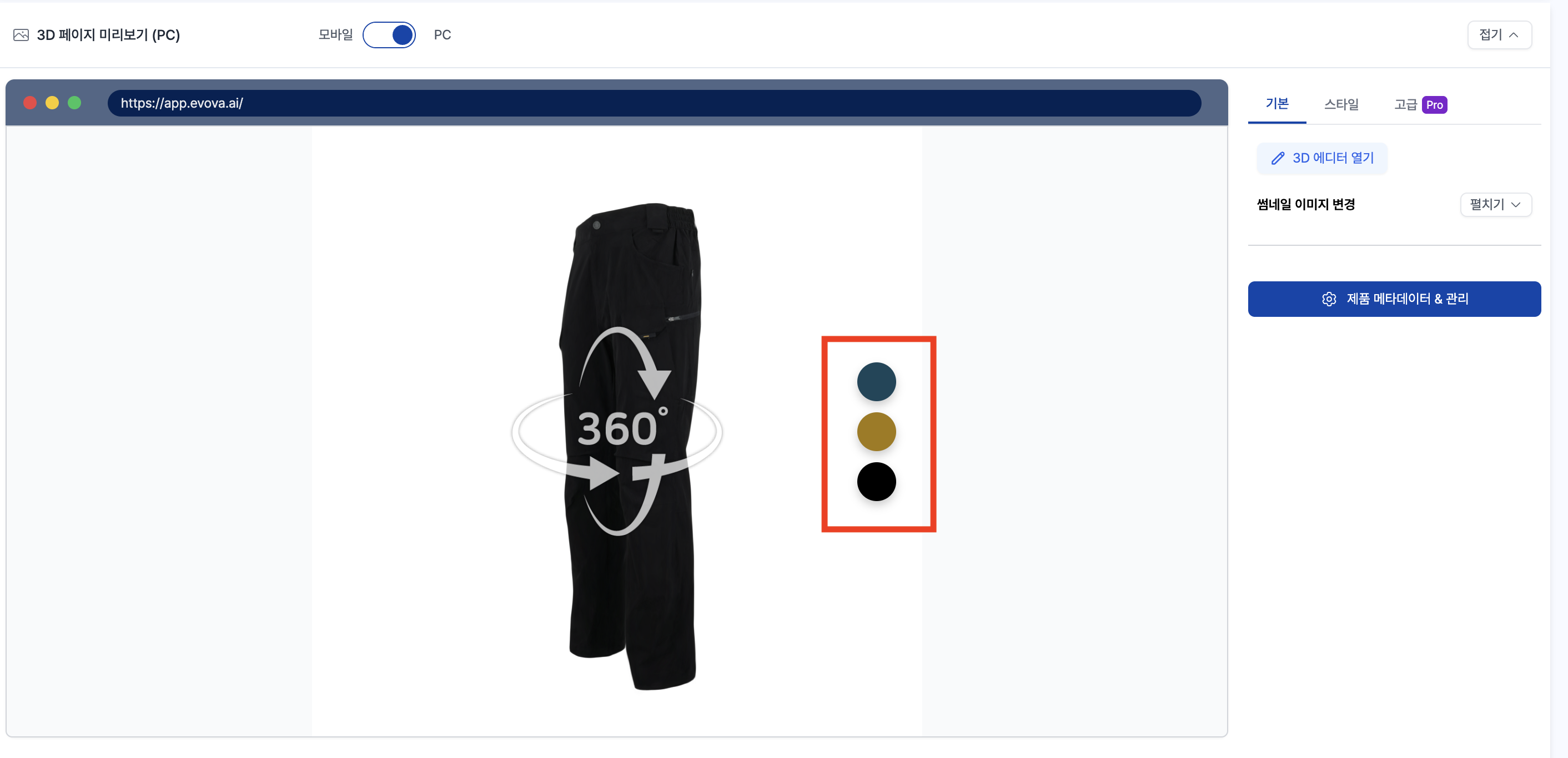 Image 5. Color Bar
2-4. Rotation Speed
Click [Visual Effects Settings] > Rotation Speed- Adjust the speed at which the product rotates in the 3D viewer
- Default value: 1x
Contact
If you have any questions, feel free to contact our support team.
Contact Email: info@metown.co.kr
Contact Phone: 010-6650-6300