Adding Options (Guide to Metadata Linking)
EVOVA 3D Showroom allows you to link multiple product options such as colors, patterns, and sizes so that users can easily switch between them via the Option Link feature.
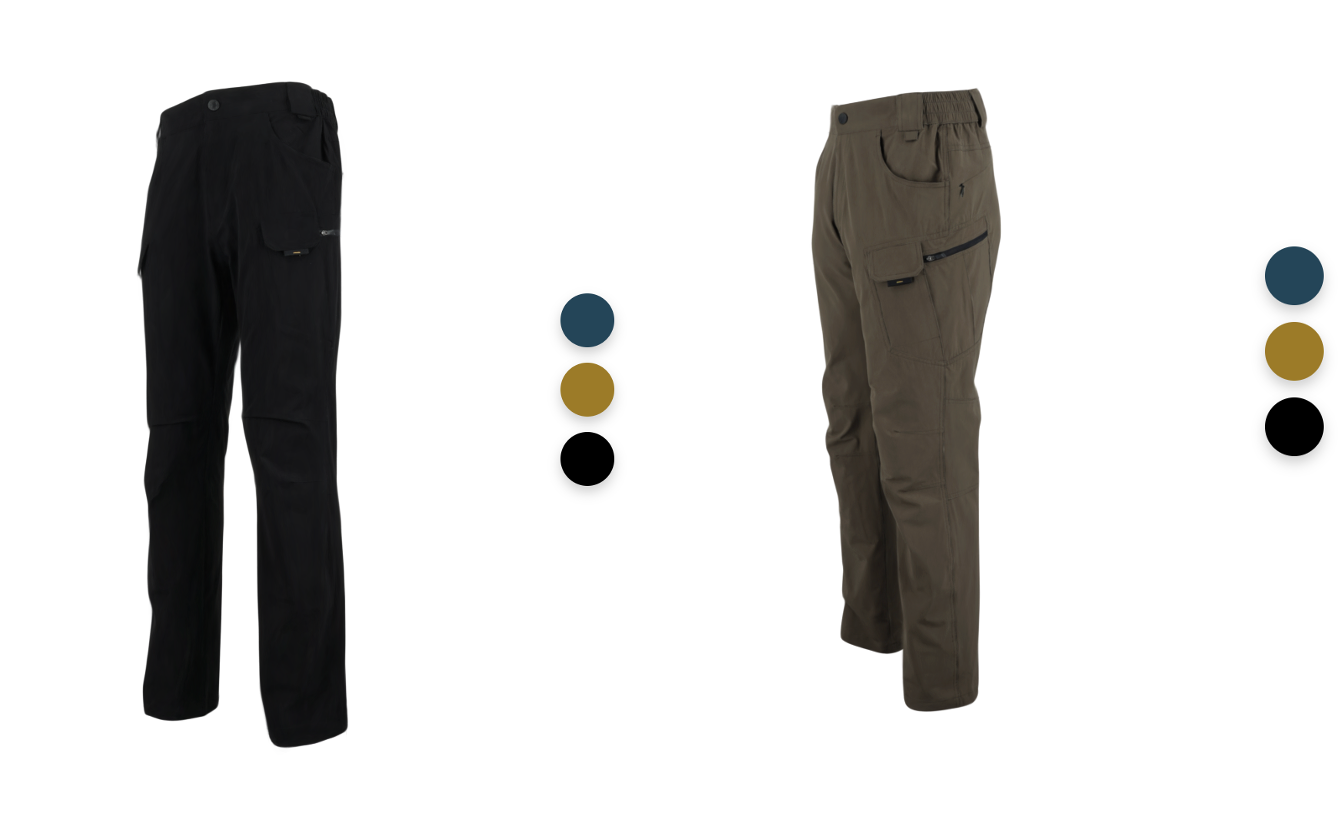 Image 1. Option Selection in Viewer
To connect product options via metadata, follow the steps below.
Access Path
EVOVA Admin > [3D Showroom] > List > Select Product > [Product Metadata & Management]
How to Use Viewer Settings
1. Access the EVOVA Website
- Visit https://app.evova.ai/ and click on 3D Showroom > List
- If you don’t have an account, please sign up and log in
- Navigation:
EVOVA Admin > [3D Showroom] > List
2. Click [Product Metadata & Management]
- Select a product and click [Product Metadata & Management] to begin linking metadata
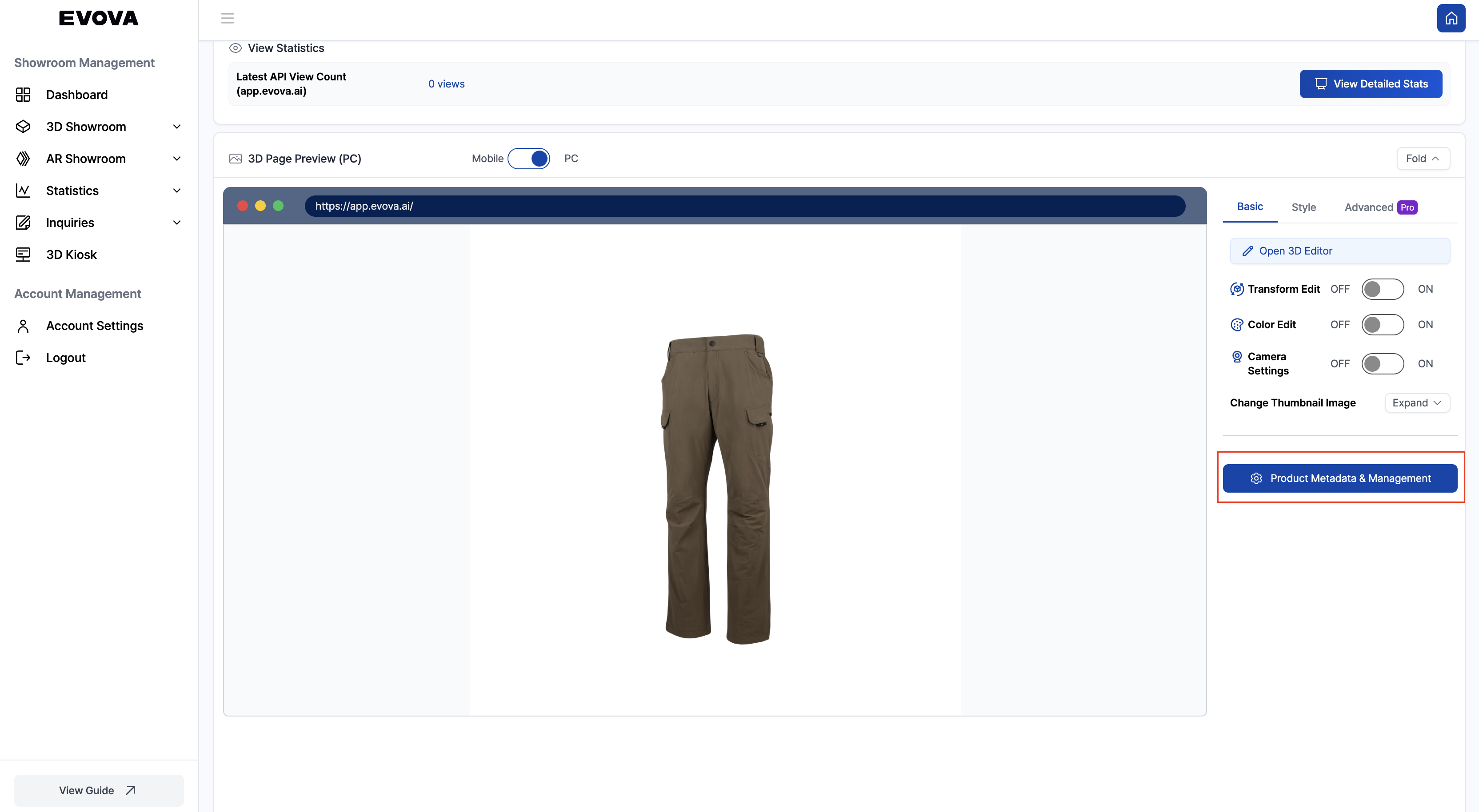 Image 2. Product Metadata & Management Button
3. Enter Product Metadata
- Navigate to [Product Metadata & Management] > [Metadata Settings]
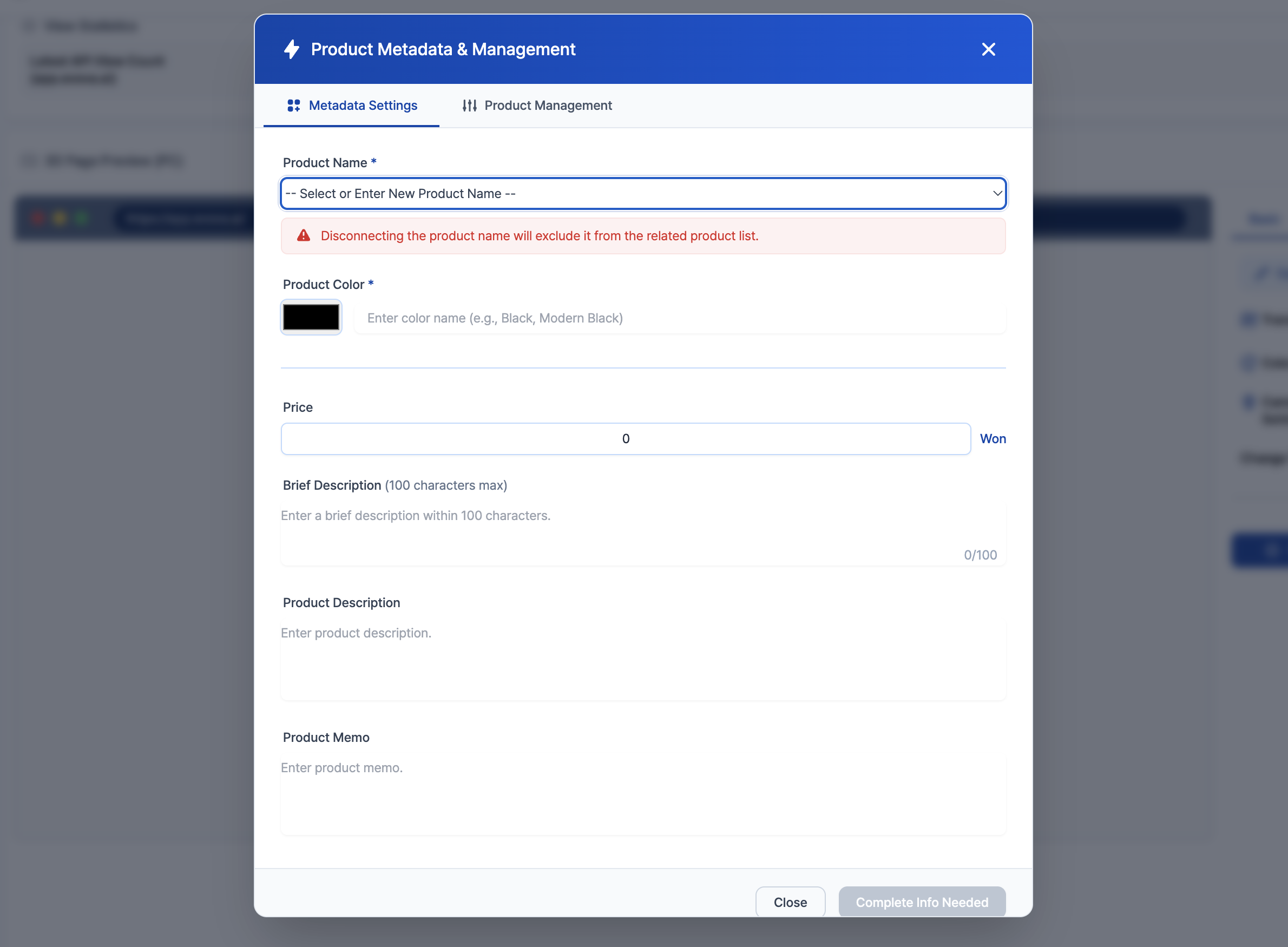 Image 3. Metadata Input Page
- Enter the Product Name If this is a new product, type in the name. If it's another variant of an already-registered product, select the same product name. Products must share the exact same name to be linked together.
- Then fill in other details: Price, Short Description, Full Description, Product Notes, etc.
- Click Save
4. Manage Products
- After adding metadata for all items, go to
[Product Metadata & Management] > [Product Management] - Products with the same product name will be grouped together In the example below, several variants are grouped under the product name "Test Pants".
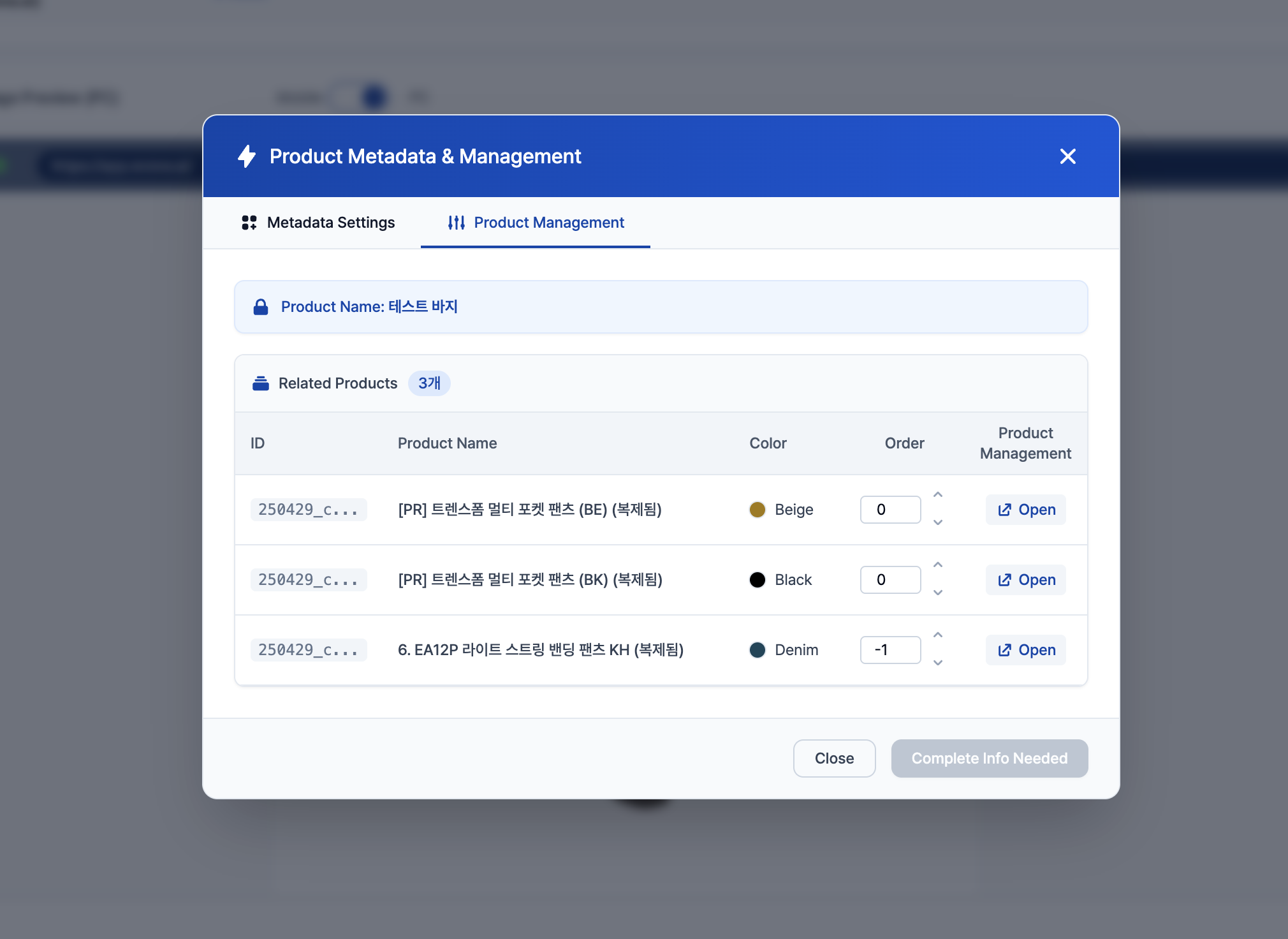 Image 4. Product Management View
- Adjust order and manage product variants in this panel
- Click Save to apply changes
5. Check the Metadata
- Once linked, a color bar will appear in the viewer like this
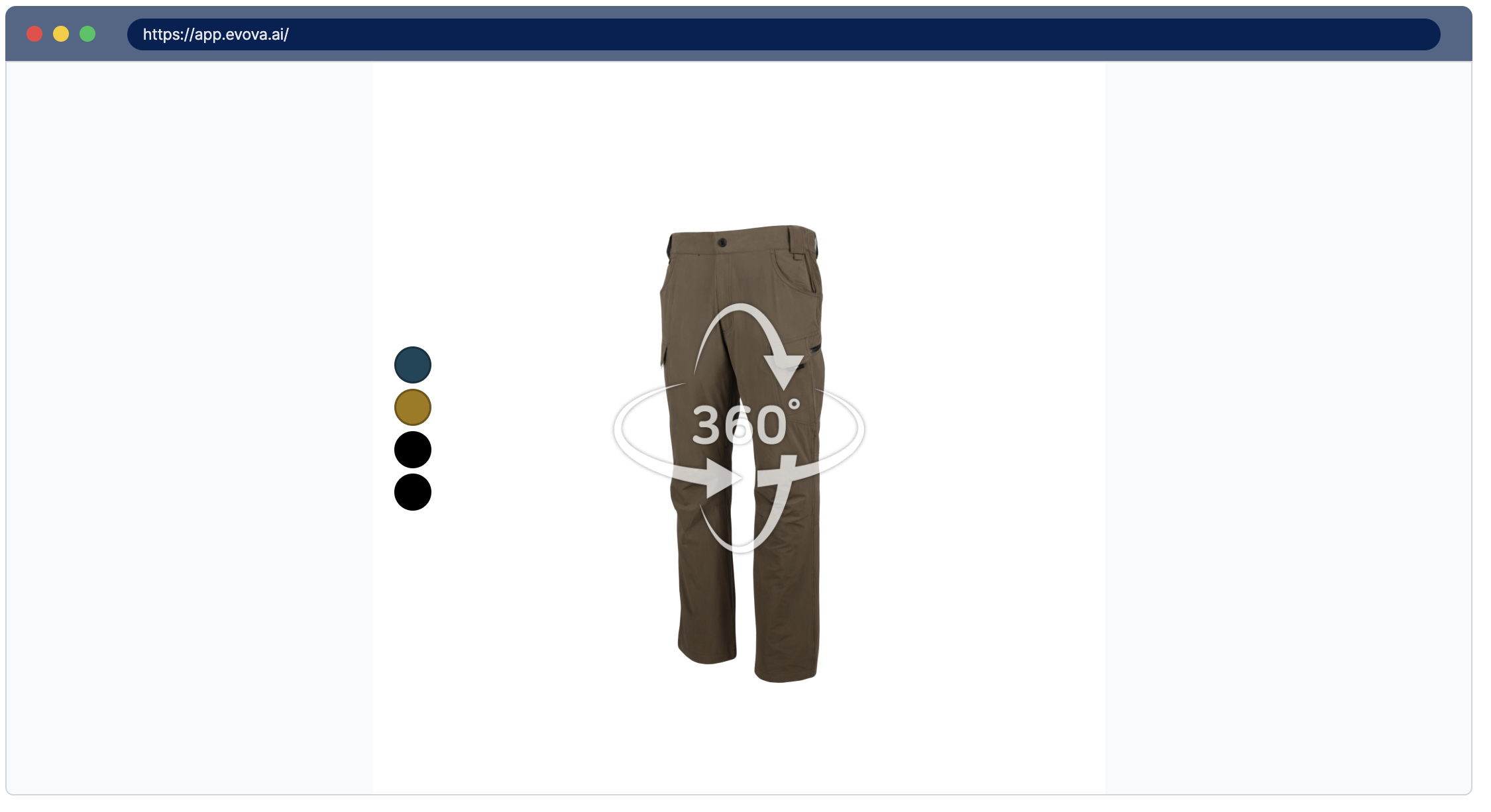 Image 5. Color Bar Example
- To edit the color bar, go to:
EVOVA Admin > [3D Showroom] > Select Product > [Style] > [Preset Detail Settings] > [Visual Effects Settings] > Color Bar Type
6. Notes
- Linked products must have the same product name.
- Each variant must be registered separately with its own image or 3D file.
- This feature can also be used to link other options such as material or configuration, not just color.
Contact
If you have any questions, feel free to contact our support team.
Contact Email: info@metown.co.kr
Contact Phone: 010-6650-6300