Camera Settings
To adjust the camera for your 3D product, follow the steps below.
Access Path:
Left Sidebar > [Library] > Click Item > Right Sidebar > [Advanced Editor] > Right Sidebar > [Camera]
Advanced Editor - Camera
- Select
[Camera]in the right sidebar.
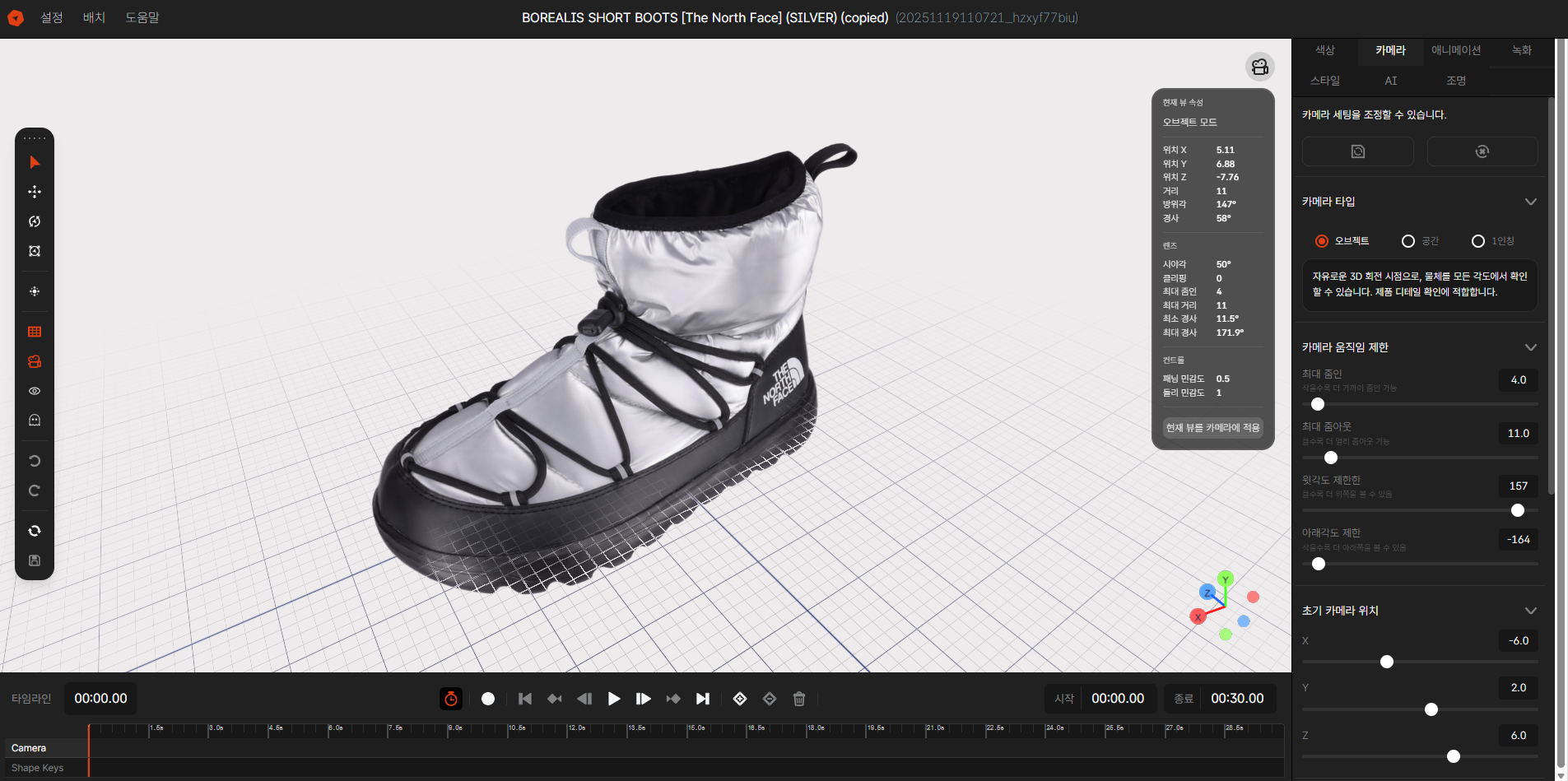
Image 1. EVOVA Advanced Editor, Camera
- The camera settings in the Advanced Editor is the stage where you design how users experience the item. Build the optimal camera system that matches the characteristics of your item (product or space).
- You can always return to the beginning with the Reset button, or quickly restore to previous settings.
Camera Type Selection (3 Modes)
Select the most suitable camera operation method according to the purpose of the item.
- Object
- Feature: A viewpoint where you can freely rotate and observe with the object at the center.
- Recommended: Suitable when you want to show all angles of products like shoes, bags, and electronics precisely.
- Space
- Feature: View and navigate the 3D space from a top-down perspective.
- Recommended: Suitable for space-type items where you need to understand the overall composition, such as interior furniture placement or exhibition floor plans.
- First-Person
- Feature: A viewpoint as if walking through actual space. Move with keyboard and adjust view with mouse.
- Recommended: Suitable when immersion is needed to directly explore the interior of a space, such as model houses or virtual gallery tours.
Camera Movement Limits
Customize the scene and controls that users will see when they first open the viewer.
- Zoom In/Out: Set the limit distance for how close or far the camera can get to the object.
- Top/Bottom Angle Limits: Limit the range at which the camera can illuminate above/below the object.
Initial Position Values (XYZ)
- Initial Camera Position: Set the coordinates of the starting point where the camera will be installed.
- Initial Target Position: Set the coordinates where the item will initially be positioned.
Lens
- Field of View (FOV): Set the width of the view that the camera lens captures at once. (Higher values create wide-angle effect, lower values create telephoto lens effect)
- Near Plane: Set the minimum distance that gets cut off from the screen when too close to the camera to maintain a comfortable view.
Controller Sensitivity Settings
- Pan Speed: Adjust the response speed when panning the screen with right-click, etc.
- Moving Speed: Adjust the speed when moving with keyboard in first-person mode, etc.
Closing
Adding Dimensions to E-commerce
EVOVA is always here to help make your brand experience more stable and special.
If you have any questions, please feel free to contact our support team.
Email: info@metown.co.kr
Phone: 010-6650-6300