Color Settings
To adjust the color for your 3D product, follow the steps below.
Access Path:
Left Sidebar > [Library] > Click Item > Right Sidebar > [Advanced Editor] > Right Sidebar > [Color]
Advanced Editor - Color
- Select
[Color]in the right sidebar.
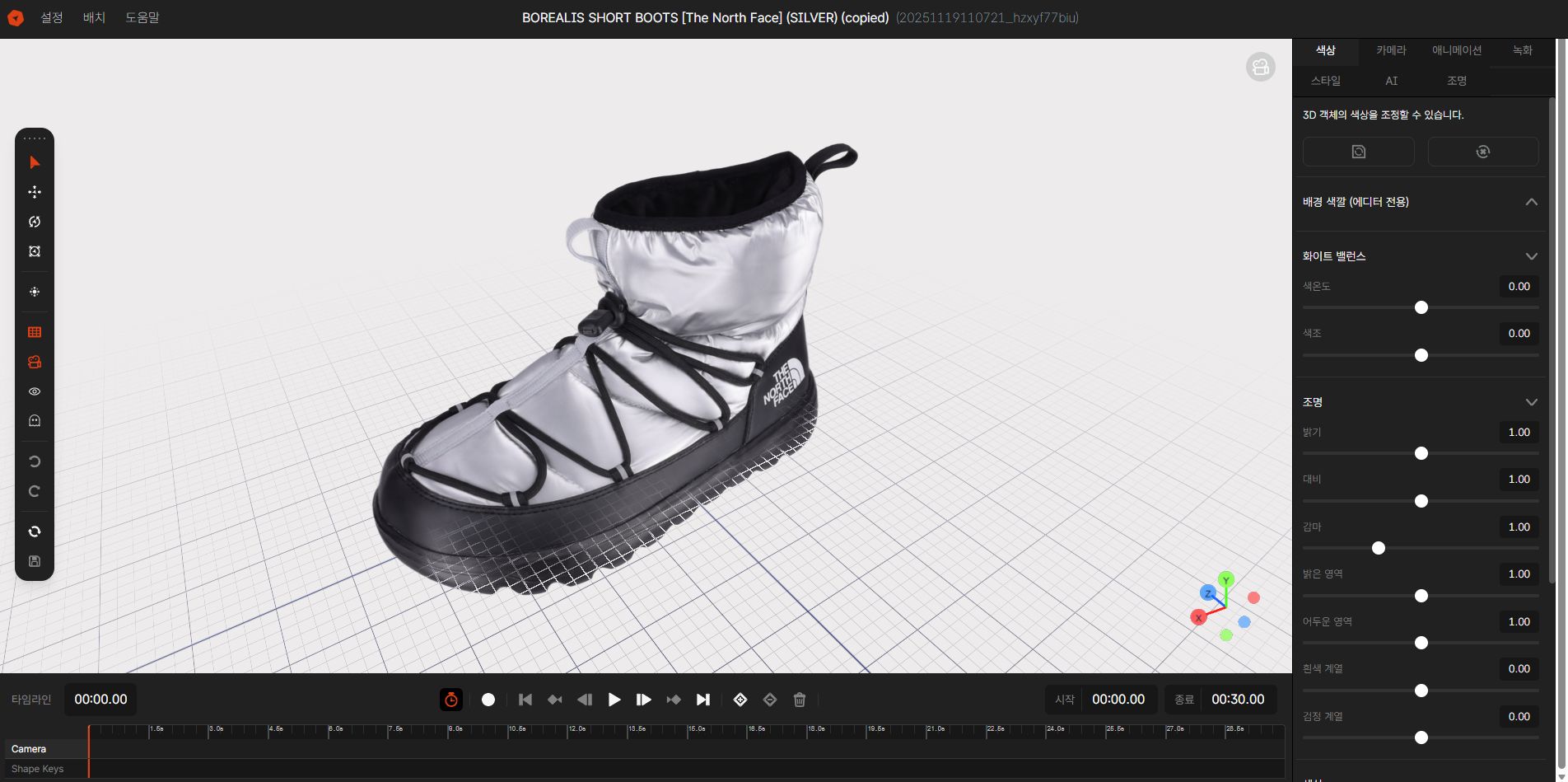
Image 1. EVOVA Advanced Editor, Color
- This is the stage where you determine the visual tone of the item. You can always return to the beginning with the Reset button, or quickly restore to previous settings.
Background and White Balance
- Viewer Background Color: Freely change the background color behind the item.
- White Balance: Adjust color temperature and tint to match white more accurately.
Lighting
- Brightness: Adjust the overall illumination of the product. Higher values make it brighter, lower values make it darker.
- Contrast: Adjust the difference between bright and dark areas to create a sharper image.
- Gamma: Correct midtones by adjusting the overall brightness curve.
- Highlights & Whites: Emphasize bright areas more, or recover details that were too bright and blown out.
- Shadows & Blacks: Adjust the depth of dark areas such as shadows.
Color
- RGB: Directly adjust the amount of red, green, and blue to emphasize specific colors.
- Saturation: Adjust the vividness of colors. Lower values approach grayscale.
- Vibrance: Suitable for subtle color adjustments compared to basic saturation.
Closing
Adding Dimensions to E-commerce
EVOVA is always here to help make your brand experience more stable and special.
If you have any questions, please feel free to contact our support team.
Email: info@metown.co.kr
Phone: 010-6650-6300