AI Content Generation
Through AI content generation, you can create expanded images and videos by combining sketches and prompts.
Access Path:
Left Sidebar > [Library] > Click Item > Right Sidebar > [Advanced Editor] > Right Sidebar > [AI]
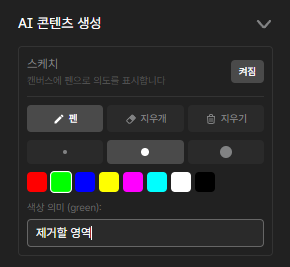
Sketch
Use color pens to intuitively instruct the AI on detailed modifications or directions that are difficult to explain with prompts alone.
-
How to use: Hold the
Shiftkey and sketch directly on the 3D product with your mouse. -
Example operation (using red pen):
1. Mark (circle or fill) a specific decoration part of a bag with the red pen.
2. Enter "area to remove" in the color meaning field.
3. The AI recognizes the red area and generates a result with that decoration deleted.
(※ In addition to red, you can define up to 8 different colors with different instructions.)
Mode
Select the type of content to generate: image or video.
Ratio
Set the ratio of the content.
Prompt
Write the scene you want to generate as text.
Reference Image
- You can add reference images for style guidance.
- You can upload external images, videos, or files generated in EVOVA.
Generation Count
Select the number of items you want to generate.
Gallery
- View Results: Manage generated images and videos in the gallery.
- Video Extension: Expand favorite images into videos using them as sources.
- Reset Details: Modify the prompt of a completed cut and regenerate.
- Download: Download as high-quality files and immediately apply to various marketing channels.
Closing
Adding Dimensions to E-commerce
With EVOVA AI content generation, you can immediately utilize 3D products.
If you have any questions, please feel free to contact our support team.
Email: info@metown.co.kr
Phone: 02-6380-0315