Lighting Settings
To adjust the lighting for your 3D product, follow the steps below.
Access Path:
Left Sidebar > [Library] > Click Item > Right Sidebar > [Advanced Editor] > Right Sidebar > [Lighting]
Advanced Editor - Lighting
- Select
[Lighting]in the right sidebar.
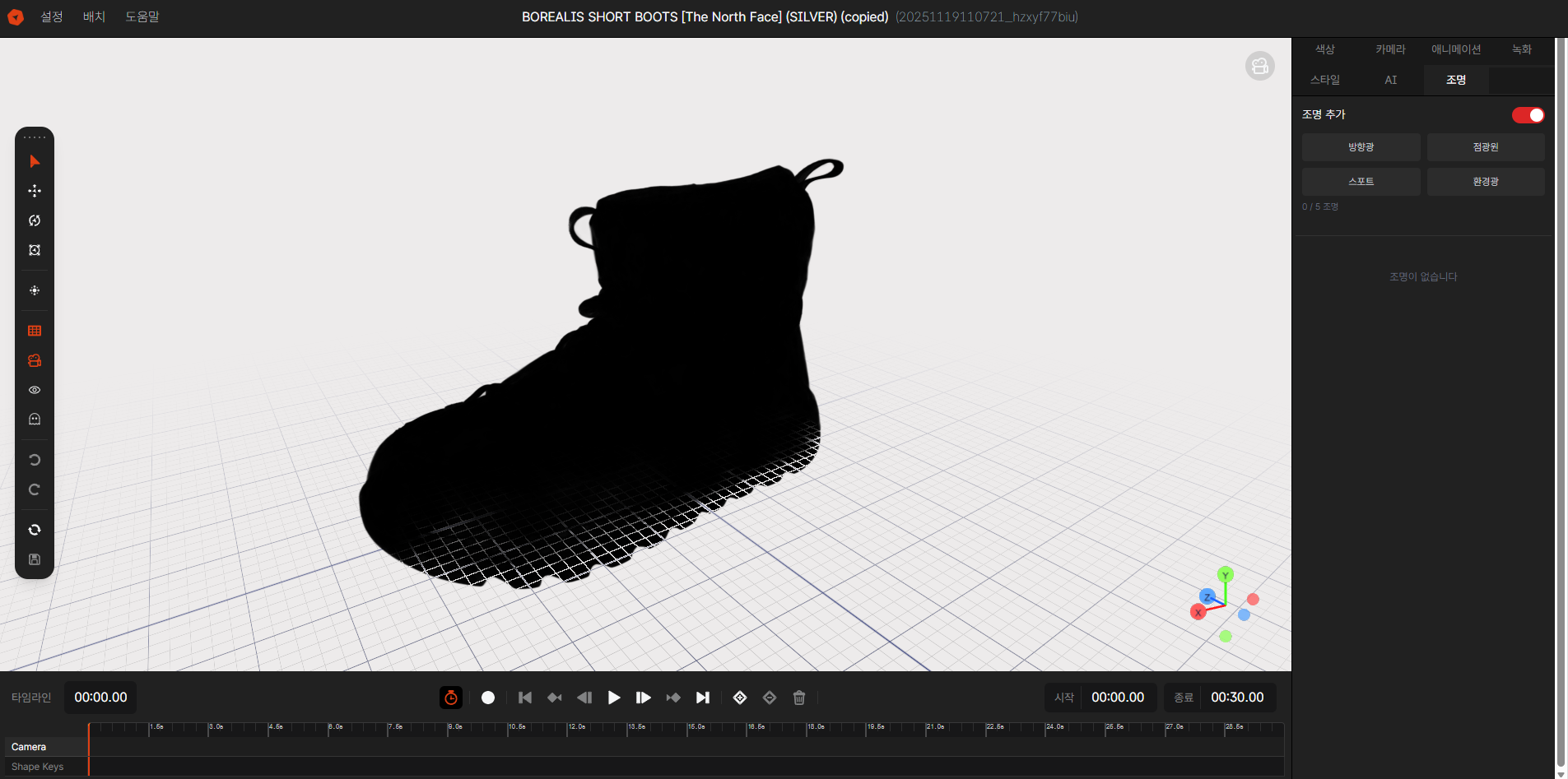
Image 1. EVOVA Advanced Editor, Lighting
Directional Light
Light that shines in a constant direction like sunlight
- You can set the direction, color, and intensity.
Point Light
Light that spreads in all directions like a light bulb
- Light spreads from a specific point in all directions. Use this to highlight specific parts of an item or create an effect where it gets darker towards the edges.
- Position: Set the center point where the light originates.
- Attenuation Distance: Adjust the limit distance that light can reach. Smaller values make the light disappear more rapidly, creating a concentrated effect.
Spotlight
A concentrated light source in a cone shape
- This is the lighting that allows for the most sophisticated presentation. It directs attention strongly by illuminating only within a specific angle.
- Angle: Adjust the width of the cone where light spreads.
- Soft Edges: Creates a natural gradient by blurring the boundary where light touches.
- Position, Direction, Attenuation Distance: Precisely control the starting point, direction, and range of the light.
Ambient Light
Soft background light that fills the entire space
- It doesn't create direct shadows and sets an overall brightness floor so that dark areas (shadow regions) of the item don't become too black.
- You can set the color and intensity.
Closing
Adding Dimensions to E-commerce
EVOVA is always here to help make your brand experience more stable and special.
If you have any questions, please feel free to contact our support team.
Email: info@metown.co.kr
Phone: 010-6650-6300