Video Generation
This guide explains how to use the video generation feature on the EVOVA platform to automatically create high-quality videos based on 3D products.
Videos are generated directly on the server, so you can receive higher quality results than simple screen recordings.
The video generation feature simulates a camera moving around the product, allowing you to create realistic product introduction videos that feel close to real filming.
Access path:
[3D Showroom] > Select product > Click [Content Studio] at the bottom right > Click [Video]
Use cases
- Product introduction videos
- SNS short-form content (Reels, Shorts, TikTok)
- Shopping mall product detail page videos
- Ad creatives
How to Use the Video Generation
1. Select Product and Enter Content Studio
- Select a product from the 3D showroom list and click
[Content Studio]
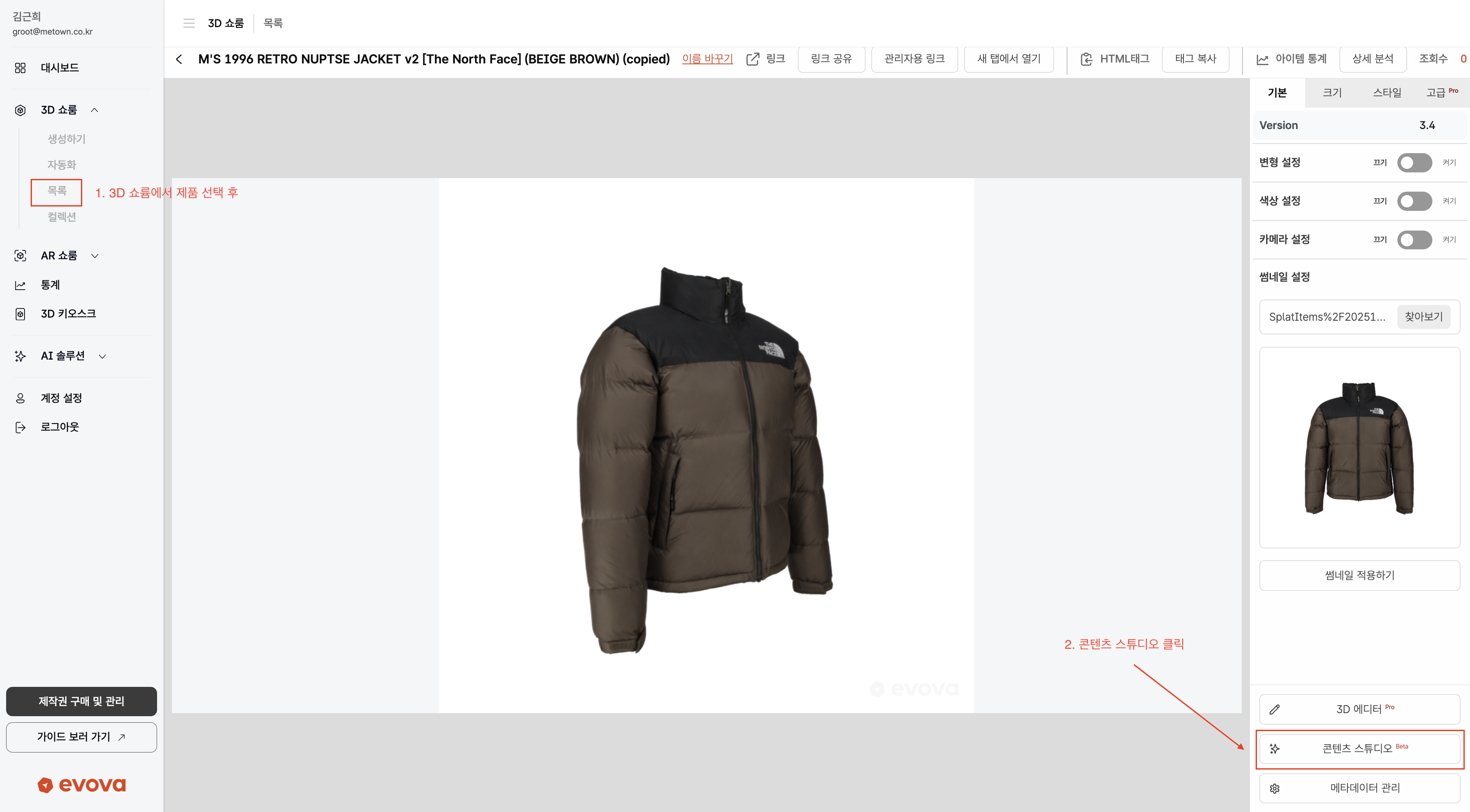
Image 1. Entering 'Content Studio' in the 3D showroom
- Inside Content Studio, click
[Video]
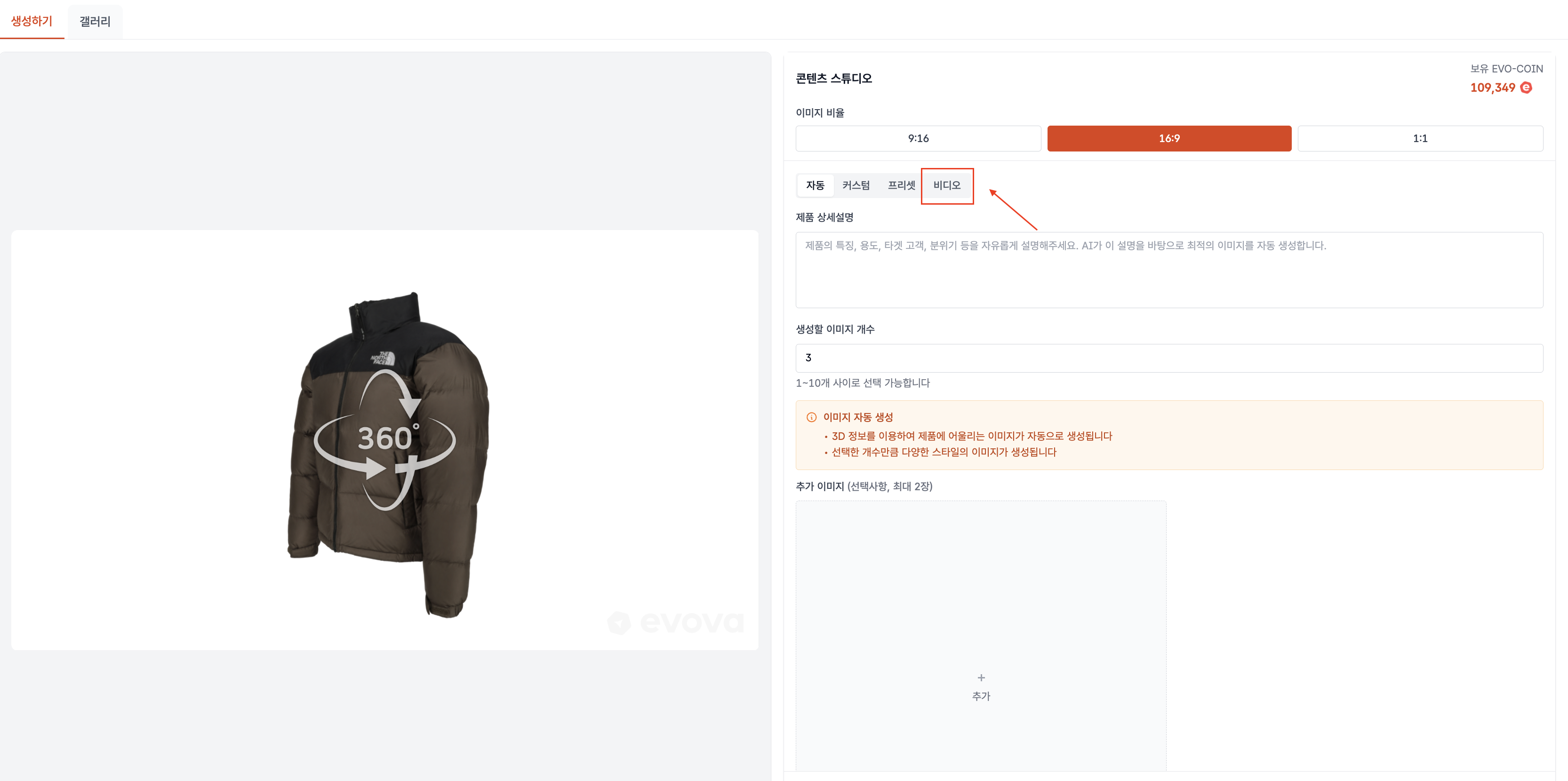
Image 2. 'Video' feature inside Content Studio
- You can configure FPS / duration / resolution / movement / camera height, etc.
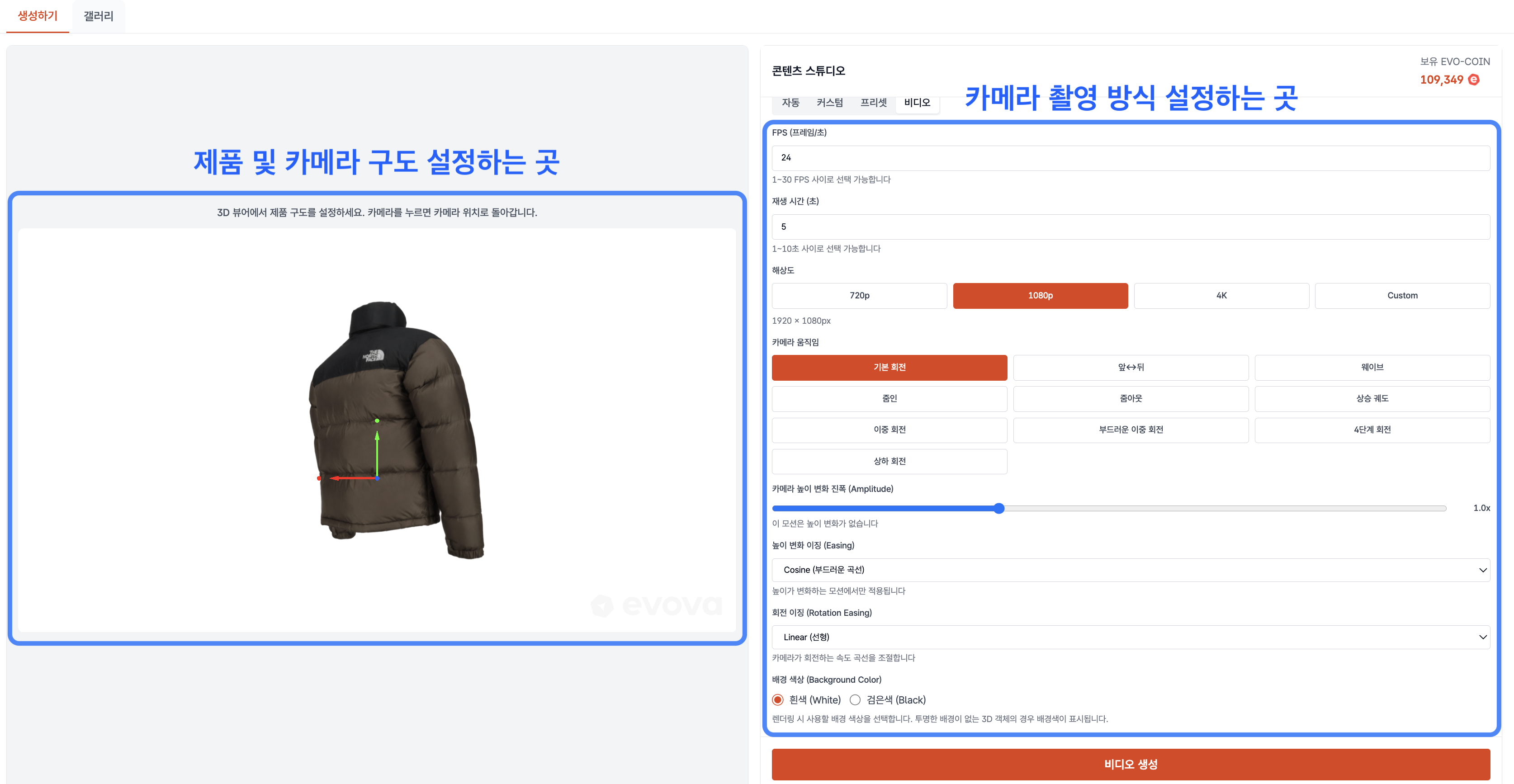
Image 3. Content Studio settings window
2. Set Product and Camera Composition
- Set the product and camera composition on the left side of the Content Studio settings window.
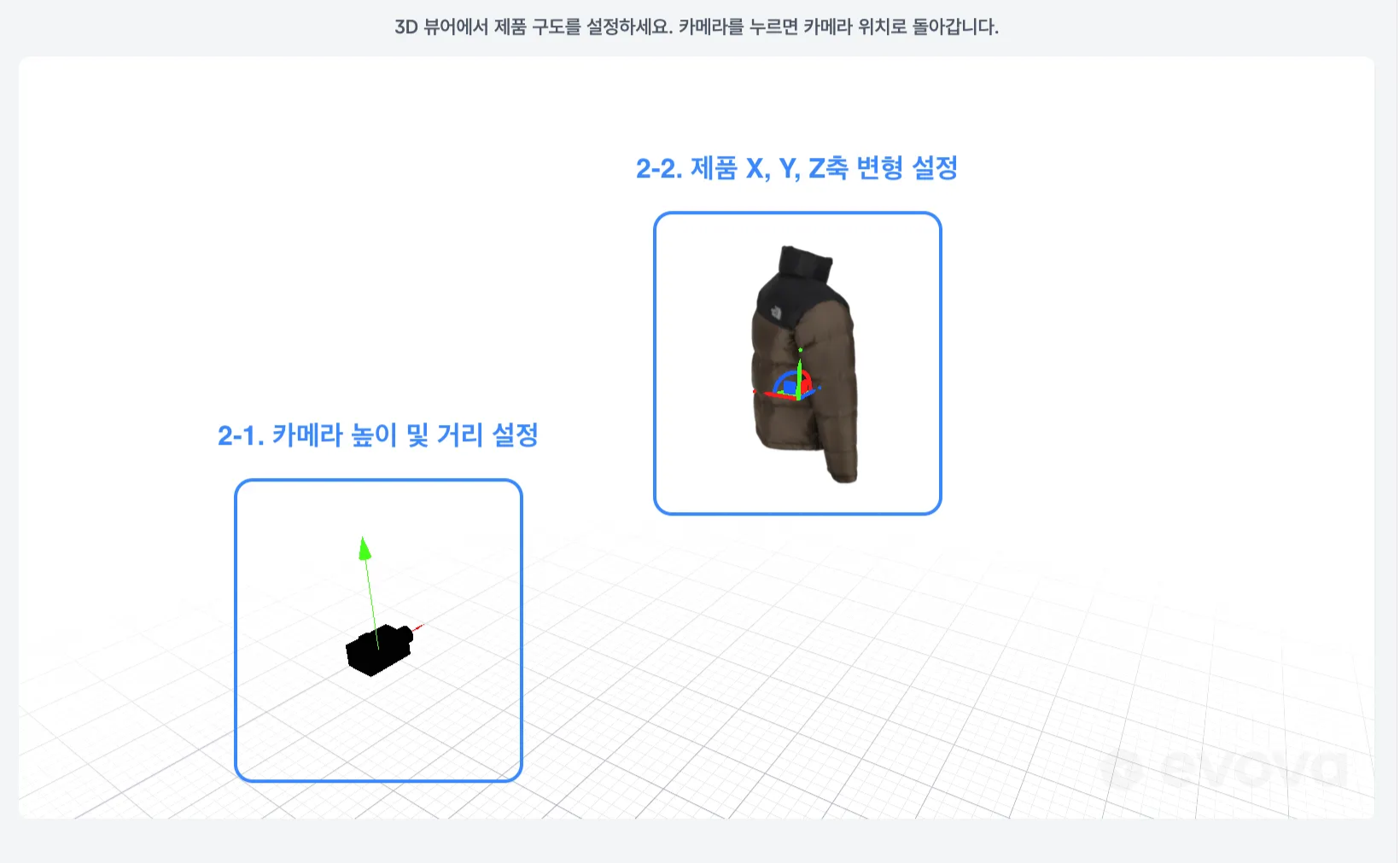
Image 4. Product and camera composition settings
2-1. Set Camera Height and Distance
- Adjust the camera height and the distance from the product to define the camera composition.
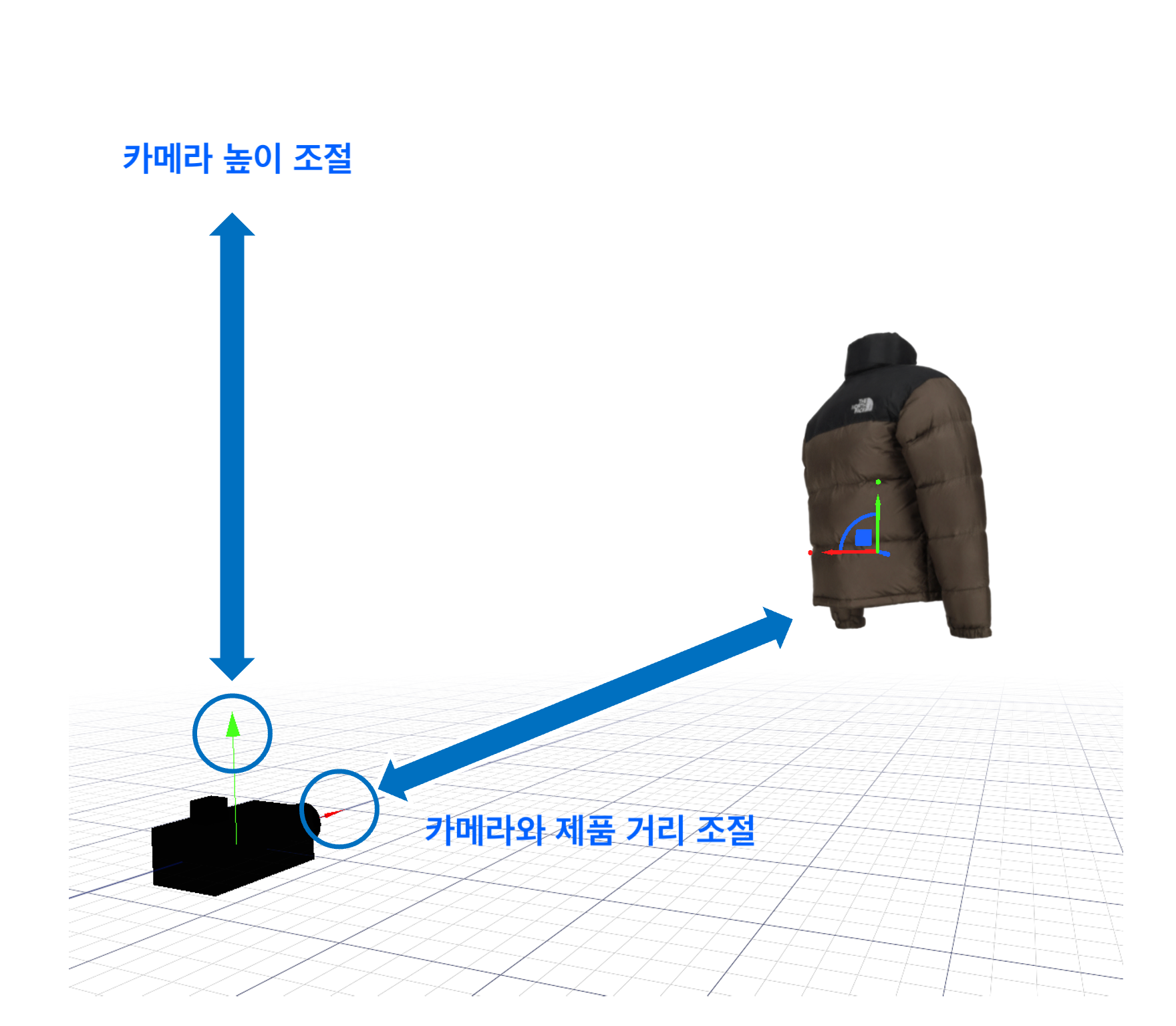
Image 5. Camera height and distance settings
2-2. Set Transform Based on Product X, Y, Z Axes
- Rotate the product on the X, Y, Z axes to achieve the desired angle and framing.
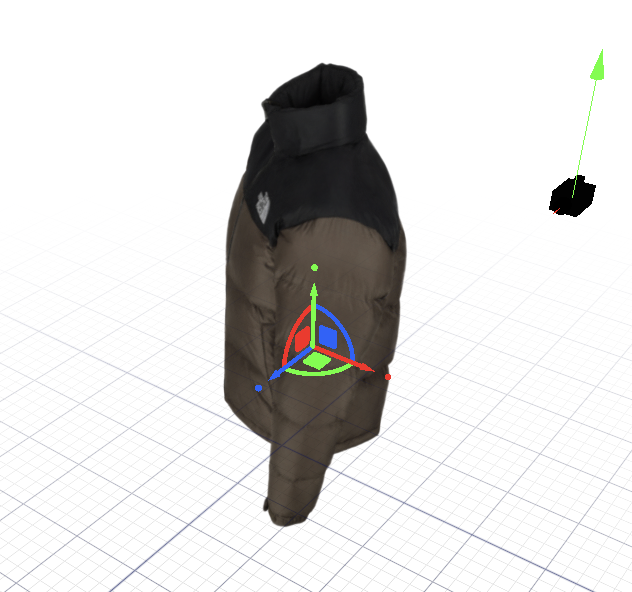
Image 6. Transforming the product based on X, Y, Z axes
-
- Move Move the product left/right, up/down, and front/back
- X axis: Move left ↔ right
- Y axis: Move up ↔ down
- Z axis: Move forward ↔ backward
-
- Rotate Rotate the product in the desired direction
- X axis: Tilt forward/backward (front up / down)
- Y axis: Rotate left/right (show side views)
- Z axis: Twist based on the screen (adjust logo or front-facing angle, etc.)
-
- Scale Adjust the product size proportionally
- You can scale along each of the X, Y, Z axes individually.
3. Set Camera Shooting Style
- On the right side of the Content Studio settings window, specify camera shooting settings.
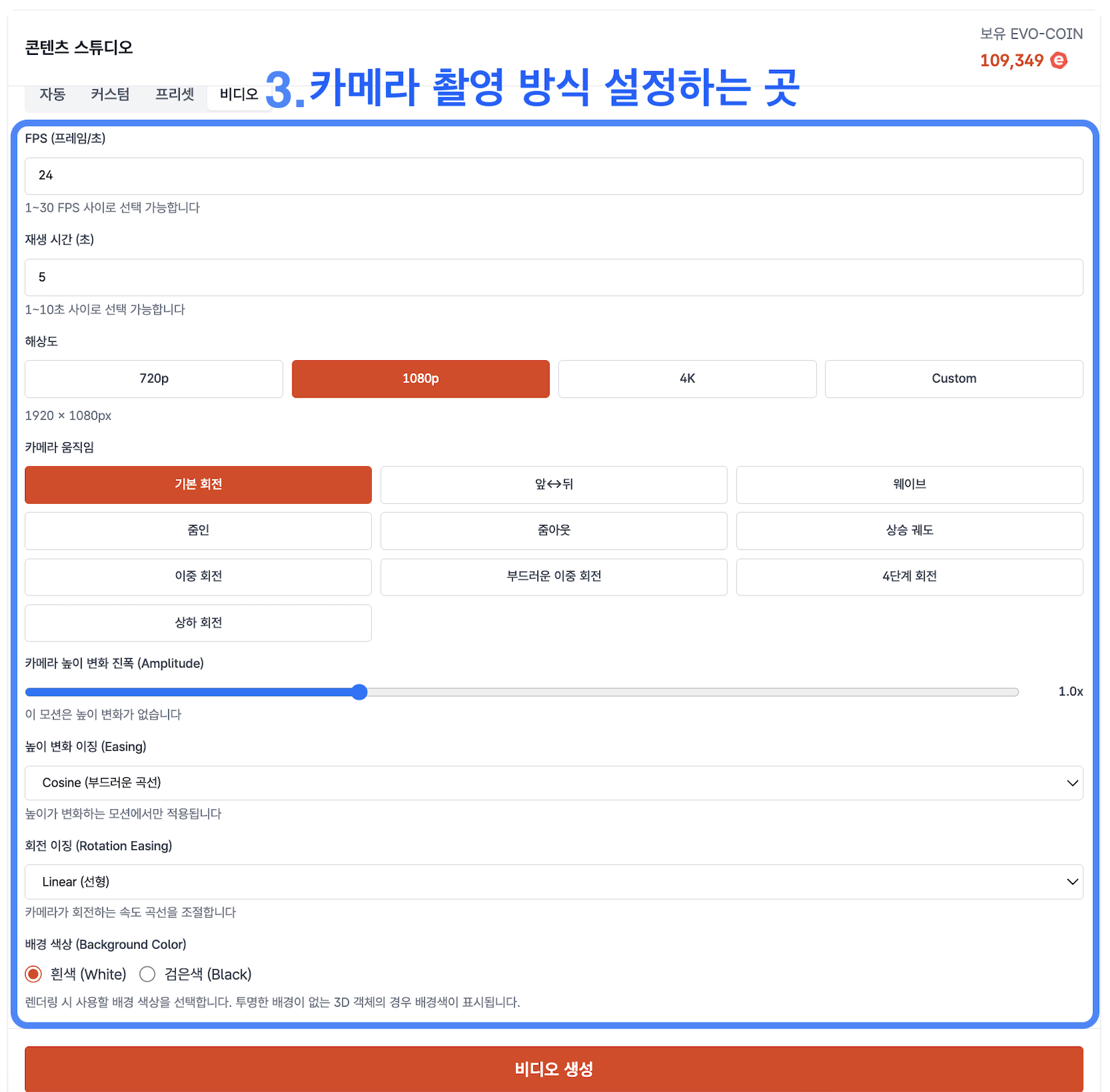
Image 7. Camera shooting style settings
3-1. Set Video Quality and Length
- FPS (frames per second)
- Set frames per second between 1–30 FPS
- Higher FPS increases file size but improves visual smoothness
- Playback duration
- Set video duration between 1–30 seconds
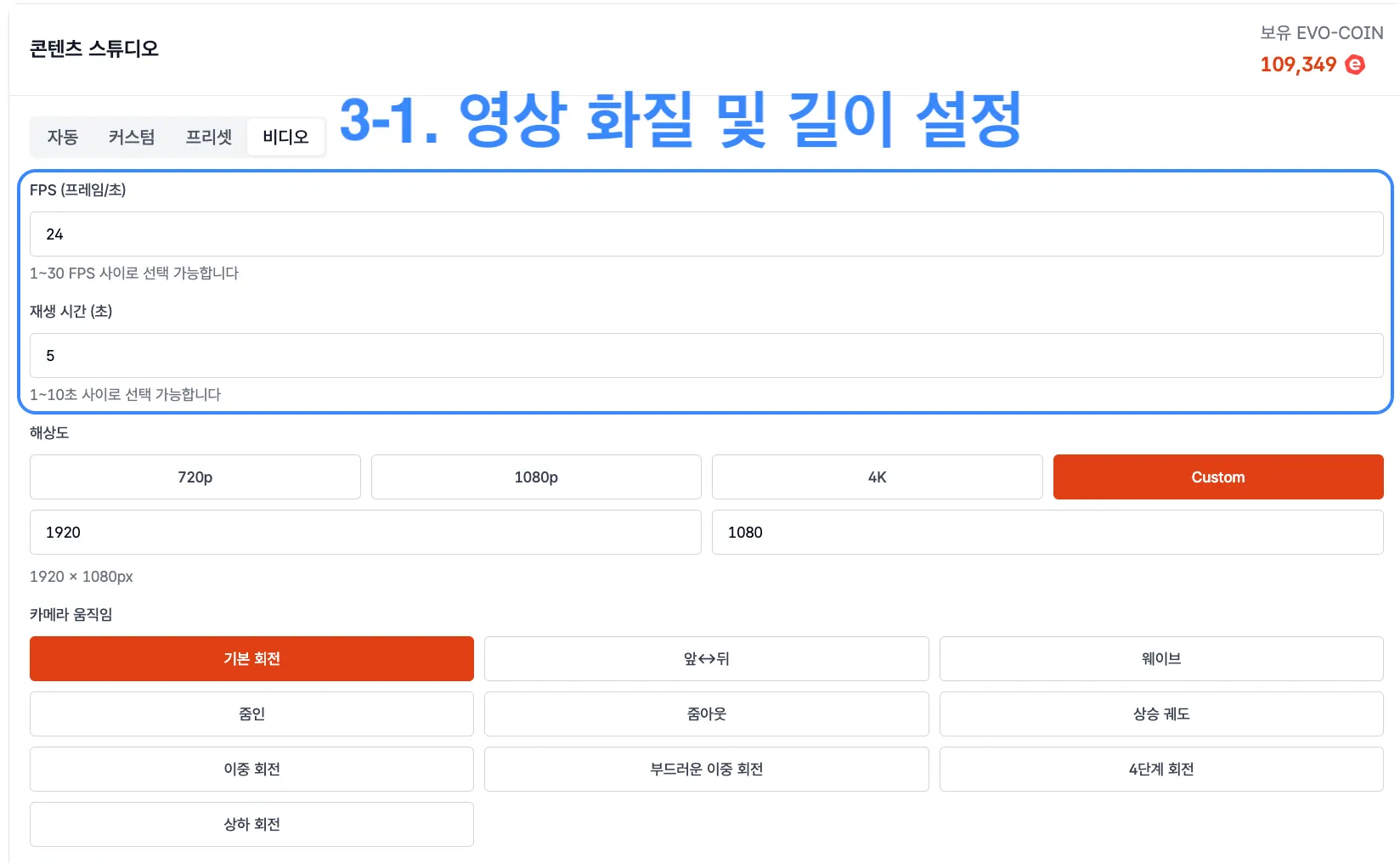
Image 8. Video quality and length settings
3-2. Set Video Resolution and Format
- You can choose from predefined resolutions such as 720p, 1080p, and 4K.
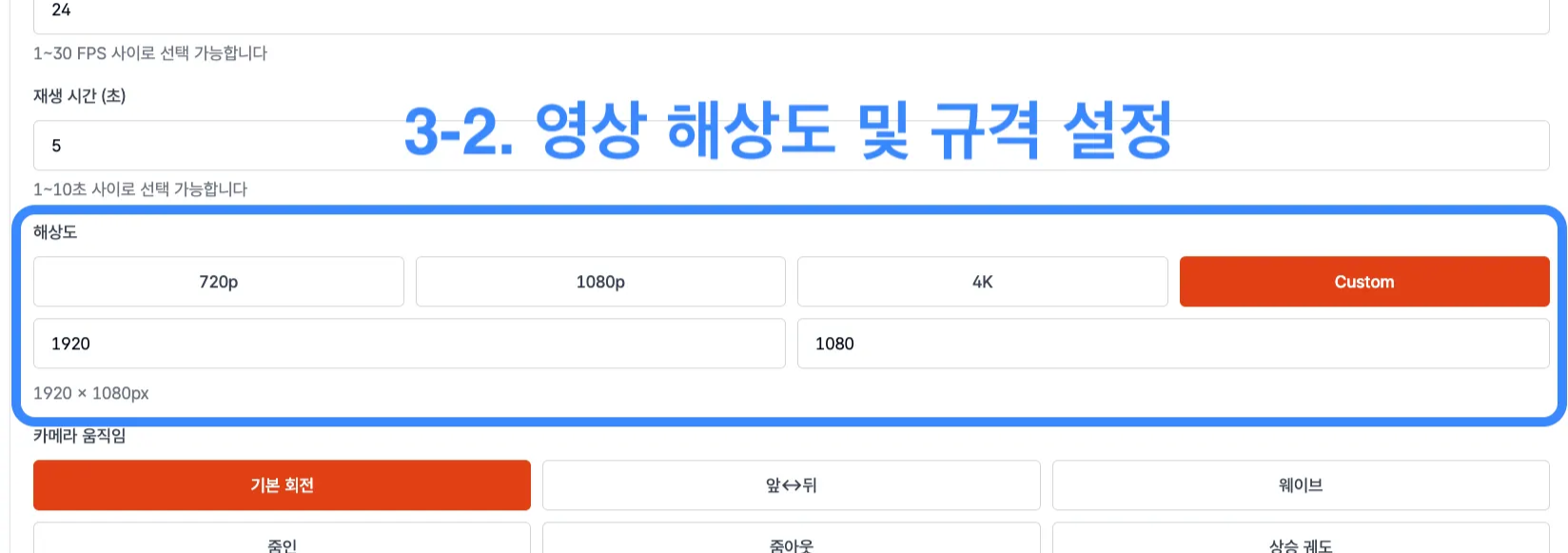
Image 9. Video resolution and format settings
-
By clicking the
[Custom]button, you can specify a video format that matches your use case.Type Size Use case Vertical 1080x1920 Short-form content, Instagram Stories, Reels, TikTok Horizontal 1920x1080 YouTube, websites, banner videos 4:5 1080x1350 Instagram feed, Facebook posts Square 1080x1080 Profile images
4. Choose Camera Movement
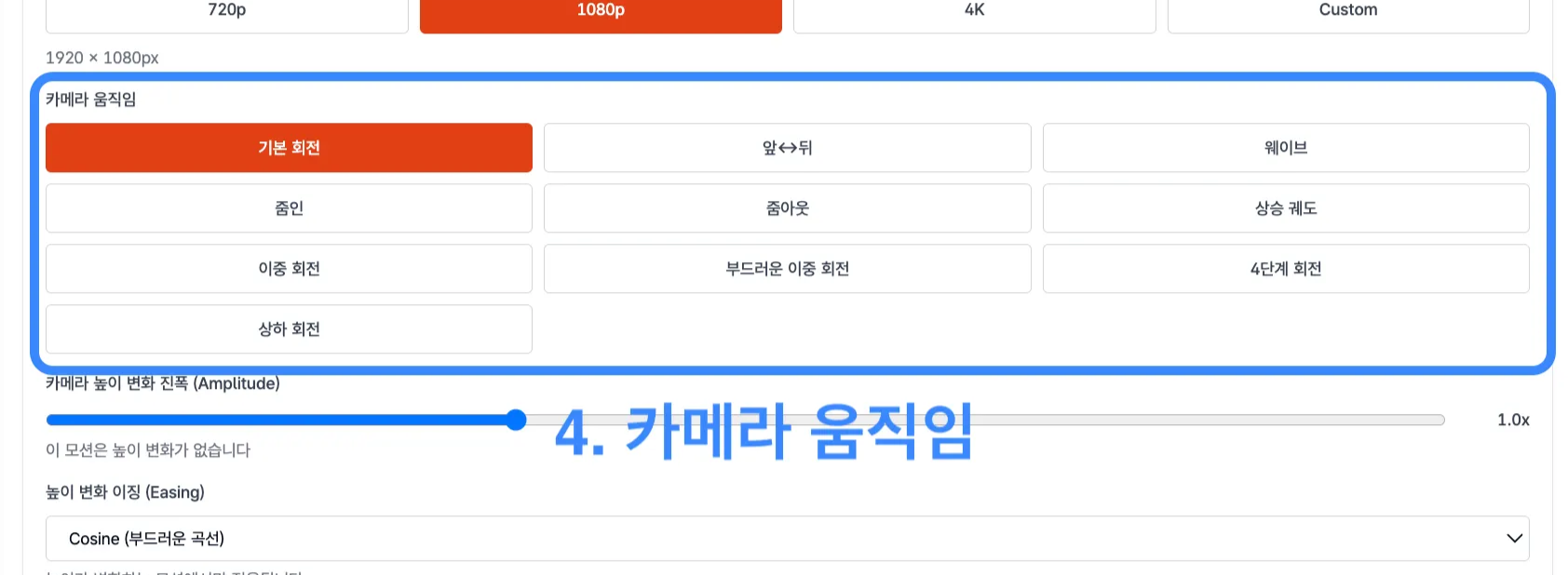
- A variety of camera movement presets are provided.
- Basic Rotation
- Rotates 360° around the product / Stable and emphasizes the entire product / Most common pattern
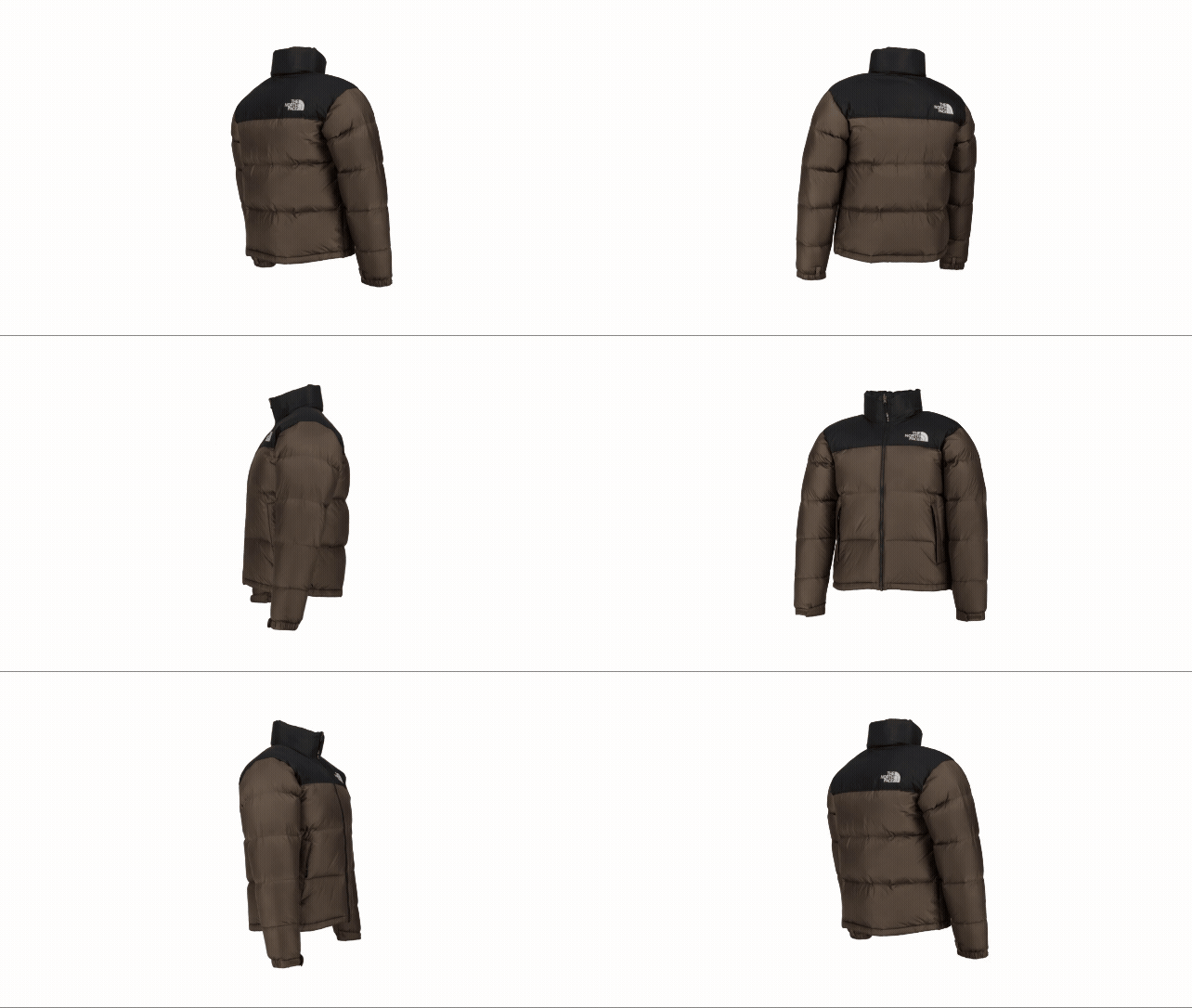
- Rotates 360° around the product / Stable and emphasizes the entire product / Most common pattern
- Wave
- Curved movement / Smooth and organic / Recommended for fashion and beauty products
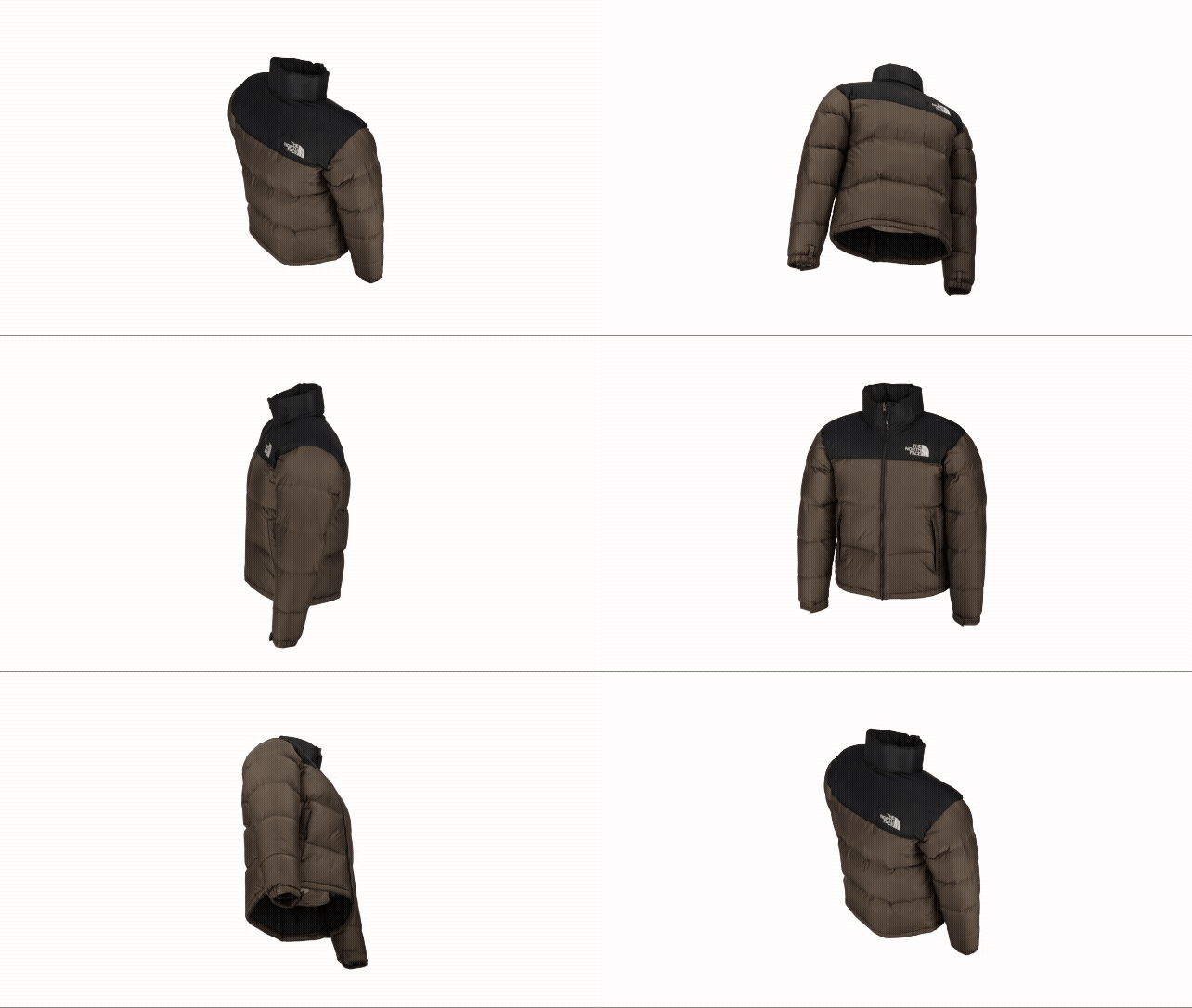
- Curved movement / Smooth and organic / Recommended for fashion and beauty products
- Zoom In
- Emphasizes product details / Great for opening shots
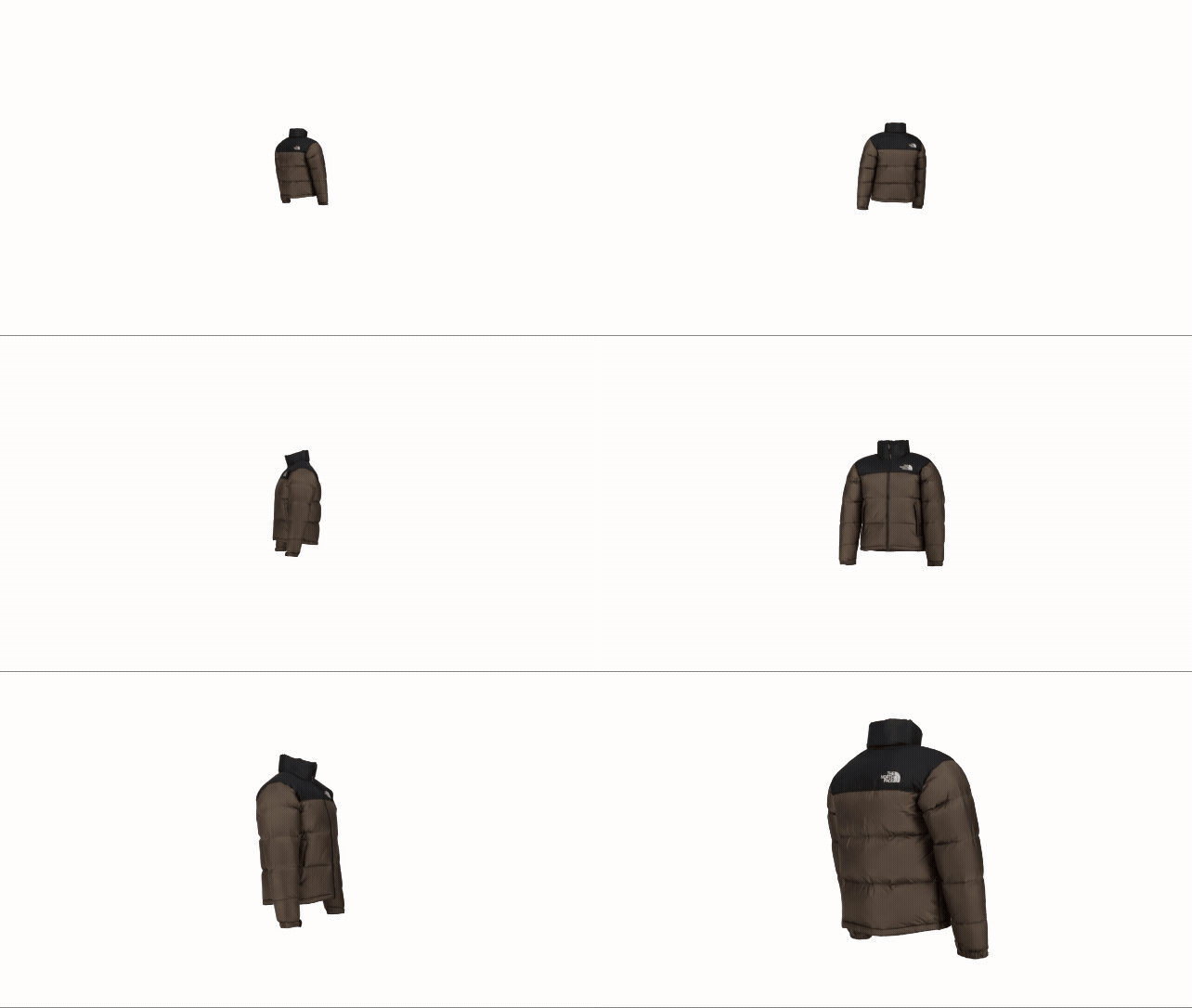
- Emphasizes product details / Great for opening shots
- Zoom Out
- Highlights both the product and its environment / Recommended for outro scenes
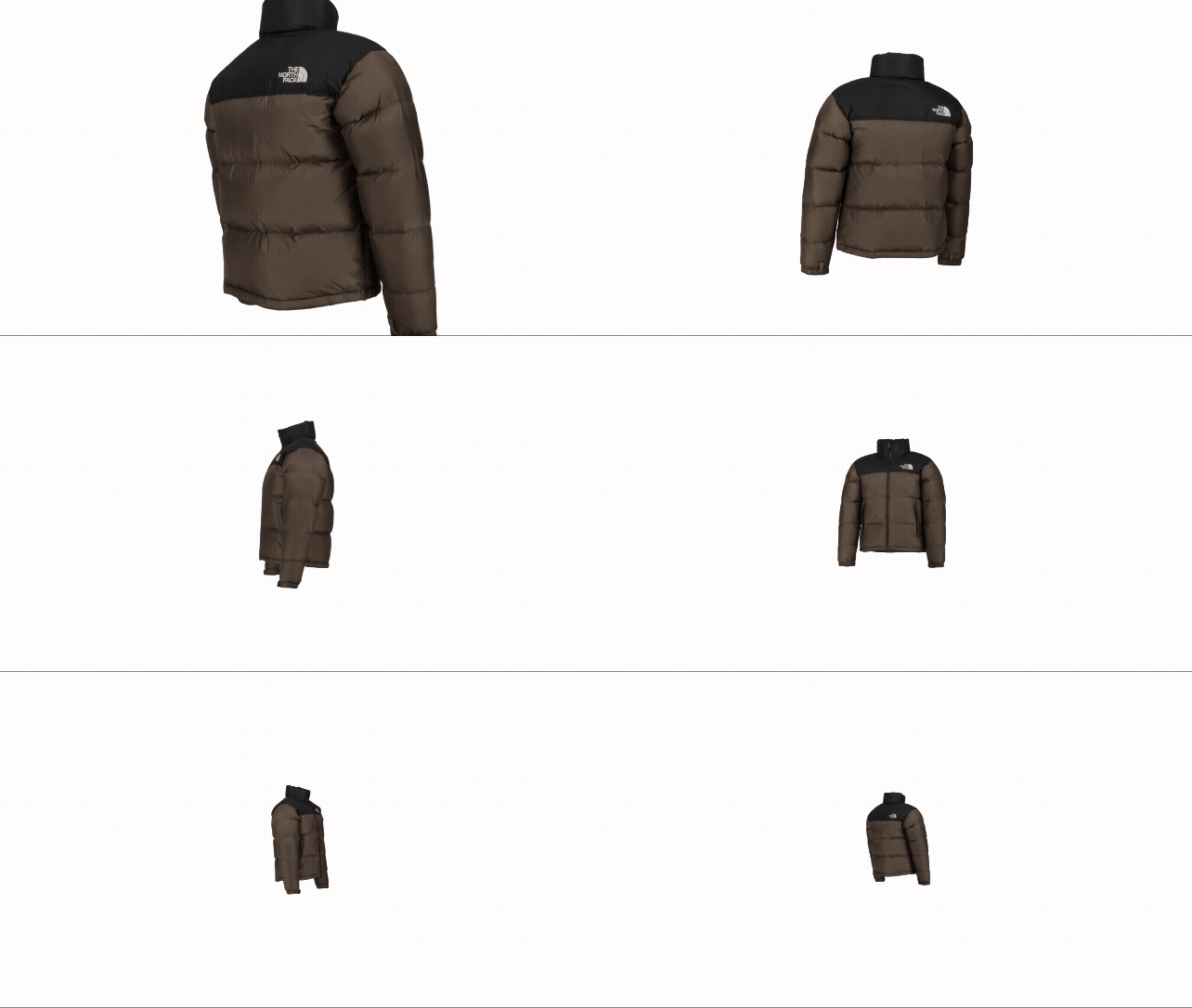
- Highlights both the product and its environment / Recommended for outro scenes
- Double Rotation
- Sequentially shows the product from top/bottom and left/right for a fully three-dimensional view / Emphasizes depth and structure
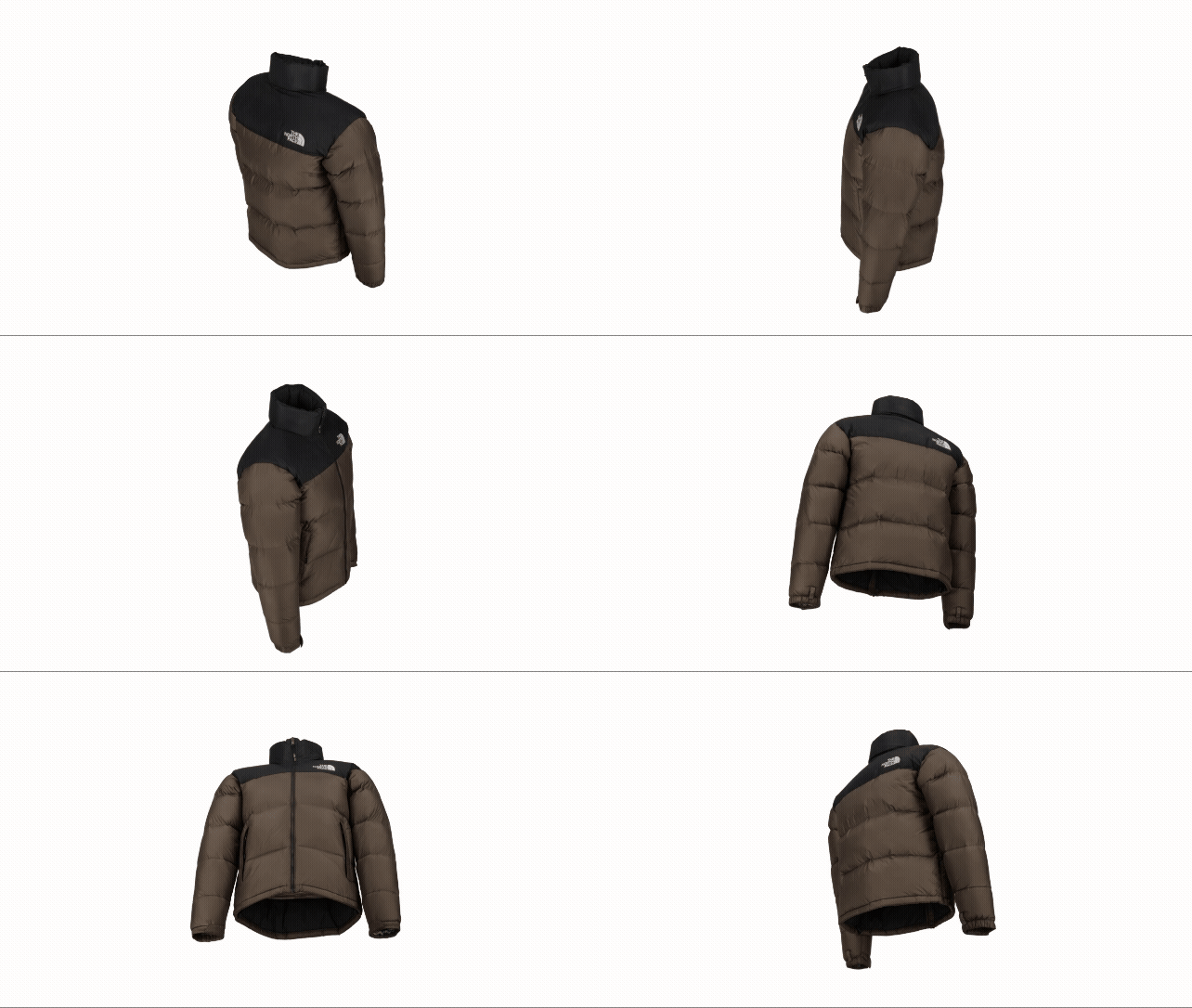
- Sequentially shows the product from top/bottom and left/right for a fully three-dimensional view / Emphasizes depth and structure
- Soft Double Rotation
- A smoother variation of Double Rotation with more natural transitions / Recommended for emotional and detailed presentations
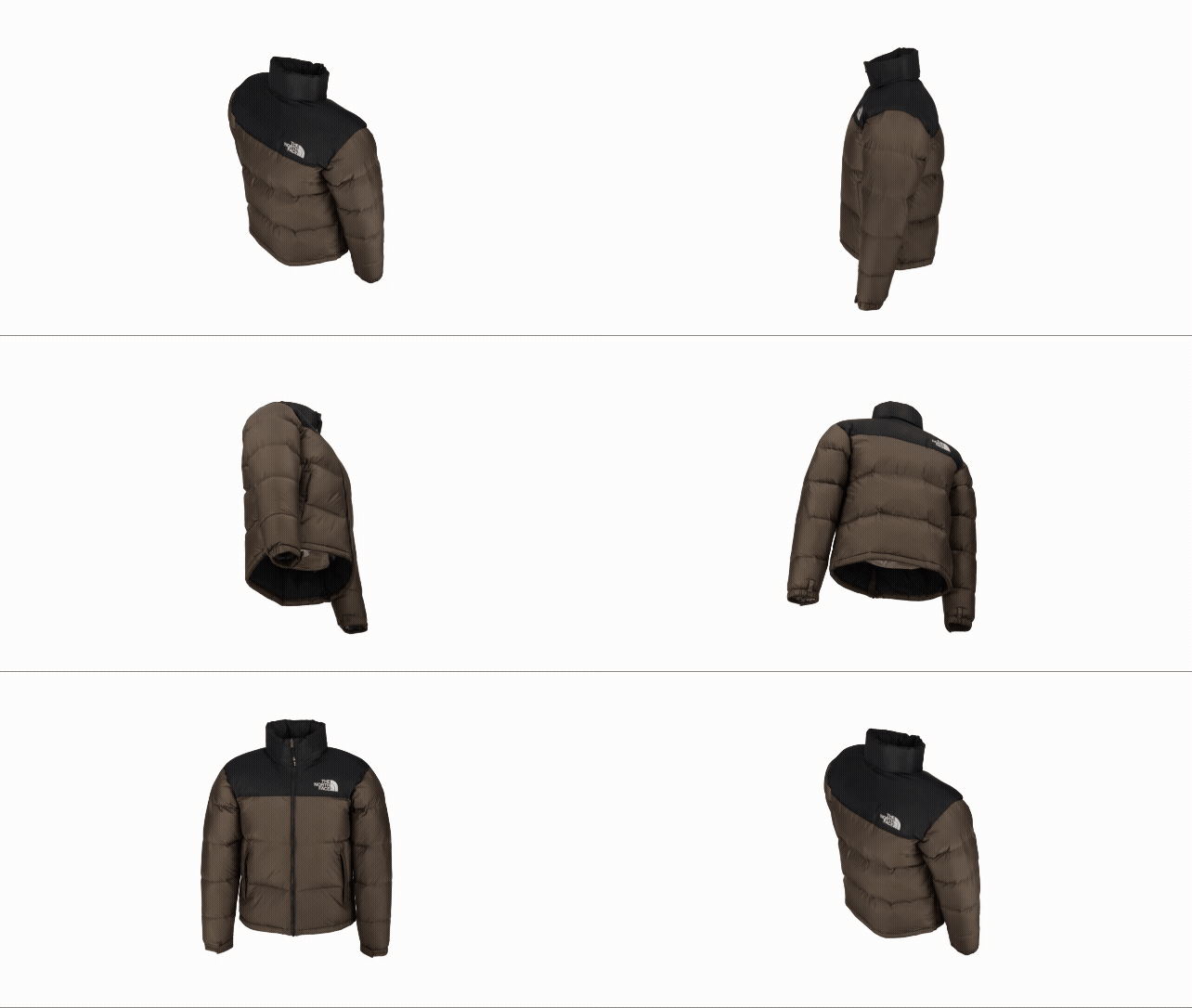
- A smoother variation of Double Rotation with more natural transitions / Recommended for emotional and detailed presentations
- 4-Step Rotation
- Quickly transitions from front → side → back → opposite side / Recommended when you want to clearly convey the overall structure
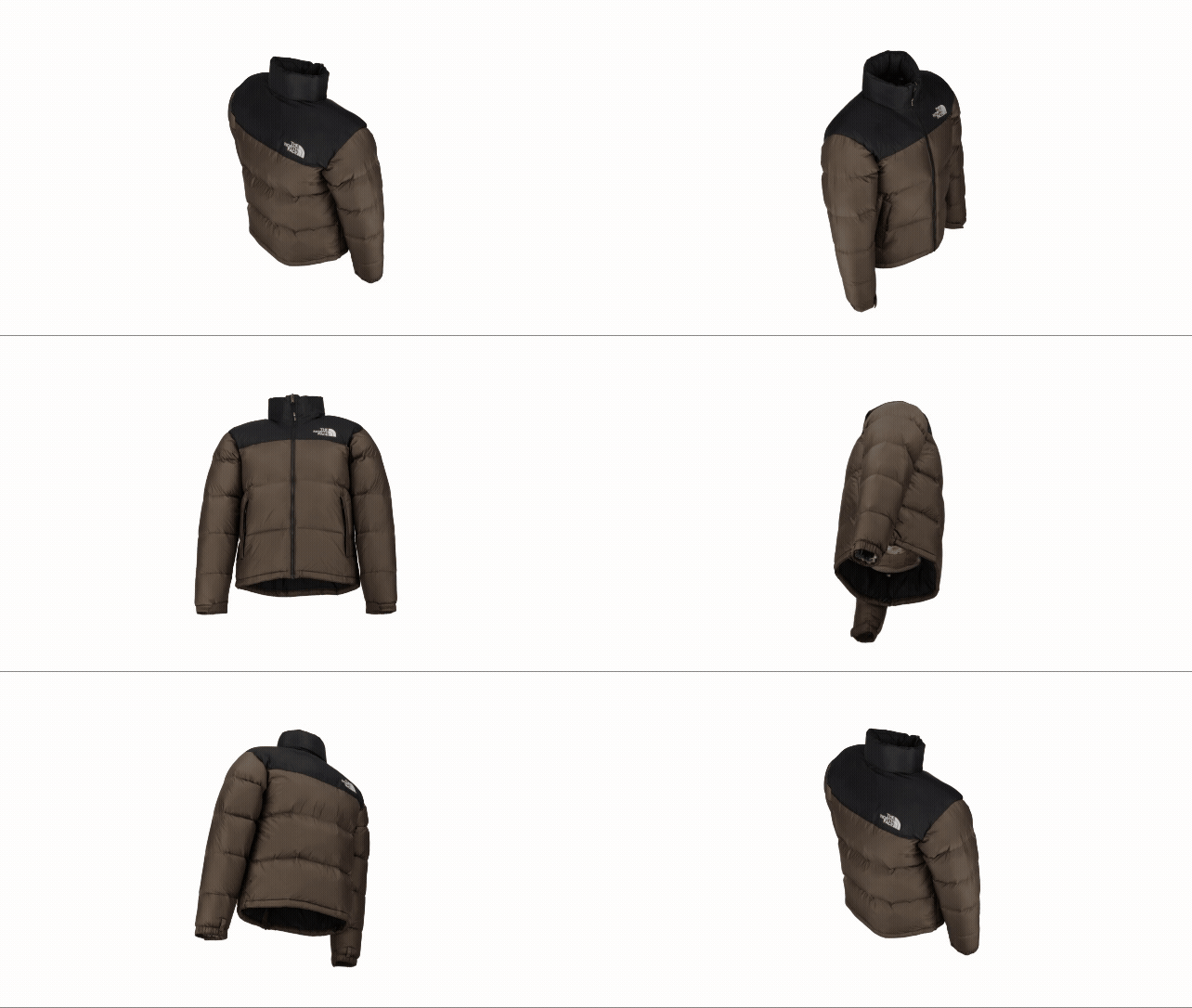
- Quickly transitions from front → side → back → opposite side / Recommended when you want to clearly convey the overall structure
- Up-Down Rotation
- Emphasizes the top and bottom of the product / Recommended for items like shoes where both upper and lower parts are important
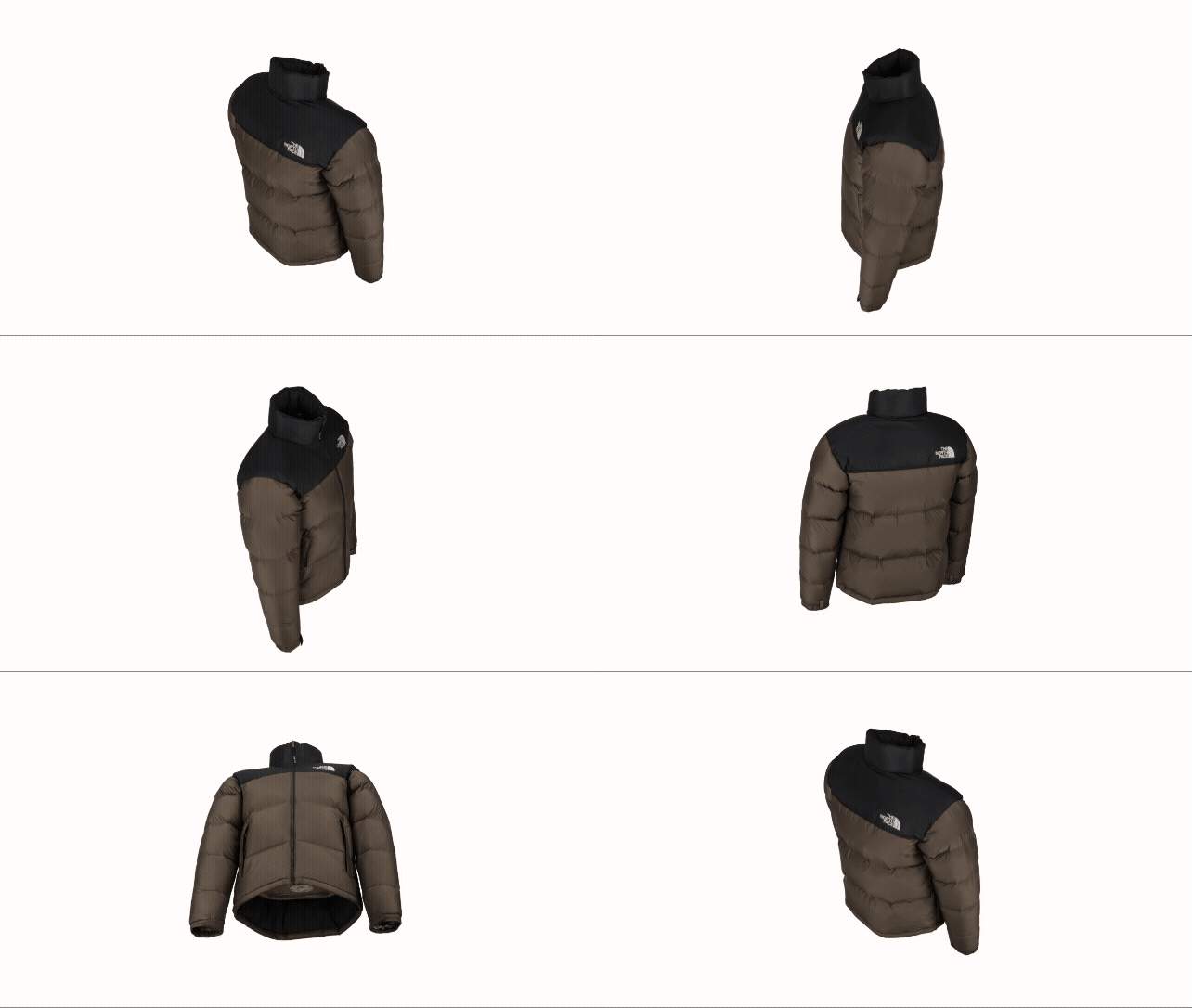
- Emphasizes the top and bottom of the product / Recommended for items like shoes where both upper and lower parts are important
5. Camera Amplitude, Easing, and Background
- These settings allow more fine-grained control over camera movement.
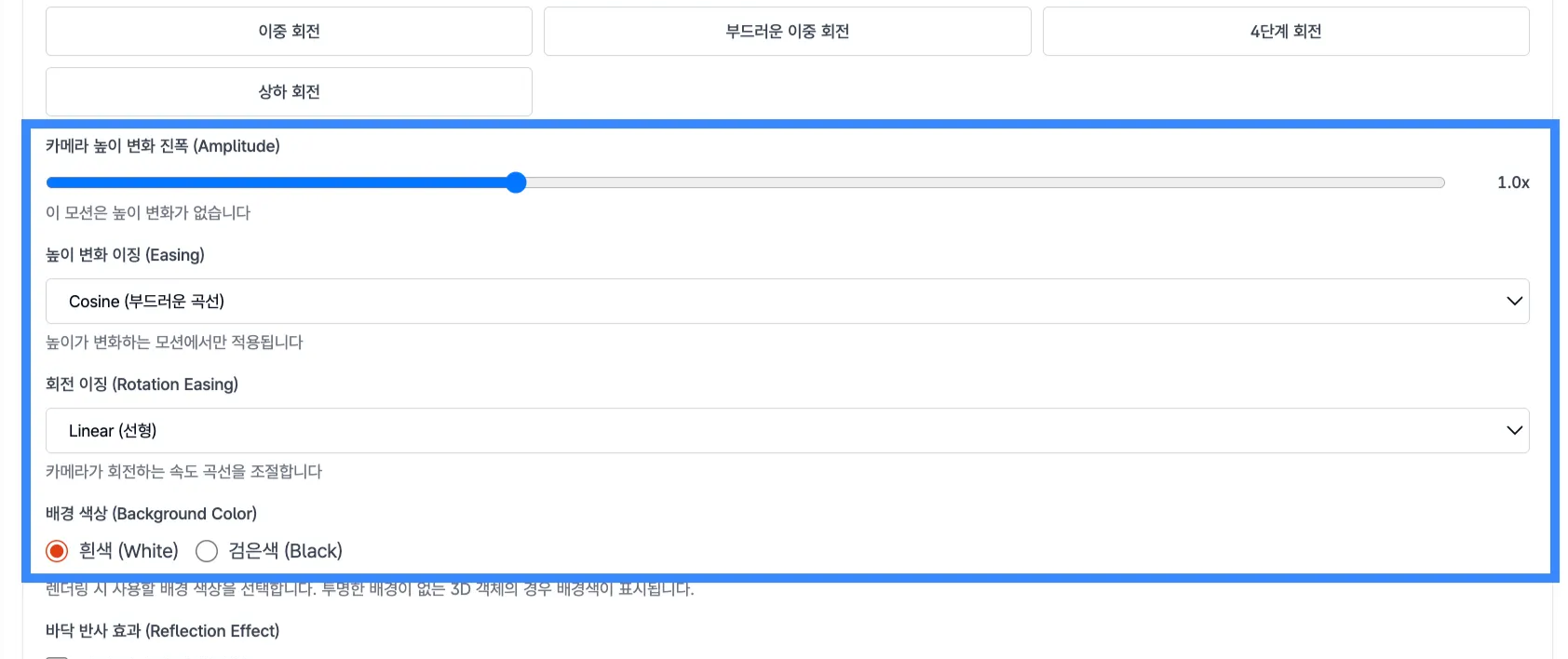
- Camera height change amplitude (Amplitude)
- Adjusts the vertical oscillation range of the camera as it moves up and down.
- Higher values produce a wider height variation, resulting in more dynamic camera motion.
- Applicable camera movements: Any movement where the camera view extends up/down (
all except Basic Rotation)
- Height change easing (Height Easing)
- Controls how the camera’s height changes over time using easing curves.
- You can create smoother motions like starting slow → speeding up in the middle → slowing down at the end.
Option Description Linear Moves at a constant speed (default) Ease In Quad Gradually accelerates upward Ease Out Quad Starts fast then gradually slows down Ease In-Out Quad Smooth combination of acceleration → deceleration Ease In Cubic Stronger acceleration Ease Out Cubic Starts fast and then rapidly stops Ease In-Out Cubic Strong acceleration followed by deceleration Cosine Gentle, wave-like motion - Applicable camera movements: Any movement where the camera view moves up or down (all except Basic Rotation, Zoom In, Zoom Out)
- Rotation easing (Rotation Easing)
- Applies acceleration/deceleration curves to the camera’s rotational speed for more natural motion.
- When easing is applied, the start and end of the rotation become smoother.
- Applicable camera movements:
AllOption Description Linear Rotates at a constant speed Ease In Quad Rotation gradually speeds up Ease Out Quad Starts rotating quickly, then slows down Ease In-Out Quad Speeds up then slows down Ease In Cubic Stronger acceleration at the start Ease Out Cubic Fast rotation followed by a quick stop Ease In-Out Cubic More dramatic acceleration → deceleration Cosine Very smooth and organic speed curve
6. Generate and Review Video
- Generation
- After configuring all settings, click
[Generate]. - 50 EVO coins are deducted per generation.
- Generation time: About 1–2 minutes (may vary depending on settings)
- After configuring all settings, click
- Check generation status
- You can check the status in the gallery at the top right (Pending → Processing → Completed).
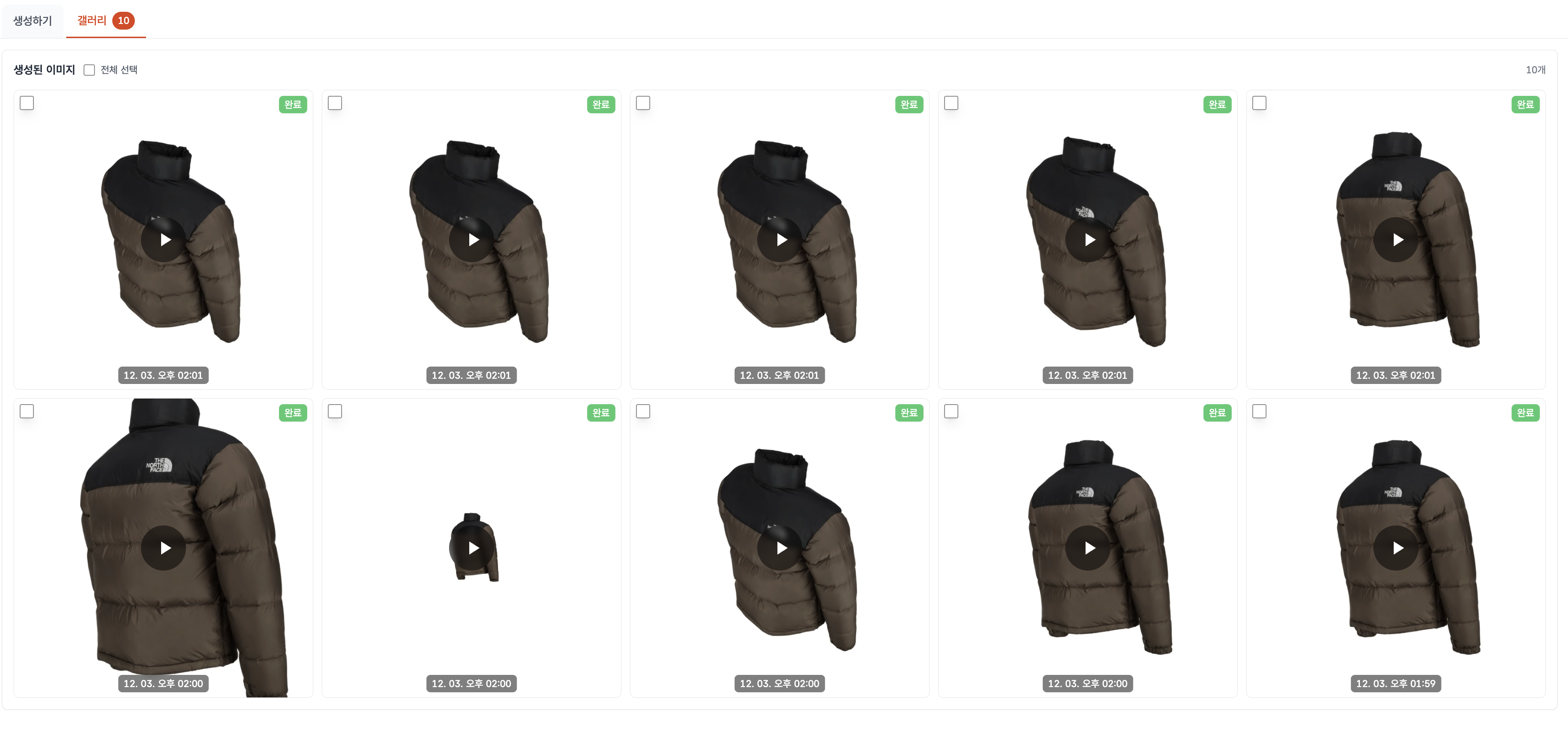
- Click the thumbnail to open a modal and preview the video.
- Make sure the camera movement and lighting match your intent.
- You can check the status in the gallery at the top right (Pending → Processing → Completed).
- Download and regenerate
- You can download satisfactory results (high-resolution provided).
- You can modify settings and regenerate the video.
Frequently Asked Questions
Q1. How long does video generation take?
A: It usually takes about 1–2 minutes. The exact time depends on FPS and video length.
Q2. Can I generate multiple videos at the same time?
A: Yes. You can submit multiple requests, and they will be processed sequentially.
Q3. Can I customize camera movements?
A: Currently, only presets are supported. Custom camera paths will be added in a future update.
Q4. Can I add music or sound effects?
A: Currently, only video is generated. Please use an external editing tool to add audio.
Q5. How large are the video files?
A: On average, files are between 5–20MB. The exact size varies based on FPS and video length.
Closing
Adding a new dimension to e-commerce
EVOVA is always here to help make your brand experiences more stable, immersive, and special.
If you have any questions, feel free to contact our operations team anytime.
Contact email: info@metown.co.kr
Contact phone: +82-2-6380-0315